
Help
Routines
A routine is something QuickSilver does on its own, on a schedule, and sends you. Here's how to make one, change it, and fix it.
In short
Ask for one in any chat with a time in it (“Every weekday at 8, …”), or go to Work › Routines › + New, pick a ready-made routine, fill in the blanks, choose where the result goes, and press Create routine. Each routine then has an on/off switch and a ⋯ menu with Run now, Change in a chat… and Delete. Routines run while Kaairos is open, and also after you quit if Keep working when closed is on.
Before you start
Make one in words
In any chat, describe the job and when. QuickSilver turns it into a scheduled job and tells you when it will run. Examples:
- “Every weekday at 8 AM, give me the weather and the top three stories about electric cars.”
- “Every 3 hours, check this page and tell me when the price drops below $250: [link]”
- “On the 1st of each month, remind me to pay the rent until I say it's done.”
- “Every Friday at 4 PM, sum up what we did this week.”
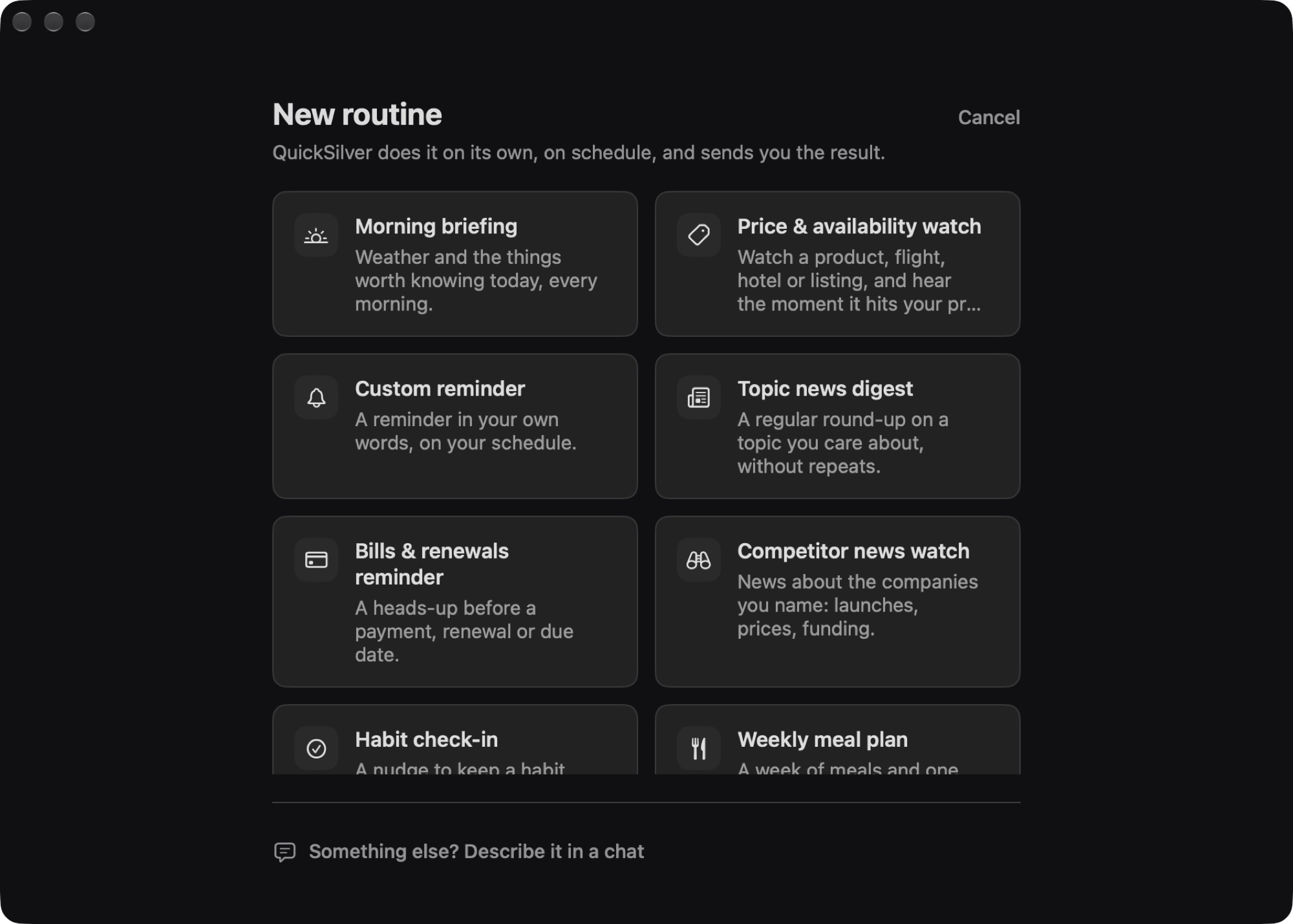
If you ask from Telegram or WhatsApp, results come back there. In the New routine sheet, Something else? Describe it in a chat starts a chat with “Every weekday at 8 AM, ” filled in for you.
Make one from the gallery
- Open the Work tab. Under Routines, press + New.
- Pick a routine. The gallery has Morning briefing, Price and availability watch, Custom reminder, Topic news digest, Bills and renewals, Competitor news watch, Habit check-in, Weekly meal plan, Weekly review, Daily learning drip, Hydration and movement nudge, Gratitude and reflection prompt, and On-this-day discovery.
- Fill in its fields. Times and choices start at sensible defaults; text fields show an example as a hint.
- Under Send the result to, choose Kaairos, or Telegram or WhatsApp if they're linked. When a phone app is linked, it's chosen for you.
- Press Create routine. It appears under Routines with its schedule and when it runs next.
If a value isn't valid, the sheet shows the reason above the buttons and nothing is created.
Pause, run, change or delete
| Control | Where | What it does |
|---|---|---|
| On/off switch | Each routine's row in Work › Routines, and in the menu bar panel | Off pauses the routine; on resumes it on its schedule |
| Run now | ⋯ menu on the routine | Runs it straight away, without changing its schedule |
| Change in a chat… | ⋯ menu | Starts a chat with “Change my routine “[name]”: ” so you can say what to change |
| Delete | ⋯ menu | Removes the routine |
You can also just say it in any chat: “pause the briefing”, “make the price watch every 6 hours”, “delete the competitor watch”.
What you'll see when it works
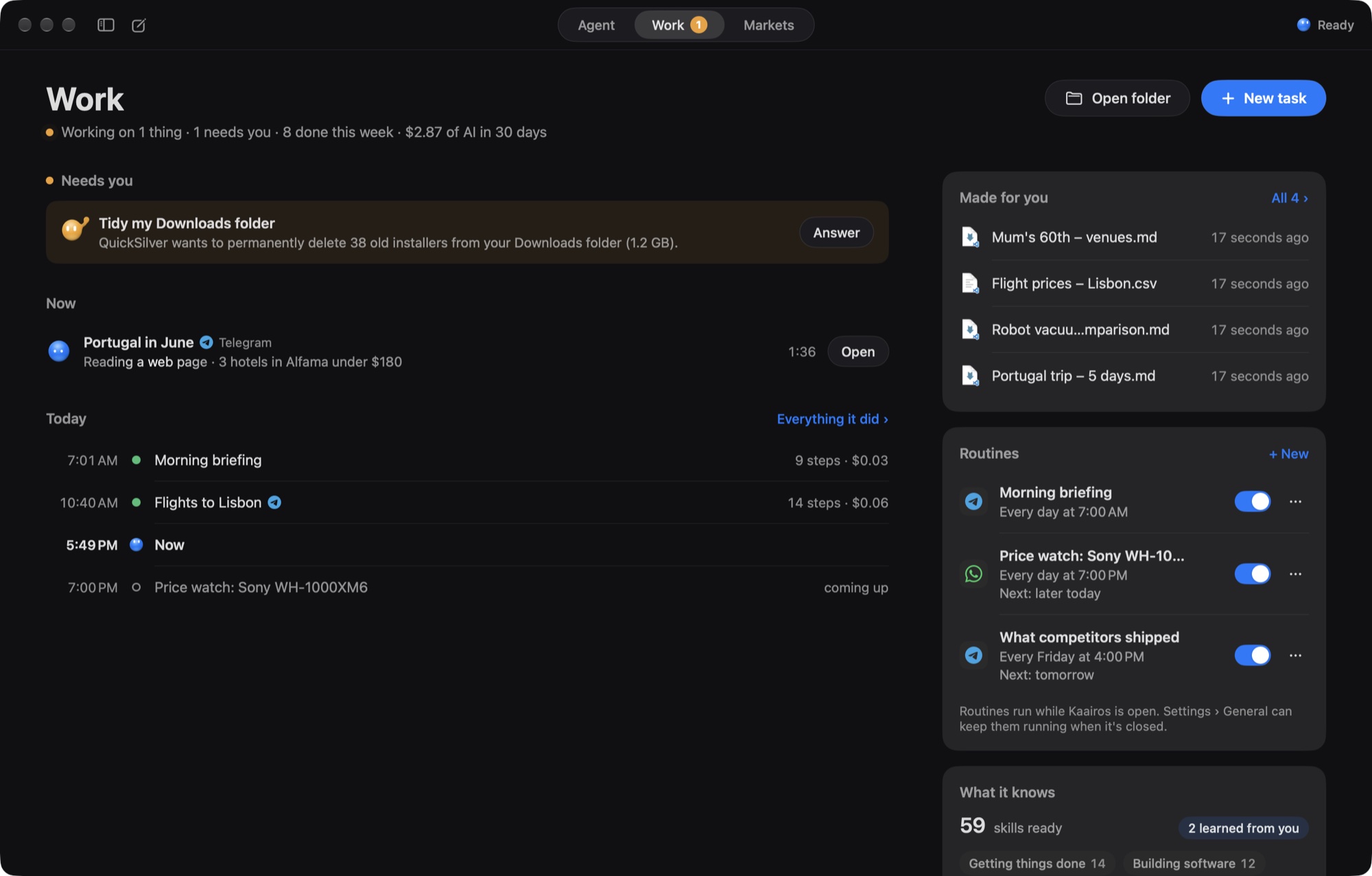
- The row shows its schedule in words, such as “Every day at 7:00 AM” or “Every 2 hours”, and when it runs next (“Next: later today”, “Next: Friday”).
- Its icon shows where results go; hover it for “Sends results to Telegram”, “Sends results to WhatsApp” or “Results appear in Kaairos”.
- Upcoming runs appear on Today in the Work tab, marked “coming up”. Finished runs move above Now, with their steps and cost.
- Results arrive in Kaairos, or in your Telegram or WhatsApp chat.
Which AI runs routines
Routines run on the AI set for the Routines job in Settings › AI › Who does what. Automatically, that's the private AI on your Mac when you have one, so routines cost nothing and what they read stays on your Mac. Without a private AI, they run on the fast online model. You can pick any model for routines yourself.
When Kaairos is closed
Routines run while Kaairos is open. Under the list, the Work tab reminds you: “Routines run while Kaairos is open. Settings › General can keep them running when it's closed.” Turn on Keep working when Kaairos is closed in Settings › General (or the switch in the menu bar panel) to run them after you quit. See Keep working when closed.
When one doesn't finish
A run that ends in an error, couldn't deliver its result, or was blocked by a setting shows in two places:
- Its row says Last run had a problem, with the reason when there is one.
- Work › Needs you shows “[name]” didn't finish, with the reason (or “The last scheduled run had a problem.”) and a Run again button.
Common reasons and fixes:
- The Mac was asleep or off at the time. The run is missed. Keep the Mac awake for routines (see System requirements).
- Kaairos was closed and Keep working when closed was off. Turn it on.
- No internet, or a site blocked the check. Press Run again once you're online, or ask QuickSilver to check another source.
- Couldn't deliver to Telegram or WhatsApp. Check Settings › Phone & messages; a problem there shows a Fix button.
- The online AI ran out of credit, for routines on an online model. Top up, or move Routines to the private AI.
What leaves your Mac
A routine on the private AI is processed on your Mac. Whatever it reads on the web is fetched from the web, and results sent to Telegram or WhatsApp go through those services. A routine assigned to an online AI sends its instructions and what it reads to that company.
Fair questions
How often can a routine run?
As often as every few minutes, or as rarely as once a month. For watches, every hour or every few hours is usually plenty.
Does a missed run happen later?
Don't count on it. If the Mac was asleep, press Run now when you're back, or keep the Mac awake for routines that matter.
Can a routine send me an email?
No. Results go to Kaairos, Telegram or WhatsApp.
Why does my morning briefing not mention my calendar?
Kaairos doesn't connect Google Calendar or Gmail. The briefing covers the weather and the news and topics you name.
Can I see past results?
Yes. Finished runs appear in the Work tab's Today list and under Everything it did; click one to open it.
Download and go
Your AI agent, already set up.
One button to set up. Its own private AI, free. Claude, ChatGPT or Gemini when you want more.
A Mac with Apple silicon (M1 or later), macOS 15 Sequoia or later. 14-day refund.