
Use case · Files
A tidy Downloads folder, without the afternoon
Downloads fills up with installers, PDFs, screenshots and three copies of the same invoice. QuickSilver looks through it on your Mac, proposes a plan, files things where they belong and asks before it deletes anything.
What you get
A Downloads folder sorted into a handful of folders you agreed to, duplicates and leftover installers listed for you to decide on, and a short note of what moved where. Files are read and moved on your Mac; with the private AI, nothing about them is sent to an AI company.
Tidy my Downloads folder. Show me the plan before you move anything, and don't delete without asking.
There are 412 items (6.8 GB). My plan: • Invoices and receipts (61 PDFs) → Documents/Receipts/2026 • Statements from your bank (14) → Documents/Finance • Screenshots (88) → Pictures/Screenshots • Photos and videos (40) → Pictures/From Downloads • 38 app installers (.dmg, .pkg) for apps that are already in Applications: I'd delete these (1.2 GB) • 23 exact duplicates: I'd keep the newest copy of each • Everything else (148) stays where it is. Shall I go ahead with the moves?
Yes, do the moves. Show me the installers first.
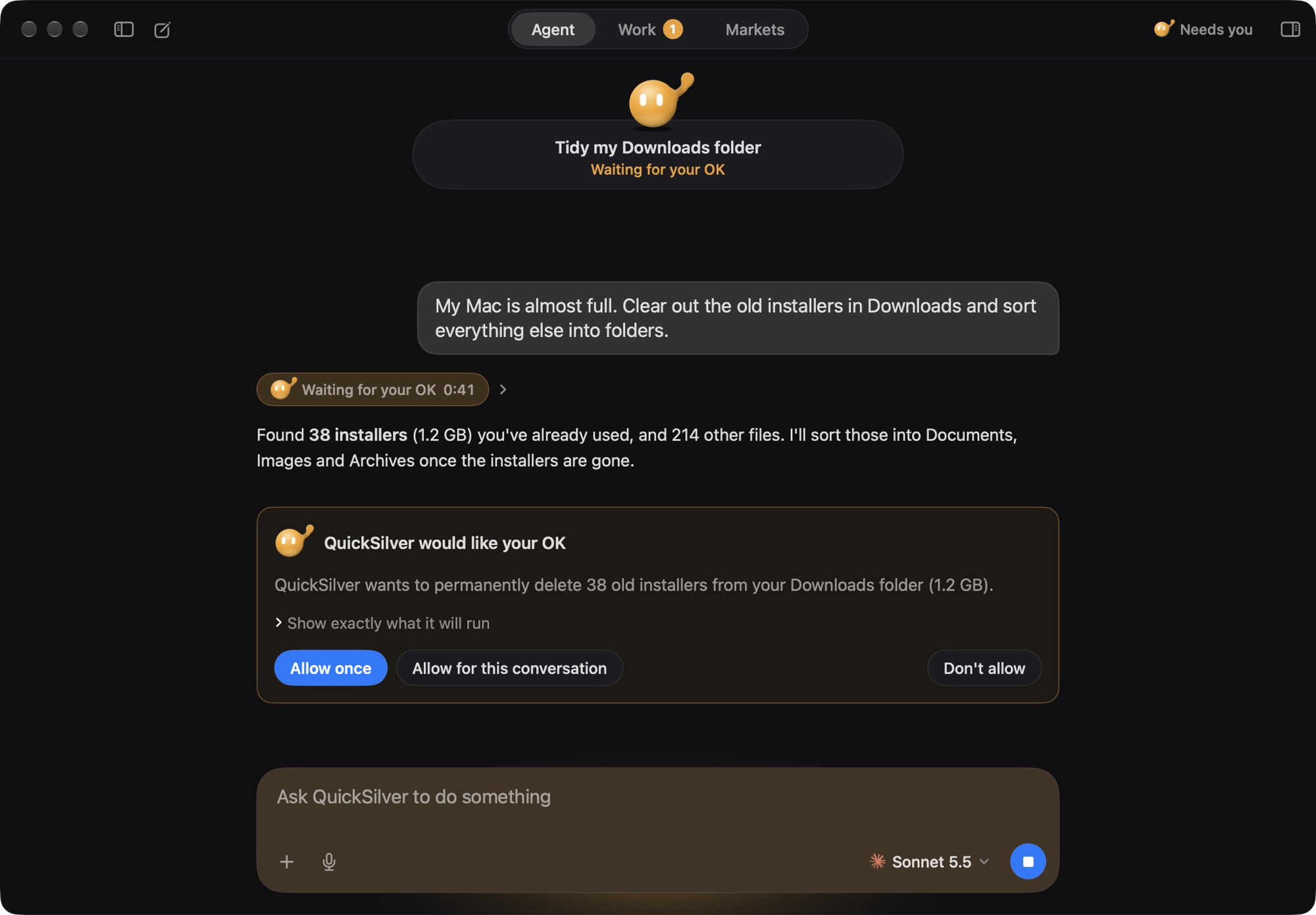
Moved 203 files into 4 folders. Here are the 38 installers, oldest first. Deleting them needs your OK.
Who it's for
- Anyone whose Downloads folder has become the place files go to be forgotten.
- Freelancers and small-business owners with invoices, contracts and statements scattered between Downloads and the Desktop.
- People running short of disk space who want to know what's safe to remove before removing it.
- Anyone who has tried a rule-based folder app and found that rules can't tell an invoice from a contract.
Set it up
- Open Kaairos and start a new chat (or message QuickSilver from Telegram or WhatsApp).
- Type the request below. Ask for a plan first; that's the step that makes this safe.
- The first time QuickSilver opens Downloads, macOS may ask whether Kaairos can access files in your Downloads folder. Choose Allow if you want it to work there.
- Read the plan. Change it in plain words (“put bank statements under Finance/Bank”) until it's right, then say go.
- When it wants to delete, an approval appears in the chat, in Work › Needs you, in the menu bar and at the notch. Choose Allow once, Allow for this conversation or Don't allow. Show exactly what it will run reveals the precise command.
Exactly what to type
“Tidy my Downloads folder. Look at what's there, then show me a plan: which folders you'd create, what goes in each, and what you think can be deleted. Don't move or delete anything until I say so.”
QuickSilver works from what the files are, not only their names: it can open PDFs and documents to tell a receipt from a contract, and look at images if the AI it's using can see them.
Keep it tidy every week
Once the big clean-up is done, a weekly routine stops it piling up again. Type:
“Every Friday at 5 PM, look at what's new in my Downloads folder this week and send me a short list: what it is, where you'd file it, and anything that looks like a duplicate or an installer I no longer need.”
Routines run without you there to approve things, so by default the engine refuses commands it flags as risky, such as deleting, during a routine. That's deliberate: let the weekly routine report, then say “do it” in a chat when you've read the list.
Kaairos works on your Mac, so routines run while your Mac is on and awake. Turn on Keep working when closed and they carry on after you close the window.
How it decides what a file is
Names like IMG_4821.jpg or document (3).pdf say little. QuickSilver looks further: the file's kind, its dates, and for documents the first page or two, which is usually enough to tell an invoice from a bank statement or a lease. For installers it checks whether the same app is already in your Applications folder. When it isn't sure, it puts the file in an “unsure” group in the plan and asks, rather than guessing.
Variations
- The Desktop too: “Do the same for my Desktop, but leave anything I changed in the last 7 days.”
- Receipts for tax time: “Find every receipt and invoice in Downloads and Documents from this tax year, put copies in one folder, and make a spreadsheet with date, supplier and amount.”
- Free up space: “List the 20 largest files in my home folder, what each one is, and whether it looks safe to remove. Don't delete anything.”
- Rename consistently: “Rename the PDFs in Documents/Receipts to the pattern date – supplier – amount.”
- Screenshots by month: “Move my screenshots into folders by month.”
- From your phone: send “tidy my Downloads, plan first” on Telegram and approve the plan there when it arrives.
What stays on your Mac
| Step | Where it happens | What leaves your Mac |
|---|---|---|
| Listing and opening files | On your Mac, with Kaairos's file tools | Nothing |
| Deciding what each file is | The AI doing the task | Nothing with the private AI; file names and the parts it reads go to an online AI if that's what the chat uses |
| Moving, renaming, deleting | On your Mac | Nothing |
| Snapshots for undo | On your Mac, by the engine's checkpoints | Nothing |
| Asking from your phone | Telegram or WhatsApp to your Mac | Your messages and the plan, through that service |
Want this kept entirely private when you also have an online AI connected? Pick Private AI in the chat's model picker before you start.
What it costs
On the private AI: nothing beyond Kaairos itself. On an online AI, you pay that company for the tokens used, and a big folder means more reading: each file it opens adds to the cost. The Work tab shows the cost of each task. A sensible split is to let the private AI do the bulk sorting and keep the online model for chats where you want sharper judgement.
Limits
- It reads what's in the files it opens; for very large folders it may sample by type and name, and it says when it has.
- It won't touch folders macOS protects (Mail, Messages and similar) unless you've given Kaairos Full Disk Access, and it doesn't need them for this.
- Deleted files go where the command sends them. Ask it to move files to the Trash rather than delete them outright if you want a second chance.
- Cloud folders (iCloud Drive, Dropbox) work if the files are downloaded to your Mac; placeholders for files that are only online can't be read.
Troubleshooting
- “I can't access your Downloads folder.” Open System Settings › Privacy & Security › Files and Folders and allow Kaairos to access Downloads, then ask again.
- It moved something you wanted where it was. Ask in the same chat: “put back what you moved from Downloads”. Kaairos switches on the engine's checkpoints, which snapshot files before changes; the engine's
/rollbackcommand lists and restores them. - The plan is too fine-grained. Say “no more than five folders” or “group by year only”.
- It keeps asking for every delete. That's the default safety level. Choose Allow for this conversation once you're happy with the list, or change the level in Settings › General.
Fair questions
Will it delete my files without asking?
Not under the default setting, “Ask before anything risky”: deleting needs your OK every time, and in routines the engine refuses it by default.
Can I undo what it did?
Yes. Before QuickSilver changes a file, the engine keeps a snapshot. Ask it to put things back, or use the engine's /rollback command.
Does it upload my files anywhere?
Not with the private AI: files are read and moved on your Mac. With an online AI, the parts it reads are sent to that company to decide what they are.
How is this different from a folder-rules app?
Rules sort by name or type. QuickSilver can open a file and tell what it is, propose a structure, and explain its choices, and it asks before risky steps.
Can it do this every week automatically?
It can report every week on a schedule. Deleting stays in a chat with you, because routines can't ask for approval.
Does it work on external drives?
Yes, if the drive is connected and Kaairos may access it. macOS may ask for permission the first time.
Download and go
Your AI agent, already set up.
One button to set up. Its own private AI, free. Claude, ChatGPT or Gemini when you want more.
A Mac with Apple silicon (M1 or later), macOS 15 Sequoia or later. 14-day refund.