
Built on Hermes Agent
Hermes Agent on a Mac
Hermes Agent by Nous Research is an open-source AI agent with tools, memory, skills, schedules and messaging. You can install it yourself from the terminal, or use Kaairos, a Mac app that has it built in and sets it up with one button.
The short answer
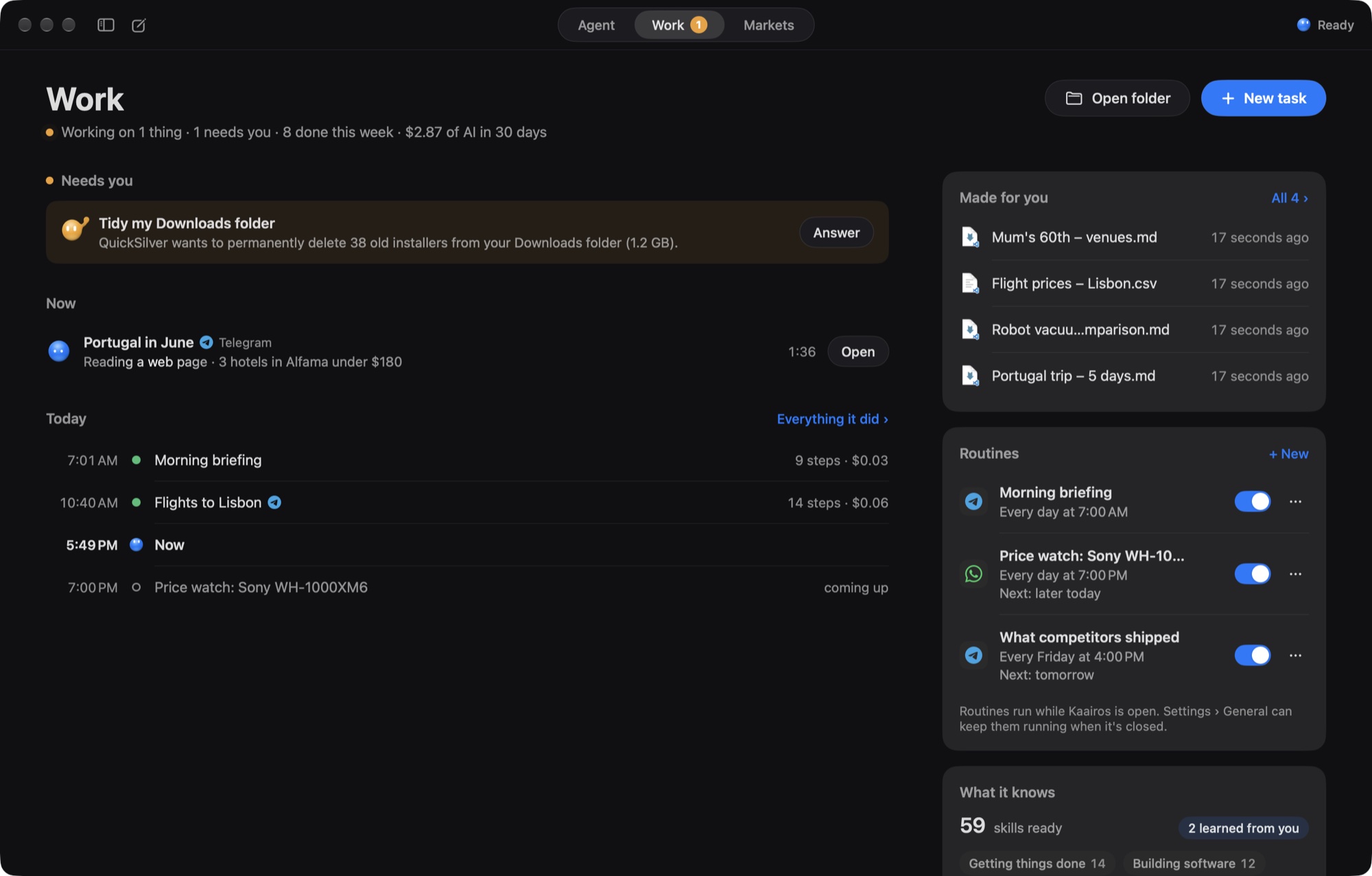
Hermes Agent runs on a Mac in two ways. You can install it yourself with Nous Research's one-line script (curl -fsSL https://hermes-agent.nousresearch.com/install.sh | bash), then choose a model provider and API key with hermes model; macOS on Apple silicon is one of its best-supported platforms. Or you can use Kaairos, a Mac app that has Hermes Agent 0.23.1 built in: no terminal, no config file and no API key, because it downloads its own private AI that runs on your Mac. Hermes Agent itself is free and open source (MIT). Kaairos costs $29 once.
What Hermes Agent is
Hermes Agent is an open-source AI agent made by Nous Research, released under the MIT licence. Its tagline is “the agent that grows with you”. Unlike a chat app, it uses tools to get things done and keeps working between conversations:
- Tools: more than 40 built in, grouped in toolsets: web search and extraction, a real browser, terminal and files, code execution, vision, image generation, text to speech, memory, skills, scheduling, delegation to subagents, and more through MCP servers.
- Memory: notes the agent curates itself, plus full-text search over past sessions.
- Skills: written procedures it creates after complex tasks and improves as it uses them, compatible with the agentskills.io standard.
- Scheduling: a built-in scheduler whose results can be delivered to any connected platform.
- Messaging gateway: one gateway for Telegram, Discord, Slack, WhatsApp, Signal, email and many more, locked to people you approve.
- Models: Nous Portal, OpenRouter, OpenAI, Anthropic, your own endpoint and many others, plus a manager that runs local models with llama.cpp.
People usually install it from the command line and configure it in ~/.hermes/config.yaml. Nous also makes Hermes Desktop, an official app for macOS, Windows and Linux that uses the same agent (Kaairos vs Hermes Desktop).
Kaairos is a Mac app made by Stuvio that runs Hermes Agent for you. It isn't affiliated with or endorsed by Nous Research; it credits Hermes in Settings › About Kaairos and on our open-source page.
Two ways to run it on a Mac
| Install Hermes yourself | Use Kaairos | |
|---|---|---|
| Best for | Developers who want every setting and the newest version | People who want the agent working today, without a terminal |
| How | A one-line script in Terminal, then hermes model and hermes setup | Download the app, press Set it up |
| AI | A provider and API key, or a local server you set up | Its own private AI, chosen for your Mac; online AIs optional |
| Interface | Terminal UI, or Hermes Desktop | A native Mac app, menu bar and notch |
| Price | Free (MIT); you pay your model provider | $29 at launch, then $80, once; private AI free; online AIs billed by their company |
| Version | Latest stable, updated with hermes update | Pinned (0.23.1), updated with the app after testing |
Installing Hermes Agent yourself, step by step
These are the steps from Nous Research's installation guide, checked on 16 November 2026. Commands can change between releases, so check the guide before you run them.
Before you start
- A Mac with Apple silicon is a Tier 1 platform. Intel Macs can use the command line, but Nous builds its desktop bundles for Apple silicon only (platform support).
- Git and curl. The installer needs them, along with tar and SHA-256 tools. macOS offers to install Apple's command line tools (which include Git) the first time something needs them.
- You don't need Python, uv or Node.js. The installer brings its own pinned copies.
- Homebrew isn't supported as an install method, and neither is
pip.
Install
- Open Terminal and run:
curl -fsSL https://hermes-agent.nousresearch.com/install.sh | bash - The script clones Hermes into
~/.hermes/hermes-agent/, puts thehermeslauncher in~/.local/bin/, and uses Hermes' own package manager to install pinned Python 3.14, Node.js, npm, pnpm, ripgrep and FFmpeg. On a Mac it also installs Chromium (Chrome for Testing) for the browser tool andcua-driverfor computer use. Add--skip-browseror--skip-computer-useto leave those out. - Reload your shell:
source ~/.zshrc(zsh is the default on a Mac). - Run
hermes. On a fresh install, it starts the setup.
Choose a model
- Run
hermes modelto choose a provider and model and paste its API key. Or set a key directly, for examplehermes config set OPENROUTER_API_KEY your_key. - Or run
hermes setupfor the full wizard, orhermes setup --portalto sign in to Nous Portal, which gives one login for many models and turns on Nous's Tool Gateway. - Run
hermes doctorto check for anything missing.
Optional: a private model on your Mac
Nous's local-model guide for Mac uses llama.cpp: install it (brew install llama.cpp), download a GGUF model from Hugging Face (its example is Qwen3.5-9B), start llama-server with at least 64K of context (it suggests -c 131072), then choose Custom endpoint in hermes model and point it at the server. Hermes requires a 64K-token minimum context. Hermes Desktop has a Local Models screen that installs and manages the llama.cpp server for you.
Optional: Telegram, WhatsApp and the background service
- Run
hermes gateway setupto connect messaging platforms. The gateway refuses everyone who isn't on an allowlist or paired, by default. - Run
hermes gateway installto run it as a background service. On a Mac that's a LaunchAgent at~/Library/LaunchAgents/ai.hermes.gateway.plist. Thenhermes gateway start,stoporstatus.
Keeping it running
- Update with
hermes update. New installs follow the latest stable release. - A common Mac snag: services started by launchd get a minimal PATH, which can break tools like Node.js or FFmpeg. Nous's FAQ says to run
hermes gateway installagain to re-capture your shell's PATH, thenhermes gateway start. - Your data lives in
~/.hermes/;HERMES_HOMEmoves it.
Or: Hermes Agent with no terminal, in Kaairos
- Download Kaairos and drag it to Applications. The engine is inside the app, so there's nothing else to install.
- Open it and enter the licence key from your receipt.
- Press Set it up. Kaairos starts its built-in Hermes Agent, picks a private AI that fits your Mac, downloads it and applies safe defaults. It asks no questions.
- Wait for the notification, a few minutes on fast internet, longer on slow. Then ask for something.
- Optional, later: connect Claude, ChatGPT, Gemini or another AI in Settings › AI; scan a code to link Telegram or WhatsApp; turn on Keep working when closed.
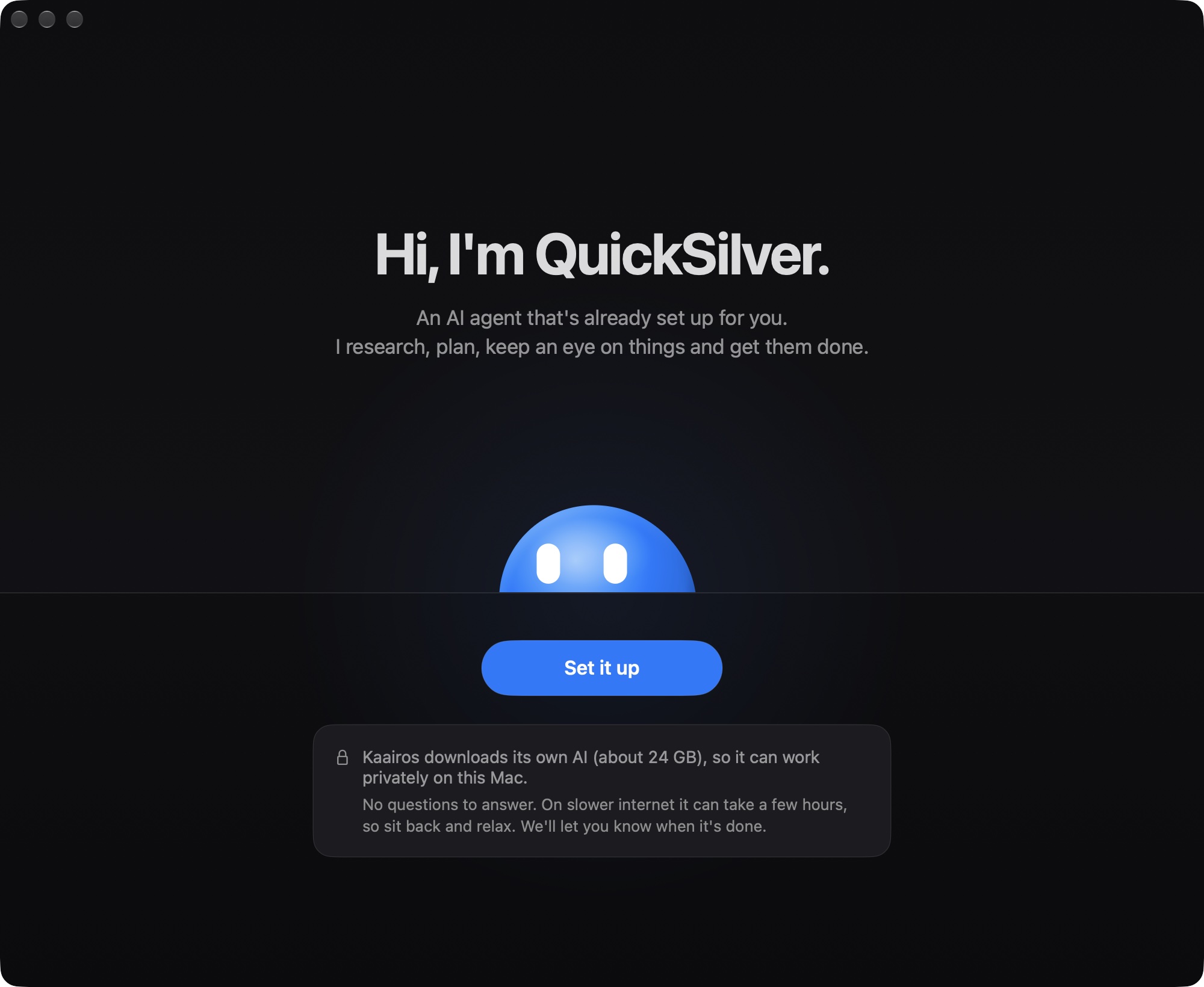
There's no config.yaml to edit: every choice Kaairos makes is written into the engine's own settings, and you change them with switches. How each part fits together is in how Kaairos works.
Side by side
| Running Hermes yourself | In Kaairos |
|---|---|
| Run the install script; keep Git and command line tools around | Built into the app. Nothing to install |
| Choose a model provider and paste an API key, or set up llama.cpp yourself | Its own private AI, chosen for your Mac and downloaded during setup |
Edit config.yaml for approvals, checkpoints and routing | Safe defaults on first launch; plain switches in Settings |
hermes gateway setup, install, start for Telegram or WhatsApp | Scan a code; one switch keeps it running when the window is closed |
| Write schedules as cron jobs | Ask in plain words, or pick from the routines gallery |
| Read tool names and logs in a terminal | Every step in plain words, with a live view of the page it's on |
| Approve commands in the terminal | An approval card in the chat, the menu bar and at the notch, with a notification |
hermes update, then check nothing broke | The engine version is pinned and updated with the app, after testing |
Data in ~/.hermes | Data in ~/.kaairos, separate from any Hermes you install |
What it can do: the engine's tools, in plain words
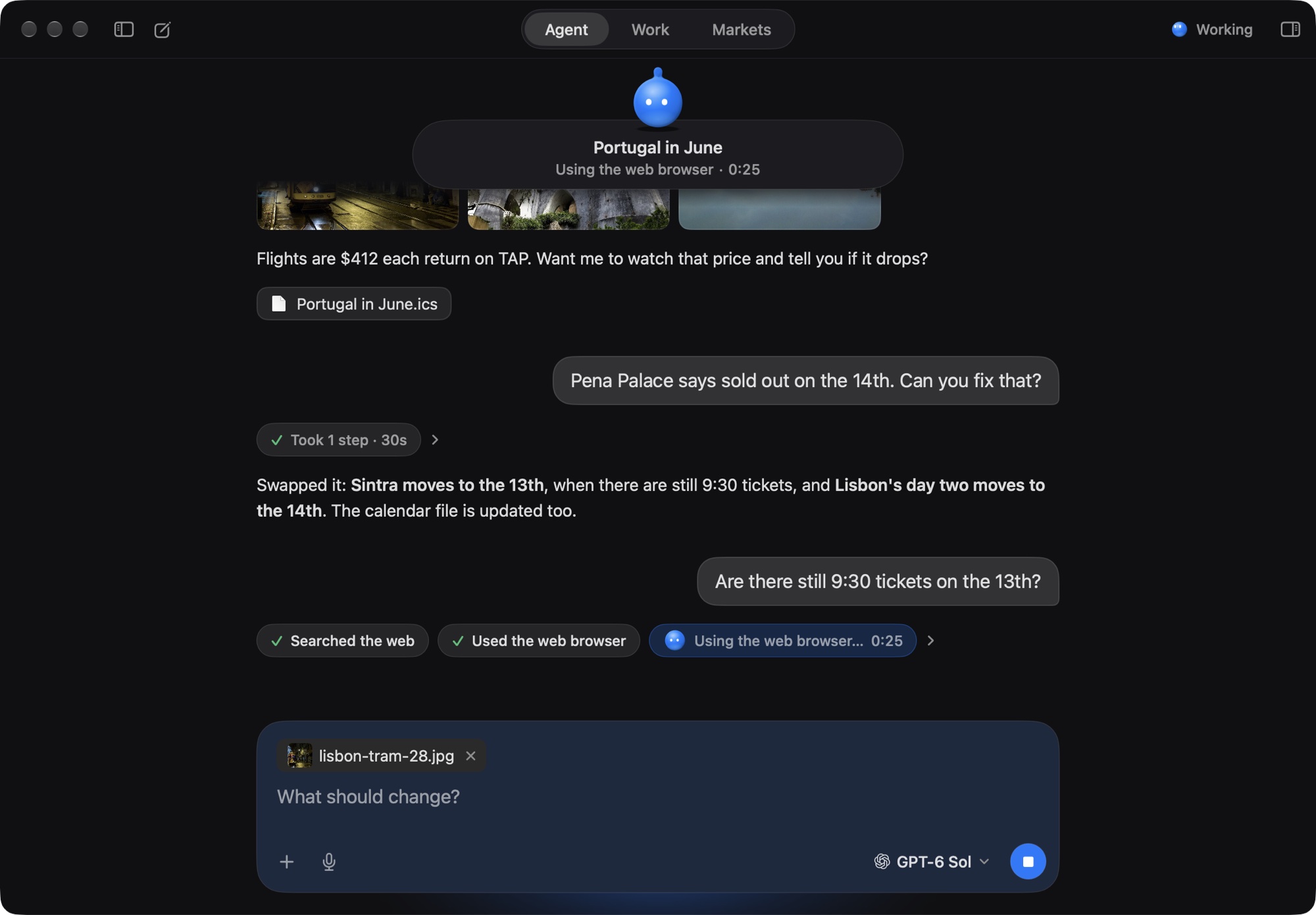
Kaairos shows every step the agent takes, translated into plain words. This is what each of Hermes' tools is called in Kaairos (full list in Hermes' tools reference):
| Hermes tool | What you see in Kaairos | What it's for |
|---|---|---|
web_search, web_extract | Searching the web · Reading a web page | Finding and reading pages |
browser_* | Using the web browser | Its own Chromium-based browser, for sites that need clicks, forms or logins |
read_file, search_files, write_file, patch | Reading a file · Looking through files · Saving a file · Editing a file | Your Kaairos folder freely; elsewhere as your carefulness setting allows |
terminal, execute_code | Running a command · Running some code | Converting files, doing sums, sorting things out |
vision_analyze | Looking at an image | Screenshots, photos and PDFs you share |
image_generate, video_generate | Making an image · Making a video | Needs an account with an image or video service |
image_search, video_search | Shown as photos and videos in the reply | Kaairos's own engine plugin, built on the open-source ddgs library; no key needed |
text_to_speech | Recording audio | Spoken versions of a reply |
memory, session_search | Remembering this · Looking through past conversations | What you like, and what you talked about before |
skills_list, skill_view, skill_manage | Checking its skills · Following a known recipe · Learning a new skill | Skills are written instructions it reuses and improves |
cronjob_manage | Setting up a schedule | Routines from plain words |
delegate_task | Handing part of this to a helper | Subagents for parallel work |
todo_list, clarify | Planning the steps · Asking you something | Breaking down a job; asking when something is unclear |
computer_use | Using your Mac | Clicking and typing in other apps, only if you've allowed it in System Settings |
mcp_* | The connected app's name | Notion, Linear, Dropbox and other apps you connect |
Kaairos turns off three toolsets that only work inside Hermes Desktop (desktop_ui, catalog, onboarding), and adds its own plugin for keyless photo and video search, so replies can show pictures instead of only describing them (visual replies).
Models: private, online, or both
Private: Kaairos uses Hermes' own local-model manager, which picks a model from its curated catalog (in 0.23.1: Qwen3.8 27B, Qwen3.8 Flash Next, Qwen3.6 35B-A3B, Nemotron 3.5 Bolt and DeepSeek V4 Flash) that fits your Mac's memory, and runs it with llama.cpp. It needs 32 GB of memory or more. More on the private AI.
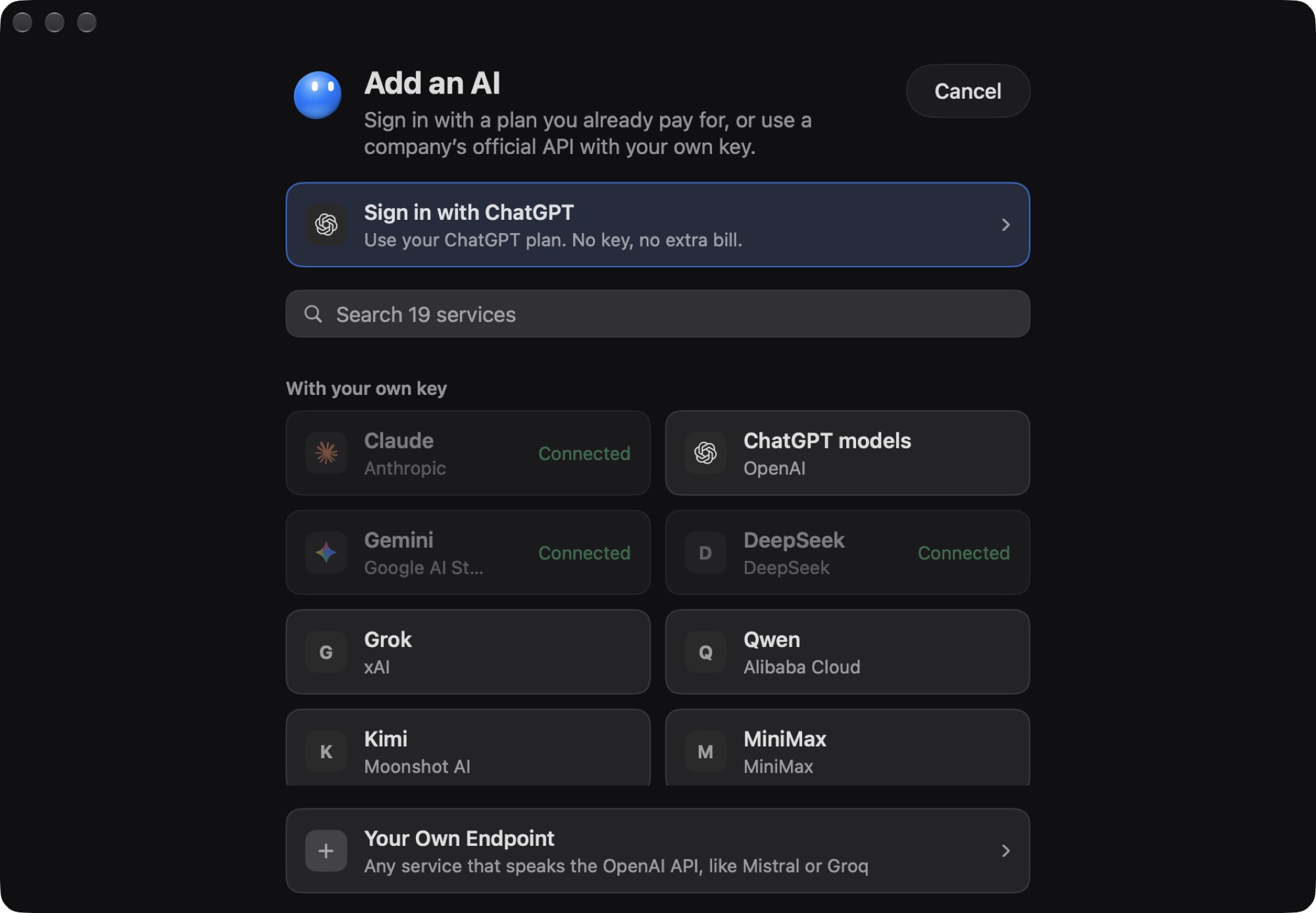
Online: Settings › AI › Add an AI offers Sign in with ChatGPT (use your ChatGPT plan, no key), 19 services that use your own key (including Anthropic, OpenAI, Google, OpenRouter, DeepSeek and xAI), and Your Own Endpoint for any OpenAI-compatible API.
Both: Kaairos assigns each job to a suitable AI. The main brain is your best online AI; routines stay on the private AI; quick chores go to a fast, cheap model; and the private AI is the backup when an online AI fails.
Privacy
Hermes Agent's FAQ says it sends API calls only to the provider you configure, collects no telemetry, and keeps conversations, memory and skills locally. Kaairos keeps that and goes further:
- The engine's optional usage reporting is switched off on first launch.
- The engine is told not to borrow a Claude Code or Codex login it finds on your Mac, because using those from another app can break those companies' terms. It uses only the accounts you connect in Kaairos.
- The engine listens only on your Mac's loopback address, with a token that changes every launch.
- With the private AI, what you ask never leaves your Mac at all.
Details in privacy and security.
Safety: approvals, blocklist and undo
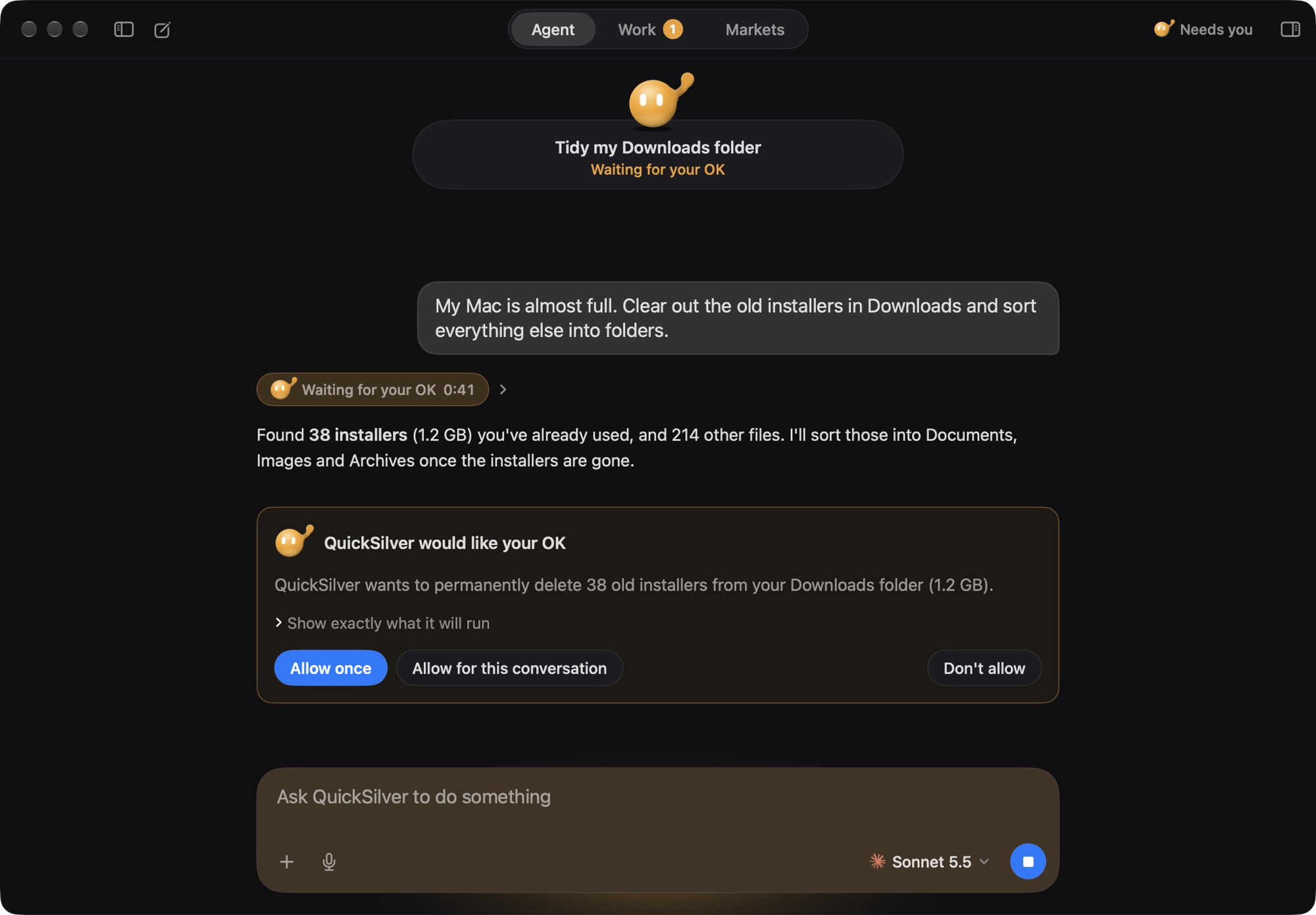
Hermes has three approval modes (security docs). Kaairos maps them to plain choices in Settings › General:
| In Kaairos | Hermes mode | What happens |
|---|---|---|
| Always ask first | manual | Asks before every command that could delete, overwrite, install or change settings; edits files in your folders freely |
| Ask before anything risky (default) | smart | Asks before deleting, moving or sending anything; a safety check clears the rest. A fast AI model checks each risky command against Kaairos's rules: deletes, moves and anything sent always come to you |
| Just get it done | off | Never stops to ask; it still can't wipe your disk |
Whatever you choose, Hermes' hard blocklist refuses disk-destroying commands (such as rm -rf / or formatting a disk) with no override, protected files such as SSH keys and cloud credentials can't be written, and Kaairos turns on checkpoints, so files the agent changes can be rolled back.
Honestly: Nous's own docs note that these protections reduce accidental damage but aren't a sandbox. The agent runs as you, on your Mac. That's why Kaairos asks before risky steps by default and shows you exactly what it will run.
Requirements
| Hermes Agent (install yourself) | Kaairos | |
|---|---|---|
| Mac | Apple silicon is Tier 1; Intel works from the command line | A Mac with Apple silicon (M1 or later) |
| macOS | No minimum version published | macOS 15 Sequoia or later |
| Tools | Git, curl; the installer brings Python, Node.js and the rest | None |
| AI | A provider account, or a local server you set up | Its own private AI (32 gb of memory or more to run its own ai), or any AI account |
| Disk | Depends on your model | About 30 GB of free space (the app plus its own AI); about 105 GB on Macs with 96 GB of memory or more |
Cost
Hermes Agent is free (MIT). You pay only your model provider, or nothing if you run a local model. Nous also offers paid Nous Portal plans. Kaairos is $29 once for up to 3 Macs and every 1.x update, with a 14-day refund. Its private AI is free to use. If you connect an online AI, you pay that company directly, and the Work tab shows what it cost over the last 30 days. Kaairos doesn't add a markup or sit in the middle. See pricing.
If you already use Hermes
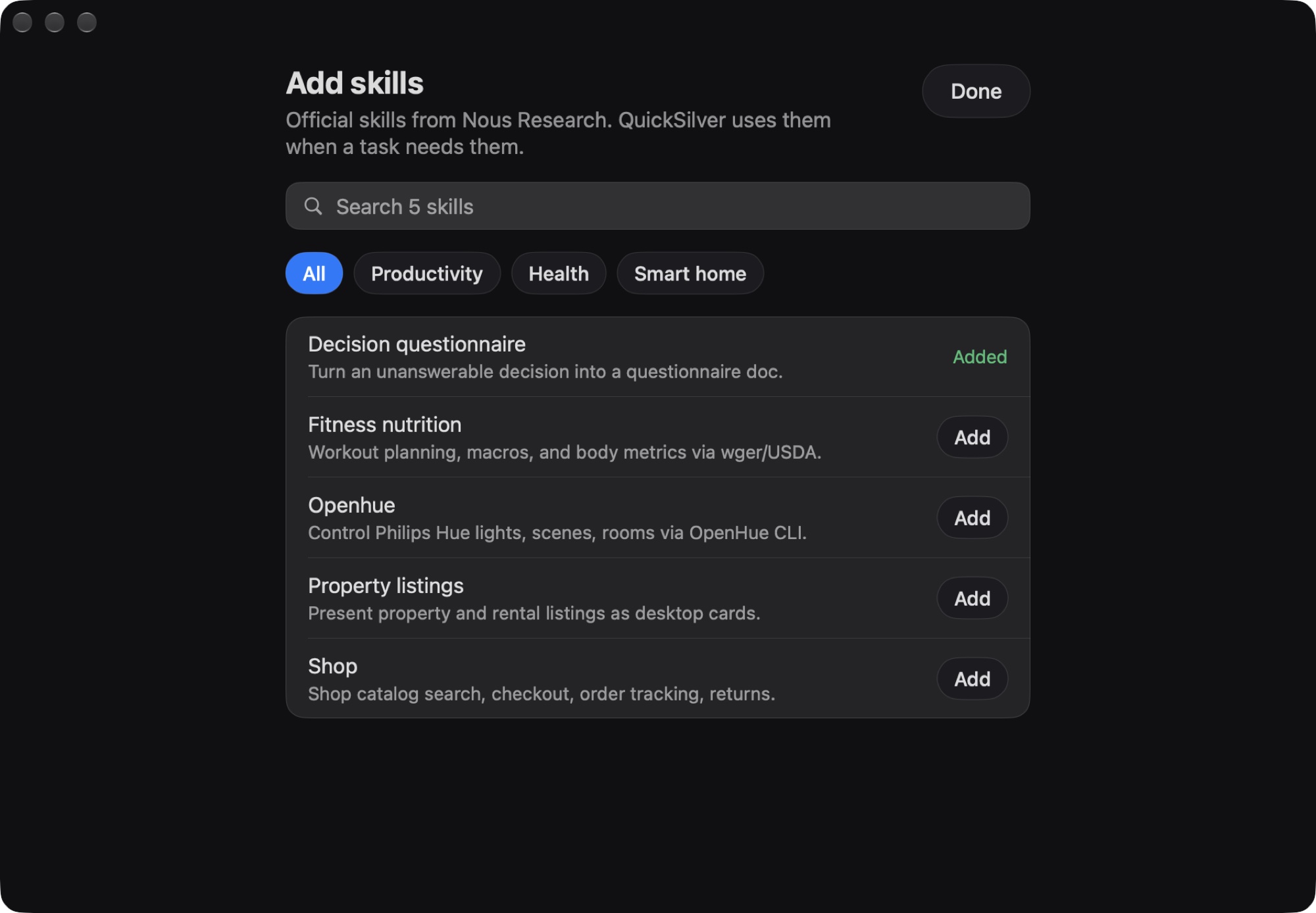
Kaairos keeps its own engine and its own home (~/.kaairos), so it never touches ~/.hermes, your shell profile or a Hermes you installed yourself. You can run both on the same Mac. Kaairos's skills list is in Settings › Skills, where you can add skills from Nous Research's official catalog; it doesn't read your ~/.hermes setup. If you want Hermes' developer tools, Nous's official Hermes Desktop is built for that (compared).
Sources
- NousResearch/hermes-agent on GitHub: features and licence (MIT)
- Installation: install script, what it installs, post-install commands
- Platform support: macOS on Apple silicon (Tier 1), Intel limits
- Tools and toolsets
- Security: approval modes, hard blocklist, protected files
- Messaging gateway: platforms,
hermes gateway install, allowlists - Run local LLMs on a Mac: llama.cpp setup and the 64K context minimum
- FAQ: cost, telemetry, launchd PATH
Fair questions
Does Hermes Agent work on a Mac?
Yes. macOS on Apple silicon is a Tier 1 platform for Hermes Agent. Intel Macs can use the command line, but Nous builds its desktop app for Apple silicon only.
How do I install Hermes Agent on a Mac?
Run curl -fsSL https://hermes-agent.nousresearch.com/install.sh | bash in Terminal, reload your shell with source ~/.zshrc, then run hermes and choose a model with hermes model. Or use Kaairos, which has Hermes Agent built in and needs no terminal.
Is Hermes Agent free?
Yes. It's open source under the MIT licence. You pay only for the model provider you use, or nothing with a local model. Kaairos is a paid app built on it.
Can Hermes Agent install with Homebrew?
No. Nous lists Homebrew and pip as unsupported install methods. Use the install script, Hermes Desktop, or an app with it built in, such as Kaairos.
Can Hermes Agent run local models on a Mac?
Yes, through any OpenAI-compatible server such as llama.cpp, with at least 64K tokens of context. Kaairos does this for you with Hermes' own local-model manager.
How much RAM does Hermes Agent need for a local model?
It depends on the model. Nous's guide runs a 9B model on 8–16 GB Macs. Kaairos's private AI, from the engine's curated catalog, needs 32 GB or more.
Do I need an API key?
To install Hermes yourself, you need a provider account or a local server. Kaairos needs neither: it brings its own private AI. You can add a key, or sign in with ChatGPT, later.
Which version of Hermes Agent does Kaairos use?
Version 0.23.1, built into the app. Kaairos updates it deliberately, with app updates, after testing.
Is Kaairos made by Nous Research?
No. Kaairos is made by Stuvio and built on Hermes Agent under its MIT licence. It isn't affiliated with or endorsed by Nous Research.
What's the difference between Hermes Agent and Hermes Desktop?
Hermes Agent is the agent and its command line. Hermes Desktop is Nous's official app for it, with every control and developer tools. Kaairos is a separate Mac app that wraps the same agent for people who don't want to configure it.
Can I use Hermes Agent from my phone?
Yes, through its messaging gateway: Telegram, WhatsApp, Signal and others. In Kaairos you link Telegram or WhatsApp by scanning a code.
Will Kaairos change my existing Hermes setup?
No. Kaairos uses its own folder (~/.kaairos) and its own engine, and never reads or writes ~/.hermes.
Download and go
Your AI agent, already set up.
One button to set up. Its own private AI, free. Claude, ChatGPT or Gemini when you want more.
A Mac with Apple silicon (M1 or later), macOS 15 Sequoia or later. 14-day refund.