
Use case · After the meeting
Leave the meeting with the tasks made and the follow-up drafted
Send a two-minute voice recap from your phone on the way out, or drop in your notes or a transcript. QuickSilver separates what was decided from what was only discussed, gives every action an owner and a date, creates the tasks in Linear, Notion, Asana or Todoist once you say OK, and drafts the follow-up for you to send.
What you get
Short minutes in a fixed shape: decisions, action items (each with an outcome, an owner, a due date and where in the notes it came from), proposals that weren't decided, open questions, and a follow-up message. Where the notes don't say who owns something or when it's due, it writes unresolved instead of guessing.
(voice note, 1:58) Quick recap of the Harbour Café call…
Harbour Café refit, call on Thursday Decided: oak counter, not laminate. Opening date stays 2 March. Actions: 1. Send revised quote with the oak counter: you, by Monday. 2. Confirm the electrician's start date: Dan, due date unresolved. 3. Share the menu board sizes: Maria (café), by Friday. Not decided: moving the coffee station; Maria wants to see a drawing first. Open question: who pays for the extra socket? Here's a draft follow-up email to Maria. Shall I make Dan's date a question in it?
Who it's for
- Freelancers and consultants who run client calls without a note-taker.
- Team leads who need clear owners and dates after every meeting.
- Anyone with a meeting transcript from another tool who wants the follow-through, not another summary.
- People who think better out loud: a two-minute voice recap after the call is enough.
Set it up
- Notes or a transcript on your Mac: start a chat in Kaairos, drag the file onto the message box (or paste the text), and type the request below.
- A voice recap from your phone: send a voice note to QuickSilver on Telegram or WhatsApp. It's transcribed on your Mac with the speech model built into Kaairos.
- Read the result. Correct anything in plain words: “Dan's date is the 20th”, “the coffee station was decided, it moves”.
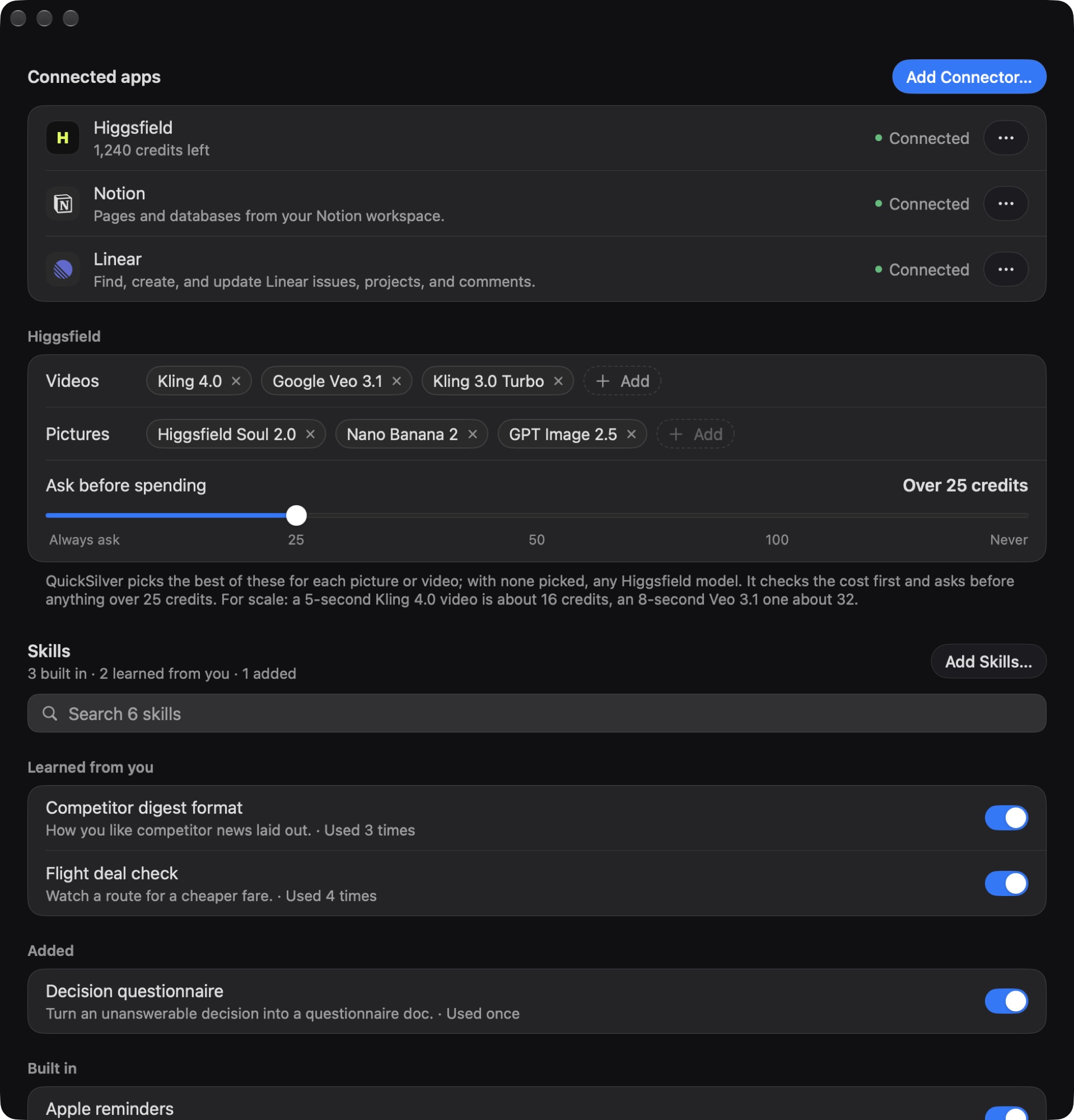
- Optional: create tasks. If you've connected Linear, Notion, Asana or Todoist in Settings › Connectors, say “create a task for each of our actions”. QuickSilver checks for existing matching tasks first and asks your OK before creating anything.
Exactly what to type
“Turn these meeting notes into: decisions, action items with owner and due date, things that were discussed but not decided, and open questions. Don't invent owners or dates; mark them unresolved. Then draft a short follow-up email to the client.”
Why you can trust the list
The engine has a skill written for exactly this job, and its rules are the ones you'd want from a careful assistant:
- Decisions are kept apart from brainstorming. “We could try oak” isn't recorded as a decision.
- No invented owners or dates. Missing ones are shown as unresolved, so you can see the gaps.
- Every item traces back to a quote, timestamp or line in your notes.
- Nothing is sent or created without your OK. The follow-up is a draft; tasks are proposed, then created one approval at a time.
- No duplicates. Before creating tasks it searches for matching open ones, which matters for weekly meetings.
Notes that give the best result
It works with rough notes, but three habits make the output sharper:
- Say who was there at the top: names and companies.
- Write commitments as they were said: “Dan: will confirm the start date”. Owners are only assigned where the notes name one.
- Mark decisions with a word like “agreed” or “decided”, so they're not mistaken for ideas.
For a voice recap, the same applies out loud: “Present: Maria from the café and Dan. We agreed on oak. I'll send the quote by Monday.”
The shape of the follow-up
The draft keeps to what a client actually reads: a one-line thank-you, the decisions, a short table or list of who does what by when, open questions addressed to the person who can answer them, and the next checkpoint. Ask for a different tone or length and it rewrites the draft; it never sends it.
Variations
- A contract or brief instead of a meeting: “List every deadline, obligation and deliverable in this contract, with the clause for each.”
- Weekly team meeting: “Here are this week's notes and last week's actions. Which actions are done, which slipped, and what's new?”
- Follow-up in a different tone: “Make the email shorter and friendlier; it's to a long-time client.”
- One-to-one notes: “Summarise my notes from today's one-to-one with Sam into three things I promised and three things Sam promised.”
- Into Notion: “Add these minutes to the Harbour Café page in Notion.” (Needs the Notion connector; asks before adding.)
For recurring meetings
Weekly meetings are where follow-through slips. Keep one chat per recurring meeting and paste each week's notes into it with “here are this week's notes”. QuickSilver compares them with last week's actions and tells you what was done, what slipped and what's new, so the start of each meeting can be a two-minute review instead of a hunt through old notes. If tasks live in Linear or Notion, it searches there first and proposes updates rather than duplicates.
Where it runs and what leaves your Mac
| Step | Where it happens | What leaves your Mac |
|---|---|---|
| Transcribing a voice recap | On your Mac, with the built-in speech model | Nothing (the voice note itself travels through Telegram or WhatsApp) |
| Reading notes and writing the minutes | The AI the chat uses | Nothing with the private AI; the notes go to an online AI if the chat uses one |
| The follow-up draft | In the chat and your Kaairos folder | Nothing until you send it yourself |
| Creating tasks in Linear or Notion | Through the connector, after your OK | Only the tasks you approved, to that service |
Client notes are exactly the kind of thing to keep off an AI company's servers. If you've connected an online AI, choose Private AI in the chat's model picker before you paste them.
What it costs
Free on the private AI. On an online AI, a page of notes costs little; an hour-long transcript costs more because there's more to read. Each task's cost shows in the Work tab.
Limits
- It works from notes, transcripts and voice recaps you give it. It doesn't join or record meetings.
- Kaairos doesn't send email. You copy the draft into your mail app and send it yourself.
- Transcripts without speaker names make owners harder to find; expect more “unresolved”.
- Voice notes are transcribed with a compact speech model; names and jargon may need correcting.
Troubleshooting
- Too many items marked unresolved. Add the missing facts in a reply: “Dan owns 2, due the 20th.”
- It treated an idea as a decision. Tell it, and it moves the item to “not decided”.
- The file won't open. Most text, Word and PDF files work; for a scanned PDF, ask it to read the text from the page images, or paste the text.
- Tasks didn't appear in Linear. Check the connector shows as connected in Settings › Connectors, and that you approved the creation.
Fair questions
Does it record my meetings?
No. It works from notes, transcripts or a voice recap you give it afterwards.
Will it send the follow-up email for me?
No. It drafts the email; you send it from your own mail app.
Will it make up deadlines?
No. When the notes don't give an owner or a date, it marks it unresolved.
Can it create tasks in my project tool?
Yes, with a connector for Linear, Notion, Asana, Todoist or Atlassian, and only after you approve each one.
Is my client's information sent anywhere?
Not with the private AI. With an online AI, the notes go to that company; pick the private AI for sensitive meetings.
Can I send a voice note instead of typing?
Yes. Voice notes from Telegram or WhatsApp are transcribed on your Mac.
Can it handle a transcript from Zoom, Teams or Google Meet?
Yes: export or copy the transcript and give it to QuickSilver as text or a file. It doesn't connect to those services to fetch recordings.
What if two people's notes disagree?
Give it both. It points out where they conflict instead of picking one silently, and asks you to settle it.
Download and go
Your AI agent, already set up.
One button to set up. Its own private AI, free. Claude, ChatGPT or Gemini when you want more.
A Mac with Apple silicon (M1 or later), macOS 15 Sequoia or later. 14-day refund.