
Help
Connect an AI account
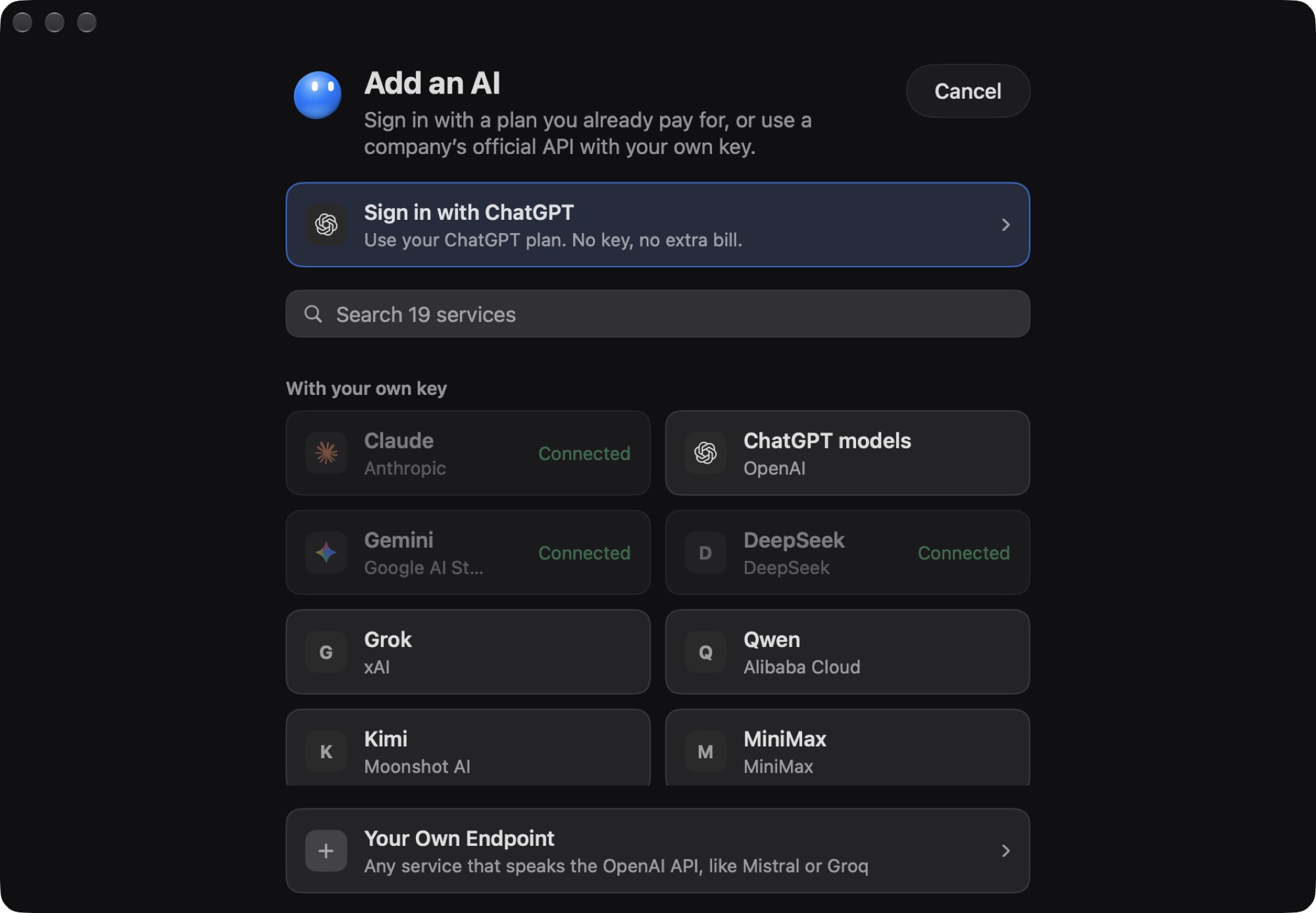
Optional on a 32 GB Mac, needed on a smaller one. Sign in with ChatGPT, add a key for Claude, Gemini, OpenRouter and others, or add your own endpoint.
In short
Open Settings › AI and press Add AI…. Choose Sign in with ChatGPT to use a ChatGPT plan you already pay for, with no key. Or pick a service under With your own key (Claude, ChatGPT models, Gemini, DeepSeek, Grok, Qwen, Kimi, MiniMax, GLM, OpenRouter, and more under More), paste an API key, and press Connect. Kaairos then rebalances Who does what by itself: your conversations go to the strongest AI you've connected, small jobs to a fast inexpensive one, and routines stay on the private AI.
Before you start
- Kaairos must be running (the Add AI sheet says “Kaairos is still starting. Try again in a moment.” until its engine is up).
- For Sign in with ChatGPT: a ChatGPT account with a plan, and code sign-in allowed in your ChatGPT security settings.
- For a key: an account with the company's developer platform and a little credit. Keys from developer consoles are billed per use, separately from chat subscriptions like ChatGPT Plus or Claude Pro.
Sign in with ChatGPT
- Open Settings › AI and press Add AI….
- Choose Sign in with ChatGPT (“Use your ChatGPT plan. No key, no extra bill.”).
- Kaairos gets a short code from OpenAI and shows it. Press Open Sign-in Page: the code is copied for you and OpenAI's own page opens in your browser. Copy Code copies it again.
- On OpenAI's page, sign in, type the code and approve Kaairos.
- Back in Kaairos, the checklist ticks off “Got a code from OpenAI”, “Approve Kaairos on OpenAI's page” and “Save the sign-in on this Mac”, and the sheet says Signed in with ChatGPT.
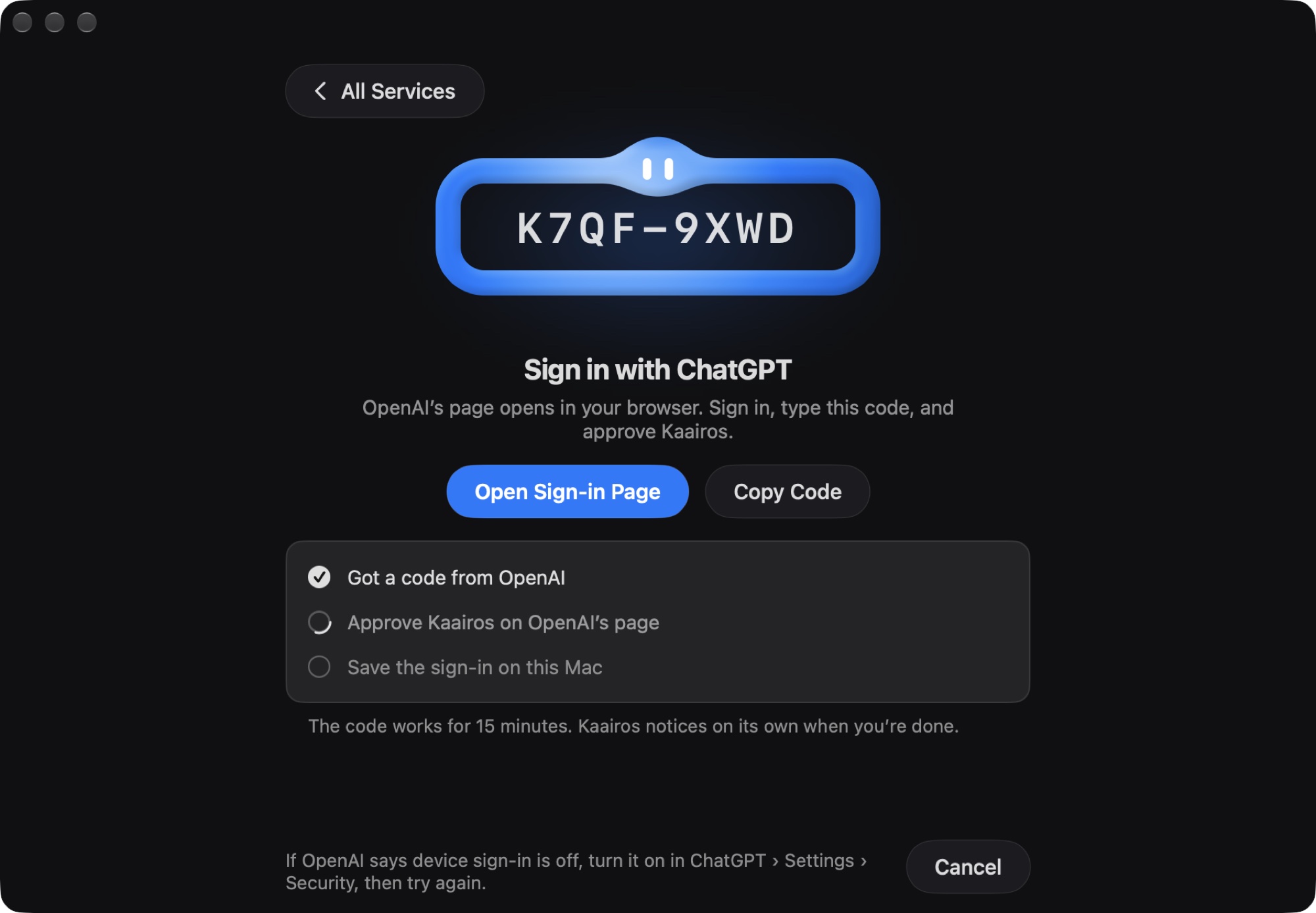
The code works for a limited time (the sheet shows how many minutes are left). Kaairos notices on its own when you're done. Kaairos never sees your ChatGPT password.
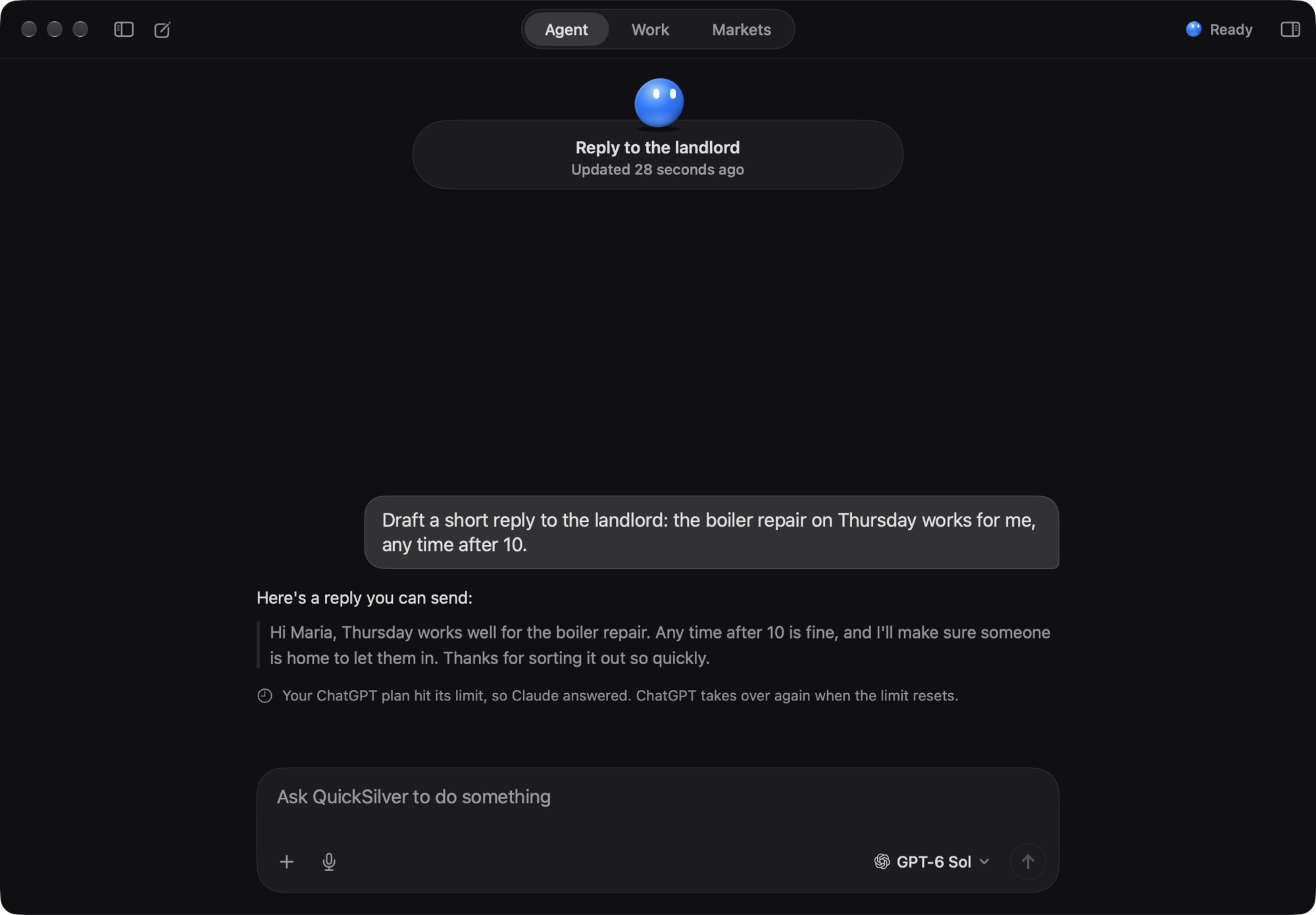
Once signed in, the plan does the everyday work: main brain, helpers, eyes and quick chores. Routines stay on the private AI on your Mac if you have one. The AI that would have done the work without the plan becomes the Backup. If your plan hits its limit, the turn moves to the backup and the reply says “Your ChatGPT plan hit its limit, so … answered. ChatGPT takes over again when the limit resets.”
Using your ChatGPT plan this way is governed by OpenAI's terms for your account. Kaairos only uses a sign-in you make in Kaairos: it doesn't borrow a Codex or Claude Code login it finds on your Mac.
Add a key
- Open Settings › AI and press Add AI….
- Pick the service. Type in Search services to find one under More.
- Step 1 on the next screen links to the company's key page with Open the Site (for example console.anthropic.com for Claude, platform.openai.com for ChatGPT models, aistudio.google.com for Gemini, openrouter.ai for OpenRouter). Create a key there.
- Paste it into API key and press Connect. The button says Checking… while Kaairos checks the key with the company.
- The sheet closes and the service shows in Connected AI as Connected.
If the company rejects the key you'll see, for example, “Anthropic didn't accept that key. Claude keys start with “sk-ant-”.” Copy the whole key and try again. If the company has no way to check a key in advance, or the network blips, Kaairos saves it anyway and the first message tells you if it's wrong.
Your own endpoint
For any service that speaks the OpenAI API (Mistral, Groq, or a model server on your network), choose Your Own Endpoint at the bottom of Add AI…. Fill in Name (for example Mistral), Address (for example https://api.mistral.ai/v1), API key and Model (for example mistral-large-latest). Test Connection checks it (“It answered. It's ready to add.”); Add saves it.
Other services and your own endpoints take the jobs only when none of Claude, ChatGPT models, Gemini or OpenRouter is connected. You can still pick them for any job yourself.
What changes when you connect one: Who does what
Settings › AI › Who does what lists every job and the model doing it. Each says · Automatic until you pick a model yourself.
| Job | What it does | Automatic choice |
|---|---|---|
| Main brain | Plans and does your tasks | Claude Sonnet if Claude is connected, else ChatGPT models, OpenRouter, Gemini, then the private AI |
| Coding | Writes and changes code for you | Kaairos Itself; or OpenCode, Claude Code or Codex if installed on this Mac |
| Helpers | Work on parts of a big task at the same time | A fast, inexpensive model (such as Claude Haiku) |
| Eyes | Looks at images, screenshots and PDFs | Gemini first, then Claude, OpenAI, OpenRouter |
| Quick chores | Naming chats, tidying long ones, double-checking risky steps | The same fast model as Helpers |
| Routines | Runs your routines on schedule, even while you're away | The private AI on this Mac; without one, the fast online model |
| Backup | Takes over if your online AI can't be reached | The private AI on this Mac |
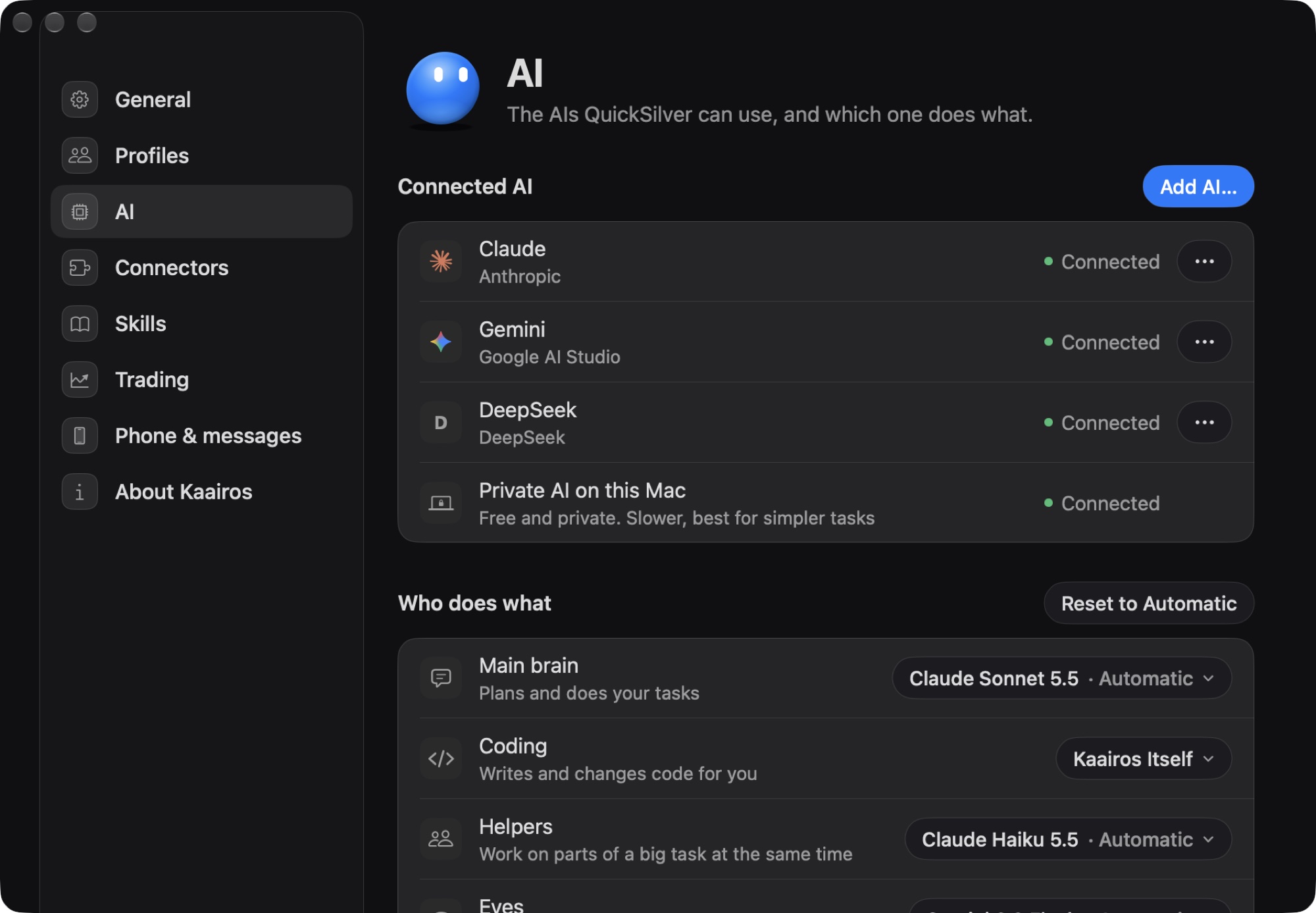
To use your favourite for a job, open its menu and pick a model. Reset to Automatic puts every job back. If you signed in with ChatGPT and picked some jobs yourself, a note says they stay where you put them until you reset.
Each chat can also switch AI for itself with the model chip next to the send button; that choice is “For this chat only”. A model that costs much more than most asks first: Use [model]? with Use It or Cancel.
Remove an account or sign out
Press the ⋯ button on the service's row in Connected AI and choose Remove [service]… (or Sign Out of ChatGPT…). Confirm, and Kaairos forgets the key on this Mac. Every job it was doing moves to the other AIs you've connected, or back to the private AI, so nothing is left pointing at a key that's gone.
Common problems
- “OpenAI didn't allow signing in with a code. Turn on device code sign-in in ChatGPT's Security settings, then try again.” Do that in ChatGPT › Settings › Security and press Try Again.
- “The code ran out. Try again for a new one.” Press Try Again for a new code.
- “The sign-in was turned down on OpenAI's page.” You (or OpenAI) declined it. Try again and approve.
- “Kaairos couldn't reach OpenAI. Check your internet connection, then try again.”
- “[Company] didn't accept that key.” Copy the whole key; check it has credit on the company's billing page.
- A reply says “Claude wasn't available, so the private AI on your Mac answered.” Your online AI couldn't be reached (offline, out of credit or down). Check the company's console.
What leaves your Mac
Keys are kept on this Mac, in Kaairos's engine settings inside ~/.kaairos, and are only sent to the company they belong to. With an online AI connected, the conversation text, and any files or pictures the task involves, go to that company for the jobs it does. Routines on the private AI stay on your Mac. The privacy and security page has the full picture.
Fair questions
Is a ChatGPT Plus subscription the same as an OpenAI API key?
No. Sign in with ChatGPT uses your plan and its limits, with no extra bill. An OpenAI API key is billed per use by OpenAI, separately.
Can I use Claude Pro or Max instead of a key?
Not in Kaairos today. Claude connects with an API key from the Anthropic Console.
Which should I connect first?
Any one works. Kaairos prefers Claude for the main brain when it's there, and uses Gemini for looking at images when it's there.
Do routines start costing money when I add a key?
Not on a Mac with the private AI: routines stay on it. Without a private AI, routines use the fast online model.
What happens when I'm offline?
With the private AI as Backup, a turn that can't reach the online AI continues on your Mac, and the reply says so.
Download and go
Your AI agent, already set up.
One button to set up. Its own private AI, free. Claude, ChatGPT or Gemini when you want more.
A Mac with Apple silicon (M1 or later), macOS 15 Sequoia or later. 14-day refund.