
Guide
How to run AI locally on a Mac
Apple silicon Macs are some of the best computers for running AI models privately, thanks to unified memory. Here are the three ways to do it in 2026, step by step, with what each needs, what to expect and how to tell it's really local.
The answer
To run AI locally on a Mac you need Apple silicon (M1 or later), enough memory for the model (16 GB for small chat models, 32 GB for a model capable of agent work), disk space for the model file (5–25 GB for most), and one of three kinds of software:
| Way | Examples | What you do | Best for |
|---|---|---|---|
| A model runner app | LM Studio, Jan, Msty, GPT4All | Browse models, download one that fits, chat with it | Trying models, private chat |
| A developer runtime | Ollama, llama.cpp, MLX | Install, pull a model, call it from the command line or an API | Building software, serving models to other apps |
| An agent that's set up for you | Kaairos | Press Set it up; it picks and downloads the model | Getting tasks done privately, on a schedule, without choosing a model |
All three run the model on your Mac's GPU through Apple's Metal, and all three keep your prompts on the Mac. The difference is how much you choose and configure yourself, and whether the AI only chats or also does things.
Why Macs are good at this
On an Apple silicon Mac, the CPU, GPU and memory share one pool of unified memory. A model has to sit in fast memory to run quickly. On a PC that means the graphics card's own memory, typically 8–24 GB on consumer cards. On a Mac the GPU can use most of the system memory, so a 64 GB Mac can hold models that would need several expensive graphics cards on a PC. The trade-off is speed: a Mac's memory bandwidth (153 GB/s on an M5, up to 614 GB/s on an M5 Max) is lower than a high-end graphics card's, so the same model writes more slowly. More in how much memory local AI needs.
Before you start: check your Mac
- Chip: Apple menu › About This Mac. It should say Apple M1 or later. Intel Macs can run tiny models slowly; this guide doesn't cover them.
- Memory: the Memory line on the same screen. That number decides which models you can run.
- Disk: Apple menu › System Settings › General › Storage. Leave at least the model's size plus 10 GB free.
- macOS: recent runtimes and apps want a recent macOS; Kaairos needs macOS 15 Sequoia or later.
| Memory | Start with | Roughly |
|---|---|---|
| 8 GB | A 3–4B model at 4-bit | 2–3 GB file |
| 16 GB | A 7–8B model at 4-bit (Q4_K_M) | about 5 GB file |
| 24 GB | A 14B model at 4-bit, or 8B at 8-bit | about 9 GB file |
| 32–64 GB | A 30–35B mixture-of-experts model at 4-bit | about 22 GB file |
| 96 GB and up | 70B and larger models | 40 GB and up |
Way 1: a model runner app
The easiest way to chat with a local model. LM Studio is the most popular on the Mac; Jan is open source; Msty mixes local and online models; GPT4All is simple and free. The steps are similar in each:
- Download the app from its own website and drag it to Applications.
- Open its model browser and search for a model family (Qwen, Llama, Gemma, Mistral are common).
- Pick a size and quantization that fits your memory. Most apps mark which files fit your Mac; when in doubt, choose a Q4_K_M build.
- Download it, load it, and start chatting.
- Optional: turn on the app's local server, and other apps on your Mac can use the model through an OpenAI-compatible API.
Good for: private chat, comparing models, summarising a document you paste in. Not for: tasks that run while you're away, reaching it from your phone, or doing things on the web for you. These apps chat; they don't act.
Way 2: a developer runtime
For people comfortable in Terminal, and for building software on top of a local model.
Ollama
- Install Ollama from ollama.com (it has a Mac app), or with Homebrew:
brew install ollama. - Run a model:
ollama run <model>, with a name from Ollama's model library. The first run downloads it. - Other software can call it at
http://localhost:11434.
llama.cpp
- Install it with Homebrew:
brew install llama.cpp. - Start a server straight from a model on Hugging Face:
llama-server -hf <user>/<repo>:<quant> -c 32768, where-csets the context length. - It serves a chat page and an OpenAI-compatible API at
http://localhost:8080.
MLX
- Apple's own machine-learning framework. Install the language-model tools with
pip install mlx-lm. - Generate text with
mlx_lm.generate --model mlx-community/<model> --prompt "Hello", or serve it withmlx_lm.server.
Good for: developers, custom apps, scripting. You handle: choosing models and quantizations, the context length (set it too high and you run out of memory; too low and long tasks fail), updates, and keeping the server running.
Way 3: an agent that's set up for you
Kaairos bundles everything: the Hermes Agent engine, the llama.cpp runtime, and a model chosen for your Mac. You don't pick a model or a context length. It's for people who want local AI to do things, not just chat.
- Check your Mac: Apple silicon, macOS 15 or later, 32 GB of memory or more for the private AI, and about 30 GB of free disk.
- Download Kaairos and drag it to Applications.
- Open it and press Set it up. The engine prices every model in its catalog against your Mac's memory and downloads the best fit: on 32–64 GB Macs, Qwen3.6 35B-A3B, about 24 GB. You can pause the download; it picks up where it stopped.
- When it says All set, ask for something real: “Every morning at 7, send me the weather and the three things worth knowing about climate tech.”
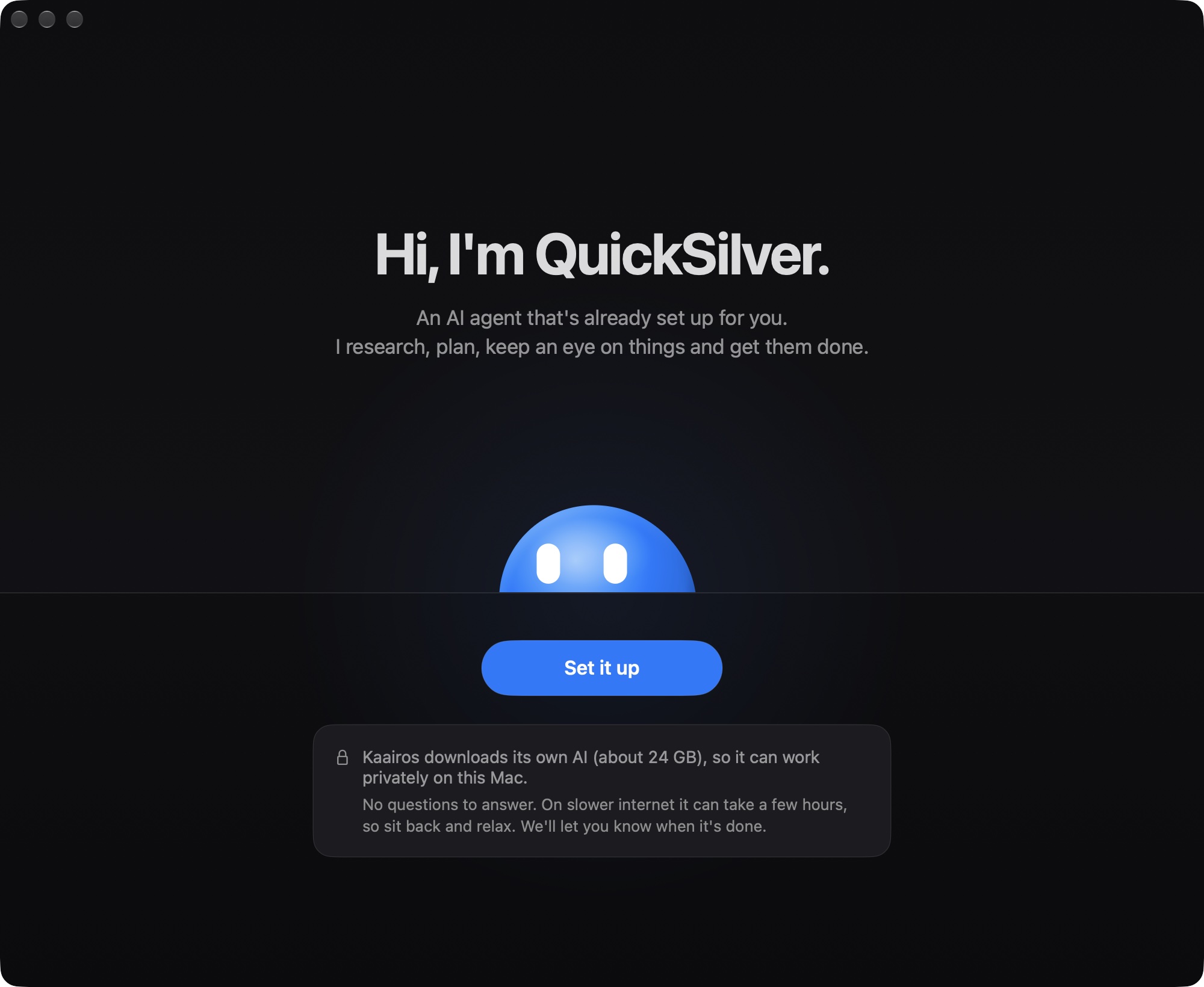
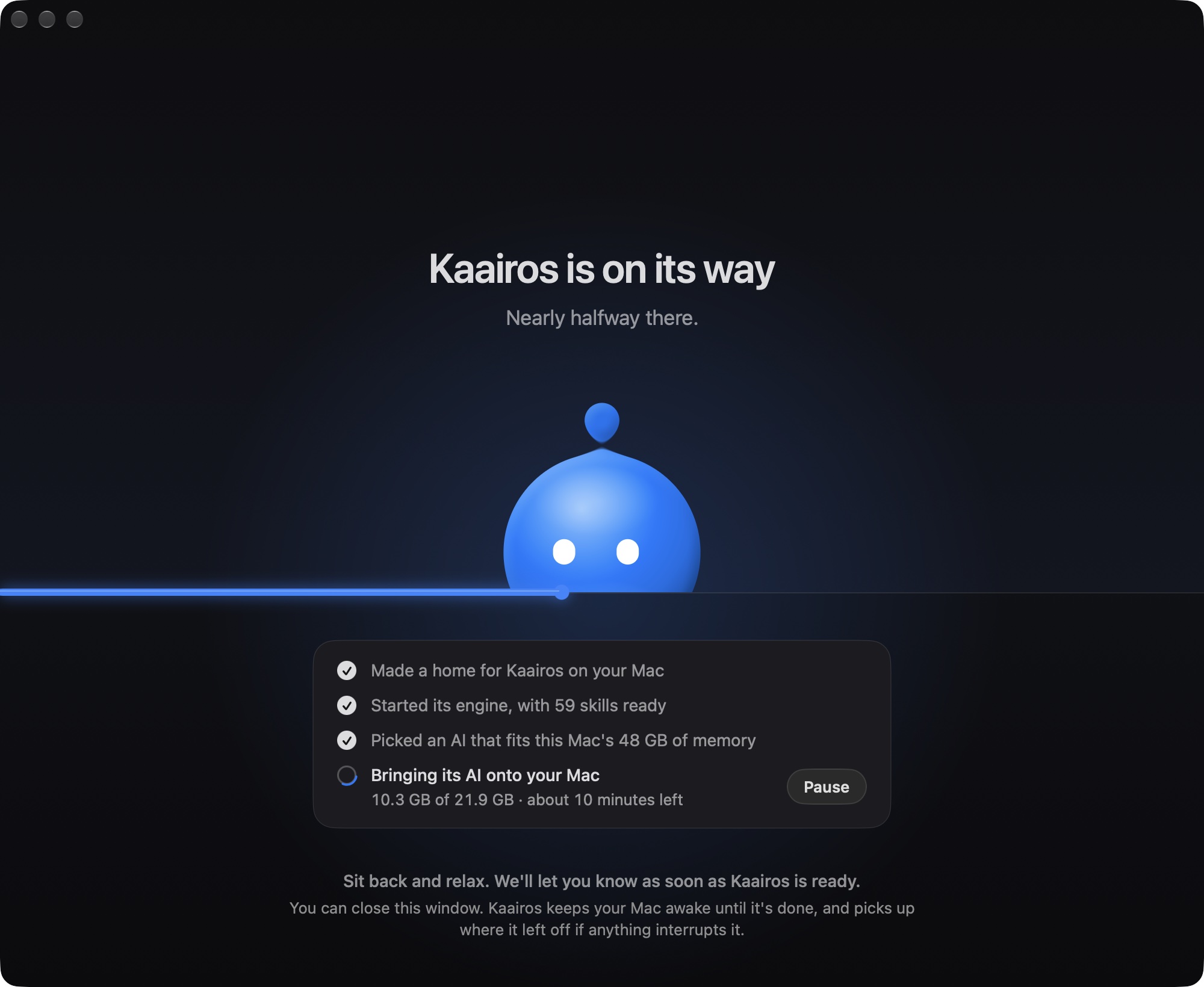
Good for: routines on a schedule, web research, messaging it from your phone, working with your files, all with the model on your Mac. On a Mac with less than 32 GB, Kaairos runs the same way with an online AI account instead. On Macs with 96 GB or more, its engine picks a much larger model (about 99 GB to download), so leave room.
Choosing a model (if you're choosing yourself)
With a runner app or a runtime, you pick the model. Four things decide it:
- Size that fits. Parameters × bits per weight ÷ 8, plus context, must stay under about 80% of your memory. The memory guide has the tables.
- Dense or mixture-of-experts. A mixture-of-experts model (names like “35B-A3B”: 35 billion in total, 3 billion active per token) needs memory for all of it but reads only the active part for each token, so it runs several times faster on a Mac than a dense model of similar size.
- Quantization. Start with Q4_K_M (or MLX 4-bit). Go up to Q5 or Q6 if you have memory to spare; avoid going below Q3 unless the model is very large.
- What it's for. Coding, chat, vision and tool use are different skills. Model cards on Hugging Face say what each model was trained for and under which licence; check both.
Download from the model maker's own organisation on Hugging Face, or from well-known quantizers such as Unsloth, ggml-org or mlx-community. Lookalike repositories with copied names do appear, especially around big releases.
Which way is right for you?
| If you want to… | Choose |
|---|---|
| Chat privately and try different models | A model runner app |
| Build an app or script on a local model | A developer runtime (Ollama, llama.cpp or MLX) |
| Have tasks done on a schedule, from your phone, with nothing to configure | An agent that's set up for you |
| Use local AI on a 16 GB Mac | A model runner with a small model; for an agent on that Mac, an online AI account |
| Keep the hardest tasks fast and the routine ones private | A hybrid setup: see what hybrid AI is |
These aren't exclusive. Plenty of people keep LM Studio for trying new models and use an agent for the work.
How to tell it's really running locally
- Turn off Wi-Fi and ask a question. If it answers, the model is on your Mac.
- Open Activity Monitor › GPU History (Window menu) while it answers: the GPU should be busy.
- Look for the runtime in Activity Monitor:
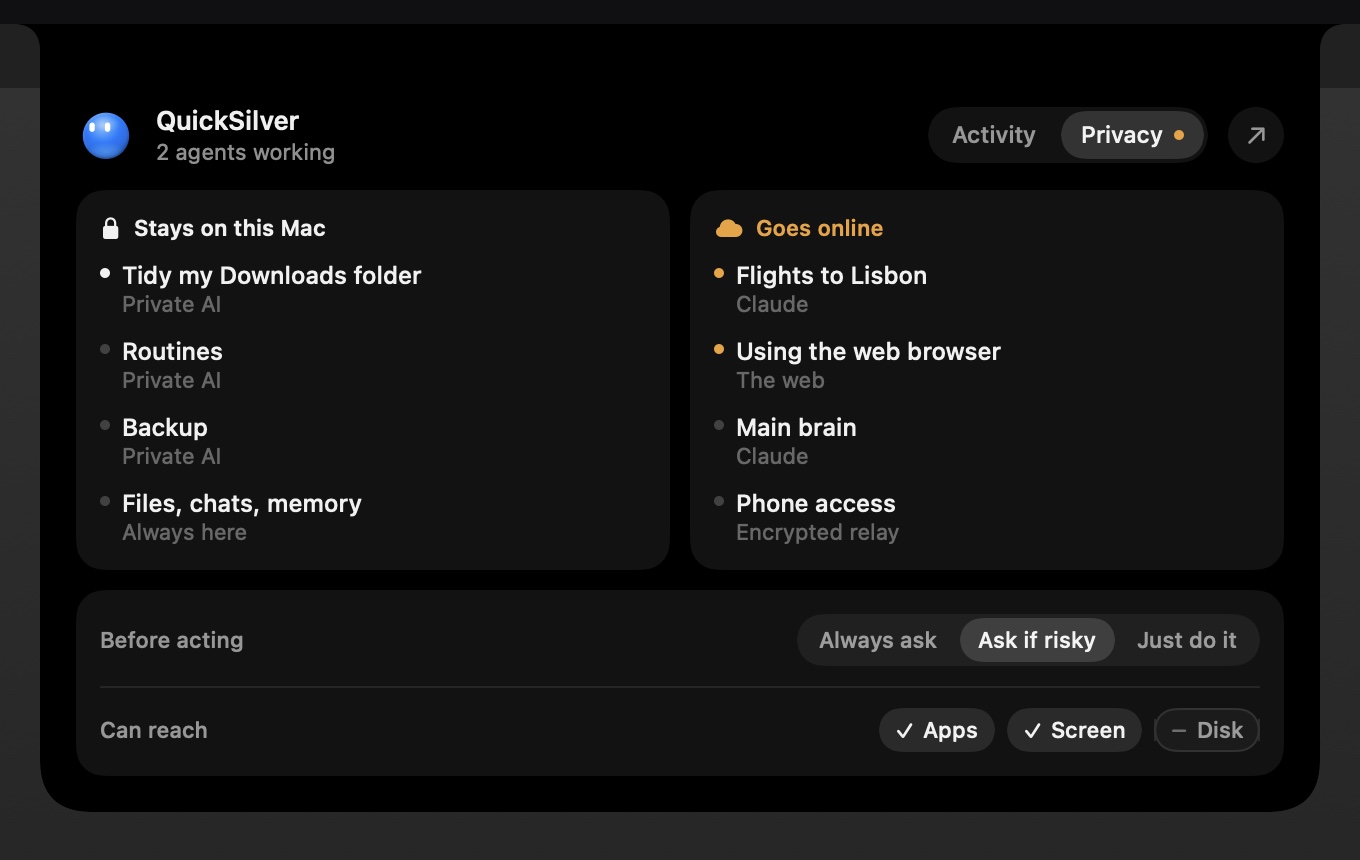
llama-server,ollamaor the app itself, using gigabytes of memory. - In Kaairos, on a Mac with a camera notch, point at QuickSilver beside the notch: its Activity page shows whether the private AI is loaded, and its Privacy page lists what stays on the Mac and what goes online.
Remember that “local model” doesn't always mean “nothing leaves the Mac”. An agent that searches the web sends search words to a search service, and visits websites. The model's thinking stays local; its errands don't.
What to expect from a local model
| Local models are good at | Local models are weaker at |
|---|---|
| Summarising, rewriting, drafting | The hardest reasoning and maths |
| Everyday questions and explanations | Very long multi-step tasks |
| Routines: briefings, digests, reminders, watches | Speed: they're slower than the big online models |
| Anything private: notes, documents, your files | Up-to-date knowledge (unless it can search the web) |
| Working offline | Fine image and video generation |
That split is why many people combine a local model with an online one, giving each the jobs it suits. That's hybrid AI.
Troubleshooting
| Problem | Likely cause | Fix |
|---|---|---|
| Very slow, Mac stutters | The model plus context doesn't fit, so macOS is swapping | A smaller model or quantization, or a shorter context. Check memory pressure in Activity Monitor |
| Fast at first, slow later | The context filled up; each token reads more | Start a new chat, or use a model with an efficient long-context design |
| Model won't load | Not enough free memory, or the runtime is too old for the model | Quit big apps, update the runtime, or choose a smaller file |
| Download fails partway | A dropped connection | Most apps resume. Kaairos keeps what it downloaded and continues |
| Fans and heat | Sustained GPU work | Normal. Plug in a laptop for long jobs |
Fair questions
Can I run local AI on an Intel Mac?
Some runtimes support Intel Macs, but only tiny models run at a usable speed. Kaairos needs Apple silicon.
Is local AI as good as ChatGPT?
Not on the hardest tasks. Local models are very capable for everyday work and keep improving; many people combine one with an online model, which is what Kaairos's hybrid setup does.
Does local AI work offline?
Yes, once the model is downloaded. Anything that needs the web, like searching or checking a price, still needs the internet.
Which local model should I start with?
Match it to your memory: a 7–8B model at 4-bit on 16 GB, a 30–35B mixture-of-experts model at 4-bit on 32 GB or more. Kaairos chooses for you.
Can other apps use my local model?
Yes. LM Studio, Ollama, llama.cpp and MLX can all serve an OpenAI-compatible API on your Mac that other software can call.
Is it free?
The models and runtimes are free. Some apps charge; Kaairos is $29 once at launch. You pay with your Mac's memory, disk and electricity.
Does running AI locally harm my Mac?
No. It works the GPU hard, so a laptop gets warm and uses battery quickly; that's normal.
How much disk space do I need?
The model file plus room to spare: about 5 GB for a small model, 20–25 GB for a capable agent model, and far more for the largest.
What's the difference between LM Studio and Ollama?
LM Studio is an app with a window: you browse, download and chat. Ollama is mainly a background service you use from Terminal or from other software, with a simple app on top. Both run models locally and can serve them to other apps.
How do I keep local models up to date?
Models don't update themselves: a new version is a new download. Runner apps show newer models in their browsers; with a runtime you pull the new version. Kaairos's engine refreshes its catalog of recommended models over time.
Download and go
Your AI agent, already set up.
One button to set up. Its own private AI, free. Claude, ChatGPT or Gemini when you want more.
A Mac with Apple silicon (M1 or later), macOS 15 Sequoia or later. 14-day refund.