
Compare
Kaairos vs Manus Studio
Manus Studio (formerly Manus Desktop) and Kaairos both let an AI agent work on your own Mac: open apps, handle files, run on a schedule. The difference is where the thinking happens and how you pay for it.
The short answer
Manus Studio plans every step in the Manus cloud and runs the commands on your computer, paid in credits, with a cloud fallback and a Windows version. Kaairos plans and acts on your Mac with its own private AI, for $29 once. Choose Manus for its cloud brain on long tasks; choose Kaairos if you want the agent's thinking to stay on your Mac.
Side by side
What it is
| Kaairos | Manus Studio | |
|---|---|---|
| Product | A Mac app: an AI agent that's already set up, built on Hermes Agent by Nous Research | The Manus desktop app for macOS and Windows; its core feature is My Computer |
| Made by | Stuvio | Manus, which says it resumed independent operations in September 2026 |
| Setup | Download, open, click Set it up. No terminal, no config files, no API key needed | Download Studio, sign in to Manus, allow the macOS permissions it asks for |
Models
| Kaairos | Manus Studio | |
|---|---|---|
| Where the agent thinks | On your Mac (private AI), or on an online AI you connect | “Manus plans and decides each step in the Manus cloud” |
| AI on your Mac | Yes: downloads its own open-weight AI (about 24 GB) and runs it on the Mac with llama.cpp. Needs 32 GB of memory | Not offered: the planning model runs in the Manus cloud |
| Choosing a model | Per chat, with a thinking slider; or let Kaairos route | Manus chooses |
Abilities
| Kaairos | Manus Studio | |
|---|---|---|
| Commands on your Mac | Yes, with approval for risky ones | Yes: “the commands run on your computer” |
| Web and browser | Yes: searches the web and uses a real browser, shown live in the chat | Yes |
| Your files | Yes, on the Mac; deletes and other risky steps wait for your OK; changed files are snapshotted so they can be undone | Yes, in folders you choose; “choosing a folder does not upload it” |
| Apps on your computer | Can use apps on the Mac (macOS asks you to allow Screen and Accessibility access), plus connected apps through MCP | Computer use, with apps approved one by one; macOS needs Screen Recording |
| When the Mac is off | Nothing runs | Tasks can switch to a temporary cloud sandbox; a separate paid Cloud Computer is offered |
| Schedules | Yes: routines from a gallery or in plain words; run on the private AI by default; the Mac must be on and awake | Automations: 2 scheduled on Free, 20 on Pro |
| Phone | Telegram and WhatsApp, linked by scanning a QR code; voice notes transcribed on the Mac | Remote Control from the Manus iOS or Android app, to watch and control the desktop live |
| Connected apps | Yes: connectors from an approved catalog (Notion, Linear, Asana, Dropbox, Stripe and others); reads freely, changes need approval | Manus connectors (not covered in detail here) |
| Pictures and video | Keyless photo and video search shown in replies; image and video generation through Higgsfield or an image service on your account | Not compared here |
Safety
| Kaairos | Manus Studio | |
|---|---|---|
| Approval modes | Three levels: Always ask, Ask before anything risky (default), Just get it done | Ask for approval, Approve for me (default, auto-approves safe actions), Full access |
| What approvals cover | Changes and risky actions; reading is allowed | Changes; Manus notes that approval modes limit changes, not reading |
| Undo | Changed files are snapshotted | Not covered in the docs we checked |
Privacy
| Kaairos | Manus Studio | |
|---|---|---|
| What leaves your Mac | Chats you give an online AI you connect, web searches and pages it visits, Telegram/WhatsApp messages, the model download, updates and licence checks | What the agent reads becomes part of the task, which is planned in the Manus cloud |
| Training opt-out | Nothing to opt out of: Stuvio has no servers in the conversation path | Listed as a Team plan feature on Manus's pricing help page |
Platforms and price
| Kaairos | Manus Studio | |
|---|---|---|
| Platforms | Mac with Apple silicon (M1 or later), macOS 15 or later. No Windows, Linux or phone app yet | macOS on Apple silicon (Intel not supported), Windows 10 or 11; not Linux |
| Price | $29 at launch, then $80, once, for 3 Macs and every 1.x update; 14-day refund. Online AI, if you add it, is paid to that company | Free (300 daily credits, 1 task at a time); Pro from $20 a month (4,000 credits) or $40 (8,000); Team from $20 a seat |
| How usage is counted | Not counted: the private AI is free; online AI is billed by that company | Credits; Studio tasks cost the same as cloud tasks; no credits used while idle |
What each is really for
Manus: a cloud agent with hands on your computer
Manus made its name as a general agent that takes a big goal (“research these 40 companies and build a spreadsheet”) and works through it for a long time on its own. Studio's My Computer gives that cloud agent hands on your Mac: it decides what to do in the Manus cloud and sends the commands to your machine. If your Mac is unavailable, a task can move to a temporary cloud sandbox, and you can pay for a Cloud Computer that is always on. From the Manus phone app you can watch and steer the desktop live.
That design gives you Manus's own models and orchestration on every step. It also means every task involves the Manus cloud, and every step costs credits.
Kaairos: the whole agent on your Mac
Kaairos puts the planning on your Mac too. Its agent, QuickSilver, is Hermes Agent by Nous Research running inside the app, and its default brain is a private AI that runs on the Mac. You can connect an online AI for harder thinking, and Kaairos then decides which job goes where: conversations to the strongest AI you've connected, routines to the private AI, and the private AI as a backup if the online one fails.
It's aimed at standing jobs that matter in daily life: a briefing every morning, a watch on a price or a restock, reminders that keep nudging, research before a decision, a tidy Downloads folder. They run at no cost per run, because the private AI does the work.
The same task in both: clear out old installers
A real job on the Mac itself: find old installer files in Downloads and remove them, without touching anything else.
In Manus Studio
- Open Manus Studio, choose My Computer, and allow access to your Downloads folder.
- Ask it to find old
.dmgand.pkginstallers and delete them. - Manus plans the steps in its cloud and runs the file commands on your Mac.
- Under the default Approve for me mode, actions it considers safe go ahead; switch to Ask for approval if you want to confirm each one.
- Credits are charged for the task, the same as a cloud task.
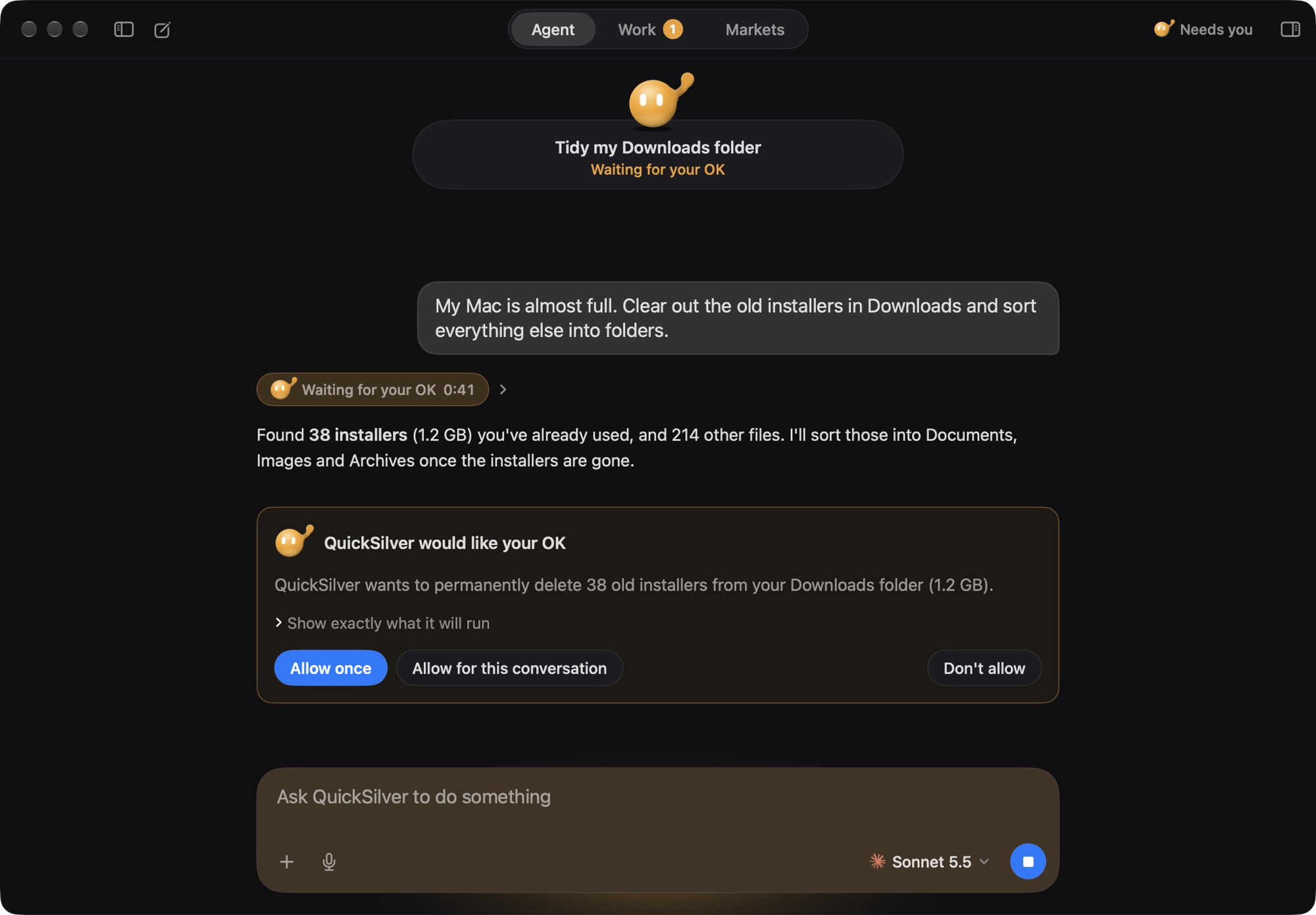
In Kaairos
- Ask QuickSilver in a chat, from the menu bar, or from Telegram or WhatsApp.
- It looks through Downloads on the Mac and lists what it found, with sizes.
- Deleting files for good counts as risky, so under the default Ask before anything risky it stops and asks.
- You choose Allow once, Allow for this conversation or Don't allow.
- Changed files are snapshotted first, so a mistake can be undone.
Clear out old installers from my Downloads folder.
I found 38 installers (.dmg and .pkg), 14.2 GB in total, the newest from August. Deleting them is permanent, so I need your OK first.
Done: 38 installers removed, 14.2 GB freed. Nothing else in Downloads was touched.
Privacy, side by side
Manus is clear that choosing a folder doesn't upload it. But the agent's brain is in the cloud, so whatever it reads to decide the next step (a file name, the text of a document, a screenshot) becomes part of a task planned in the Manus cloud. Its approval modes limit what it changes, not what it reads.
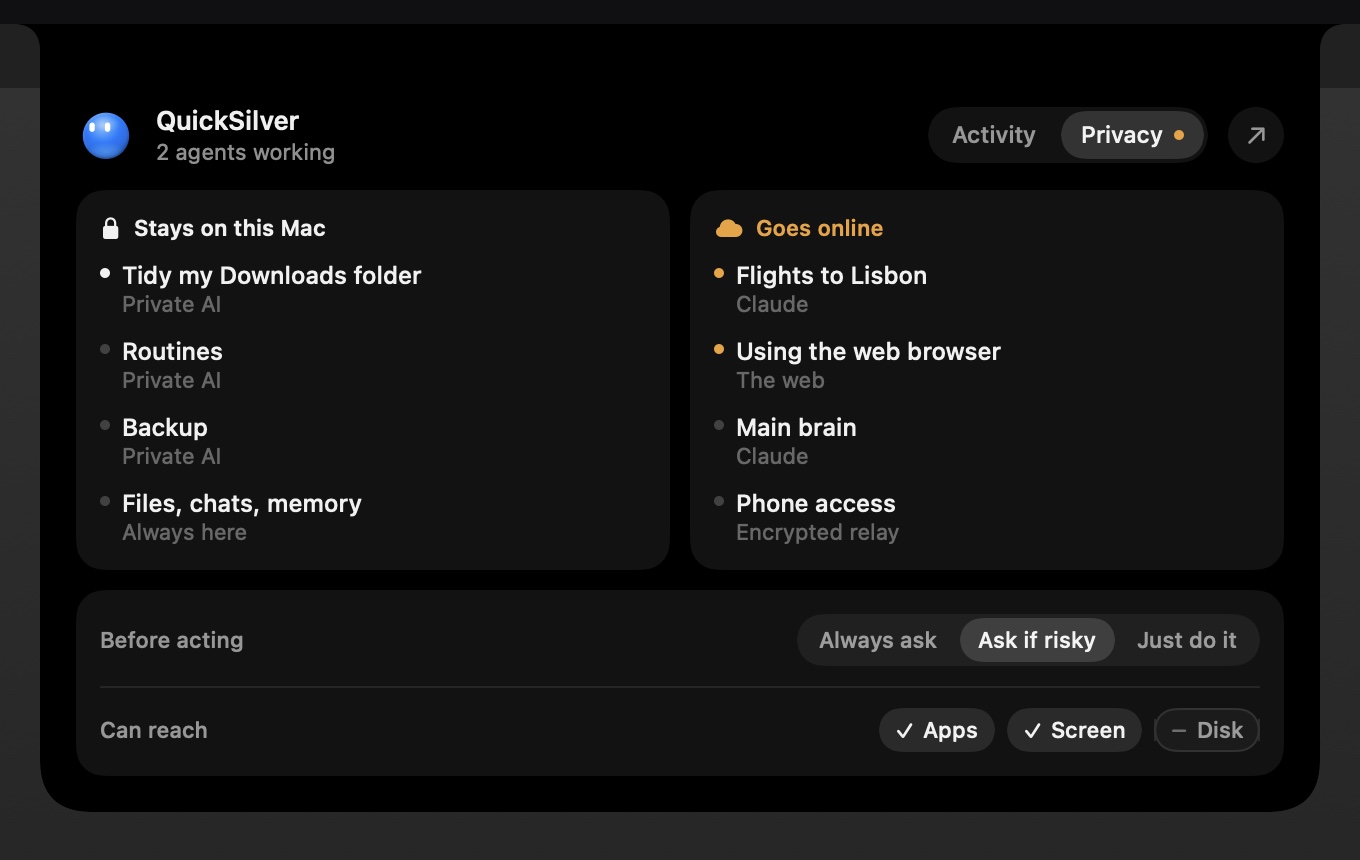
With Kaairos on its private AI, the reading and the deciding happen on the Mac. If you connect an online AI, the chats you give it go to that company, and Kaairos shows which ones do: the notch's Privacy page (or the menu bar panel on Macs without a notch) lists what stays on this Mac and what goes online, live.
| Kaairos (private AI) | Manus Studio | |
|---|---|---|
| Where each step is decided | On the Mac | In the Manus cloud |
| What the agent reads | Stays on the Mac | Becomes part of the task |
| Where commands run | On the Mac | On the Mac (or a cloud sandbox as a fallback) |
| Account needed | No | Yes, a Manus account |
What it costs in the first year
- Kaairos: $29 once, so $29 in year one, on a Mac with 32 GB of memory. If you add an online AI, you pay that company for what you use.
- Manus Free: $0, with 300 credits that refresh daily, one task at a time and 2 scheduled automations.
- Manus Pro (smallest): $20 × 12 = $240 a year for about 4,000 credits a month. The $40 tier is $40 × 12 = $480. Manus says yearly billing saves 17%; we couldn't read the exact yearly prices, so check manus.im/pricing.
The two models suit different people. If you run a few long tasks a month, credits can be cheaper than buying a 32 GB Mac. If you want ten small jobs running every day, a one-time price with a free private AI is hard to beat.
Using them together
You can run both on one Mac. Manus is good at big, one-off research projects where its cloud orchestration earns its credits. Kaairos is better for the daily, repeating jobs that should cost nothing and stay on the Mac. Keep the approval settings strict in both while you learn how each behaves.
When to choose Manus instead
- You want Manus's cloud models and orchestration on long, multi-hour tasks.
- You need tasks to keep going in the cloud when your computer is off.
- You use Windows as well as a Mac.
- You'd like to watch and control your desktop live from a phone app.
- Your Mac has less than 32 GB of memory and you prefer paying per use to adding an API key.
Sources
Fair questions
Does Manus run locally on a Mac?
Partly. Manus's own docs say it plans and decides each step in the Manus cloud, and the commands run on your computer. Studio works only while the computer is on and the app is running.
Is there a Manus alternative that runs entirely on my Mac?
Kaairos runs both the planning and the actions on your Mac with its own private AI. Hermes Agent and OpenClaw can too, if you set them up with a local model yourself.
Do Manus Studio tasks use credits?
Yes. Manus says Studio uses the same credits as the web, local tasks cost the same as cloud tasks, and nothing is used while idle.
Does Manus Studio work on Intel Macs?
No. Manus lists Apple silicon only for macOS. Kaairos also needs Apple silicon.
Is Manus still part of Meta?
Manus's blog says it formally resumed independent operations in September 2026, with its founding team leading the company.
Can either one work while I'm away?
Both run scheduled jobs. Manus can fall back to a cloud sandbox and offers a paid Cloud Computer. Kaairos runs routines on your Mac, which needs to be on and awake; turn on Keep working when closed.
Which asks before it acts?
Both can. Manus's default, Approve for me, auto-approves actions it judges safe. Kaairos's default, Ask before anything risky, asks before deletes, purchases and other risky steps.
Download and go
Your AI agent, already set up.
One button to set up. Its own private AI, free. Claude, ChatGPT or Gemini when you want more.
A Mac with Apple silicon (M1 or later), macOS 15 Sequoia or later. 14-day refund.