
Features · Work tab
Everything it's doing, in one place
An agent that works on its own needs a place where you can see what it's doing. The Work tab is that place: what needs you, what's running, what happened today, what's next and what it made.
At a glance
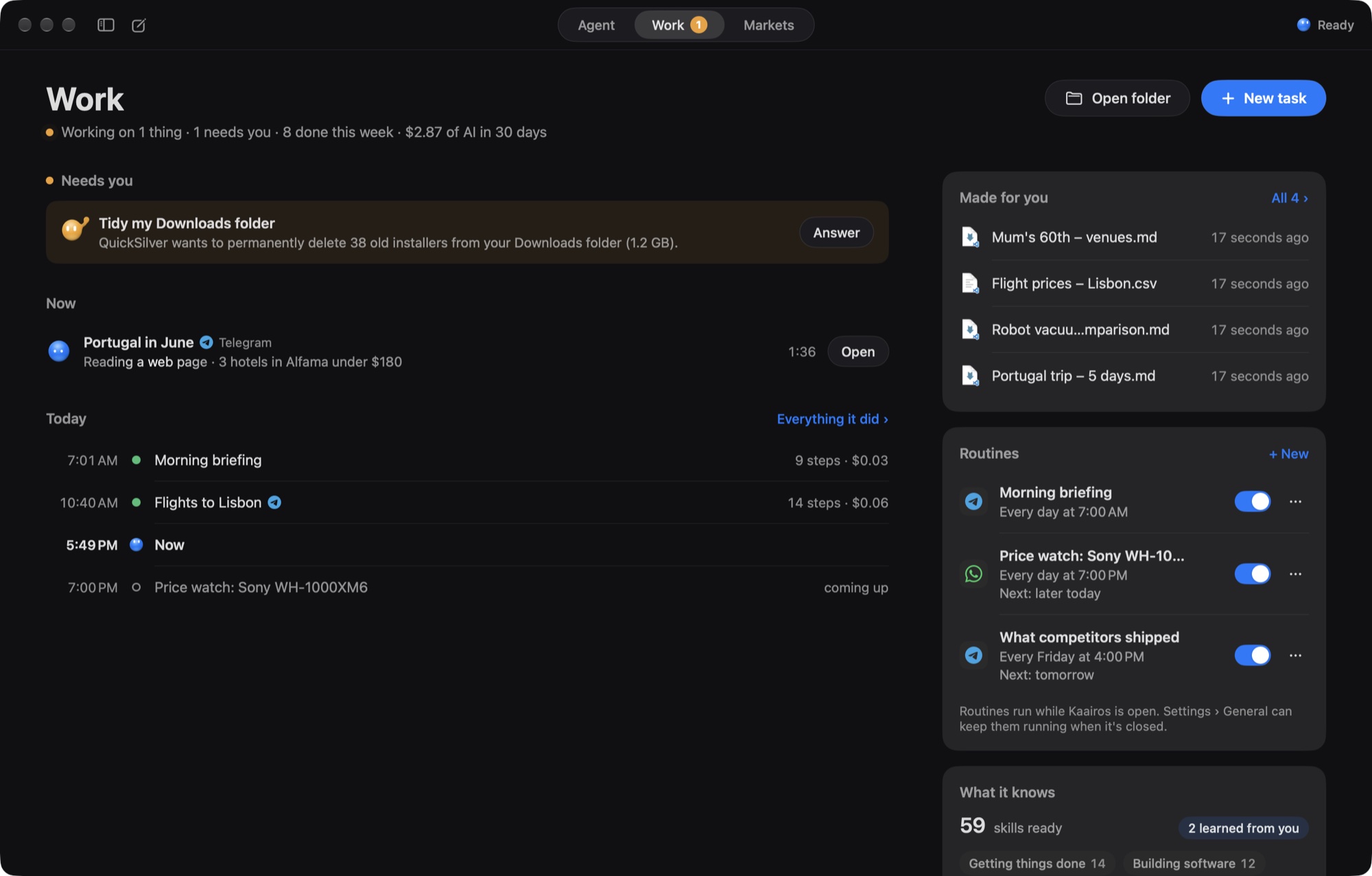
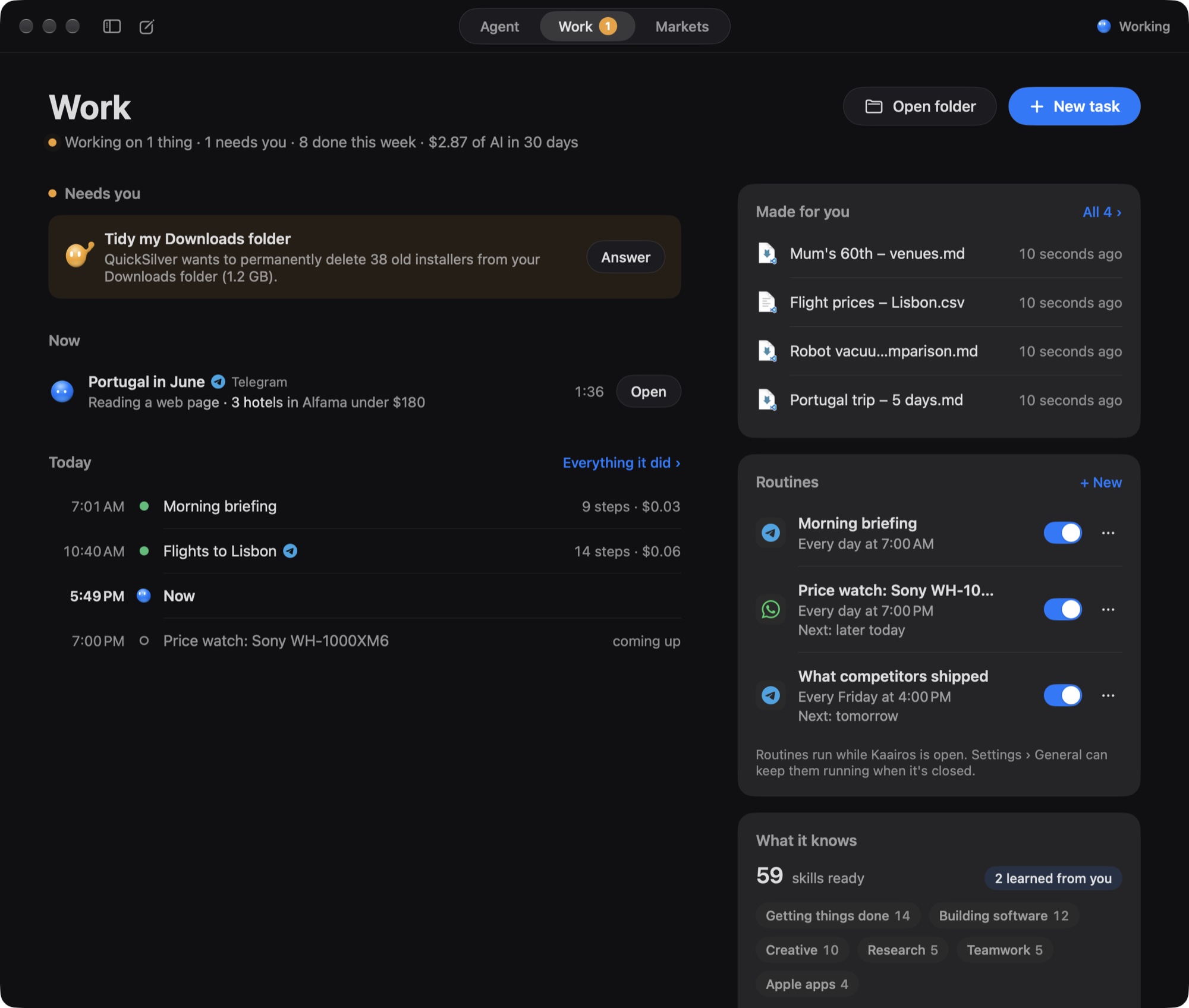
Open the Work tab at the top of the window. Under the title, one line sums things up, for example: “Working on 2 things · 1 needs you · 14 done this week · $3.42 of AI in 30 days”. A coloured dot beside it turns amber when something needs you. Two buttons sit beside the title: Open folder opens your Kaairos folder in Finder, and New task starts a new chat.
Below that, the page has two columns. On the left, what's happening: Needs you, Now and Today. On the right, what QuickSilver keeps for you: Made for you, Routines and What it knows. In a narrow window the right column moves under the left. The page refreshes itself every 30 seconds while it's open, so routines and messages from your phone show up without you doing anything.
A morning, seen from the Work tab
You open your Mac at 9. The Work tab shows:
- Needs you: “Tidy my Downloads folder” wants your OK to permanently delete 38 old installers. An Answer button opens the chat where you choose Allow once, Allow for this conversation or Don't allow.
- Now: “Flights to Lisbon”, which you sent from Telegram on the way in, is on its fourth step: “Reading a web page · tap.pt”, running for 1:15, with an Open button.
- Today: the morning briefing finished at 7:01 with 9 steps; a price check ran at 6:00; your 2:00 PM reminder is marked “coming up”.
- Made for you: the trip itinerary PDF from last night, at the top.
Nothing there needed a refresh or a search. You answer the one request and get on with your day.
What's happening
Needs you
Shown only when something is waiting, with QuickSilver's hand raised. Each item has one button:
| Item | What it says | Button |
|---|---|---|
| An approval | The chat's name and what it wants, in plain words, such as “Kaairos wants to permanently delete files.” | Answer (opens the chat) |
| A question | The question QuickSilver asked | Answer |
| A key or password it needs | What it's asking for | Answer |
| A routine that failed | ““…” didn't finish” and the reason | Run again |
| A phone app that dropped | “Telegram isn't connected” (or WhatsApp) and the reason | Fix |
Now
Every task running at this moment, including ones sent from Telegram or WhatsApp (marked with their logo) and routines. Each row shows the step it's on in plain words, how long it has been going, and Open. With nothing running it says “Nothing running. Ask QuickSilver something, or start a routine.”
Today
A timeline with a time column. What finished today sits above a Now marker, each with a green dot, the number of steps it took and, for online AI, what it cost (for example “9 steps · $0.03”). Routines still to come today sit below Now, marked “coming up”. Click a finished row to open that conversation. Everything it did › opens Earlier this week, the last seven days of finished work.
What it keeps for you
Made for you
The five newest files in your Kaairos folder (the folder set in Settings › General › Kaairos saves your work in, ~/Kaairos to start). Click one to open it; right-click for Show in Finder. All N › opens the folder. Before it has made anything: “Files QuickSilver makes for you land here.”
Routines
Each routine with its schedule and when it runs next (“Every day at 7:00 AM”, “Next: Friday”), a badge for where it sends results, an on/off switch, and a ⋯ menu with Run now, Change in a chat… and Delete. + New opens the routine gallery. If Keep working when Kaairos is closed is off, a note says routines run only while Kaairos is open. More in Routines.
What it knows
How many skills are ready, how many it learned from you, the areas they cover and the one it used most, with Manage…. Then how many things it remembers about you, the latest one, and See all, which opens “What QuickSilver remembers”: “It decides what's worth keeping. Ask it in a chat to forget something.”
What your AI has cost
The summary line shows what your online AI has cost over the last 30 days, and each finished task in Today shows its own cost once it's at least half a cent. Kaairos reads these from the engine's own token count: the cost the AI company reports where it reports one, otherwise the engine's estimate from its price list. Work done by the private AI on your Mac costs nothing. The actual bill comes from the AI company; see Costs and usage.
Plain words, not tool names
The engine works with tools called things like web_extract and terminal. You don't see those. Every step is written the way you'd say it, and in the past tense once it's done:
| While it's working | When it's done |
|---|---|
| Searching the web | Searched the web |
| Reading a web page | Read a web page |
| Using the web browser | Used the web browser |
| Looking through files | Looked through files |
| Running a command | Ran a command |
| Using a connected app | Used a connected app |
| Handing part of this to a helper | A helper finished part of this |
| Setting up a schedule | Updated a schedule |
A step's detail is kept short: for a file, just its name rather than the whole path.
The same view, without the window
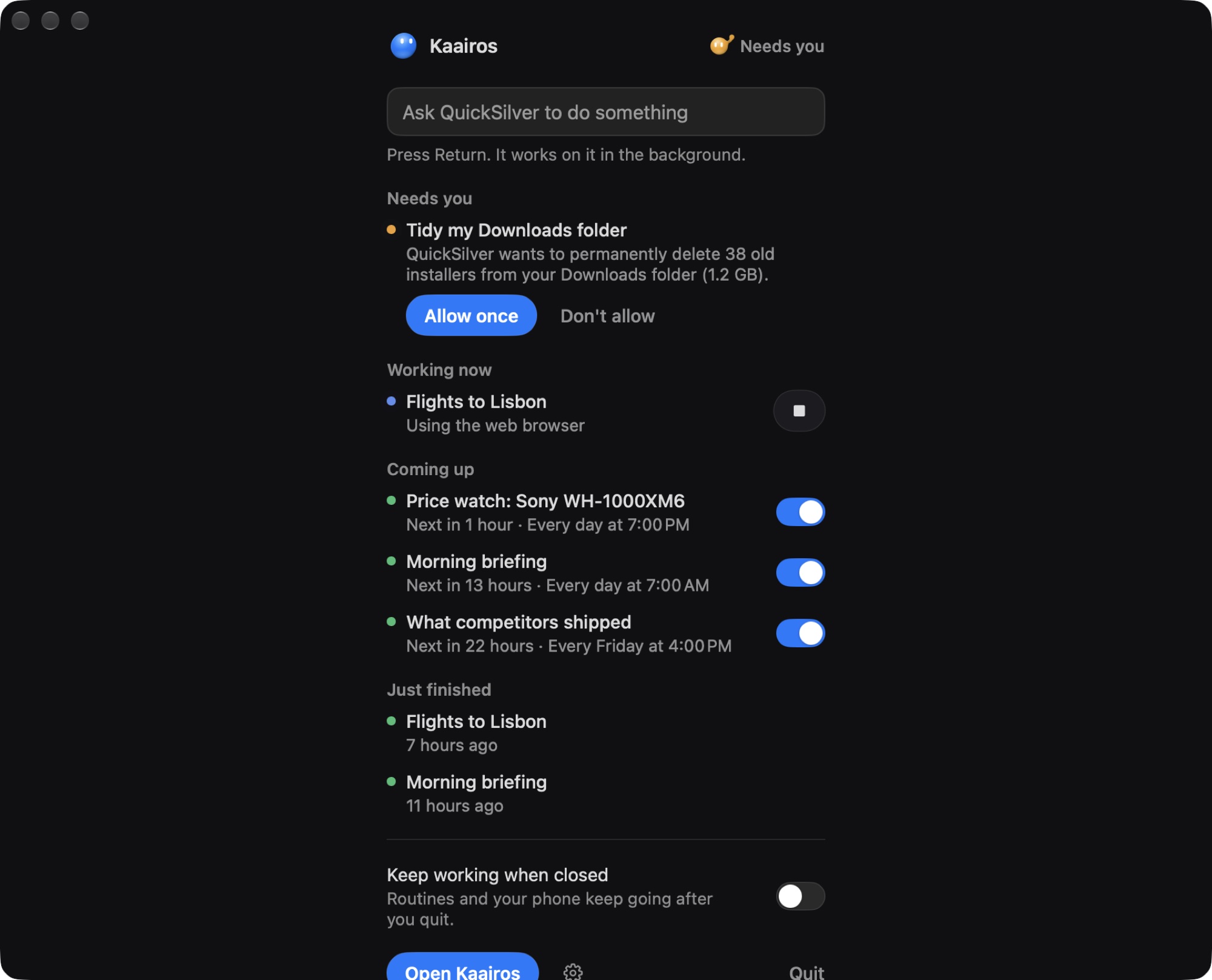
You don't need the window open to keep an eye on things. The menu bar panel has an Ask field, Needs you (with Allow once and Don't allow), Working now (with Stop), Coming up (with each routine's switch), Just finished, and the Keep working when closed switch. On a Mac with a camera notch, QuickSilver at the notch shows every agent at work, how hard your Mac is working and what's going online, and the menu bar icon steps aside.
Privacy
Everything the Work tab shows comes from Kaairos's engine on your Mac: your chats, routines, files, skills and memory are stored in ~/.kaairos and your Kaairos folder. Showing them sends nothing anywhere. The cost figures are counted on your Mac from the engine's own records; Kaairos doesn't send your usage to Stuvio.
Limits
- Earlier this week shows the last 20 finished items from the past seven days; older chats are in the chat list.
- Made for you lists the five newest files; the folder has the rest.
- Costs are the engine's figures. Where a company doesn't report a cost, it's an estimate; your AI company's bill is the final word.
Fair questions
Can I stop a task?
Yes. Open it from Work › Now and press Stop in the chat, or use Stop in the menu bar panel or on the notch.
Does it show tasks I sent from my phone?
Yes. Chats from Telegram and WhatsApp show in Work › Now while they run, with the app's logo, and in Today when they're done.
Why does a routine show under Needs you?
Its last run had a problem. The item says what went wrong; Run again runs it straight away.
Where's my AI cost for the month?
In the line under the Work title: “$… of AI in 30 days”. Each finished task in Today shows its own cost.
Can I change where files are saved?
Yes. In Settings › General, next to Kaairos saves your work in, choose Change….
How do I make QuickSilver forget something?
Ask it in a chat. What it remembers is listed under What it knows › See all.
Download and go
Your AI agent, already set up.
One button to set up. Its own private AI, free. Claude, ChatGPT or Gemini when you want more.
A Mac with Apple silicon (M1 or later), macOS 15 Sequoia or later. 14-day refund.