
Use case · Every morning
Start the day knowing what matters, in one message
Ask once. Every morning QuickSilver checks the forecast for your city, reads up on what you follow, picks the few things worth your time and sends one short message to your phone. Here's exactly how to set it up, what it costs and what it can't do.
What arrives at 7
One message, short enough to read before you get out of bed. The weather first, because it changes what you wear; then the handful of things worth knowing about the topics you gave it, each in a line with a link; then anything you asked it to remind you about. Here's the shape of it for someone who follows climate tech, Arsenal and their building's renovation:
Good morning. Lisbon today: 17° and sunny until about 6 PM, then rain. Take a jacket if you're out tonight.
Climate tech: the grid-storage auction results are out. Two of the winners are companies you asked about last month. (link)
Arsenal: Wednesday's match moved to Thursday at 8 PM. (link)
Your building: the residents' group says the scaffolding goes up next Monday, not this week. (link)
You asked me to remind you: renew the parking permit before Friday.
On a quiet day it says so in a line rather than padding the message. If you said “don't repeat yesterday”, each morning's run sees the previous morning's message, so a story it already told you only comes back if something new happened.
Who it's for
- People who open five apps before breakfast: weather, a news site, a sports app, a group chat. One message replaces the rounds.
- Anyone following a niche: a technology, a local planning decision, a company, a team. General news apps rarely cover these well; a briefing you describe in your own words does.
- People who want it private: on a Mac with 32 GB of memory, the whole briefing is written by the AI on your Mac. What you follow isn't sent to an AI company.
It's not for anyone who needs their calendar or email in the briefing. Kaairos can't connect a calendar or mailbox yet, so it can't tell you about today's meetings or urgent mail.
Set it up, step by step
1. Link your phone (once)
- On the Kaairos home screen, find Talk from your phone and choose Show Code next to Telegram or WhatsApp. (Or open Settings › Phone & messages.)
- Scan the code with your phone. Telegram creates your own bot; WhatsApp links Kaairos like WhatsApp Web, and QuickSilver talks to you in the chat with yourself.
- Send a test message from your phone. If QuickSilver answers, you're done.
Telegram is the safer choice: WhatsApp doesn't officially support assistants on personal accounts. See Telegram and WhatsApp for details. You can skip this step and read the briefing in Kaairos instead.
2. Ask for the briefing in a chat (recommended)
Type it in any chat on your Mac, or send it from your phone. Saying it in words lets you choose exactly what goes in. Copy this and change the parts in brackets:
“Every morning at 7, send me a short briefing on Telegram. Start with today's weather in [Lisbon]. Then the 3 to 5 most important new things about [climate tech, Arsenal, and the renovation of my building on Rua X], one line each with a link. Don't repeat anything you sent the day before. End with anything I asked you to remind me about. Keep it under 150 words.”
QuickSilver creates the routine and tells you when the first one arrives. It shows up in Work › Routines with an on/off switch. To see one straight away, open the ⋯ menu next to it and choose Run now.
Or start from the gallery
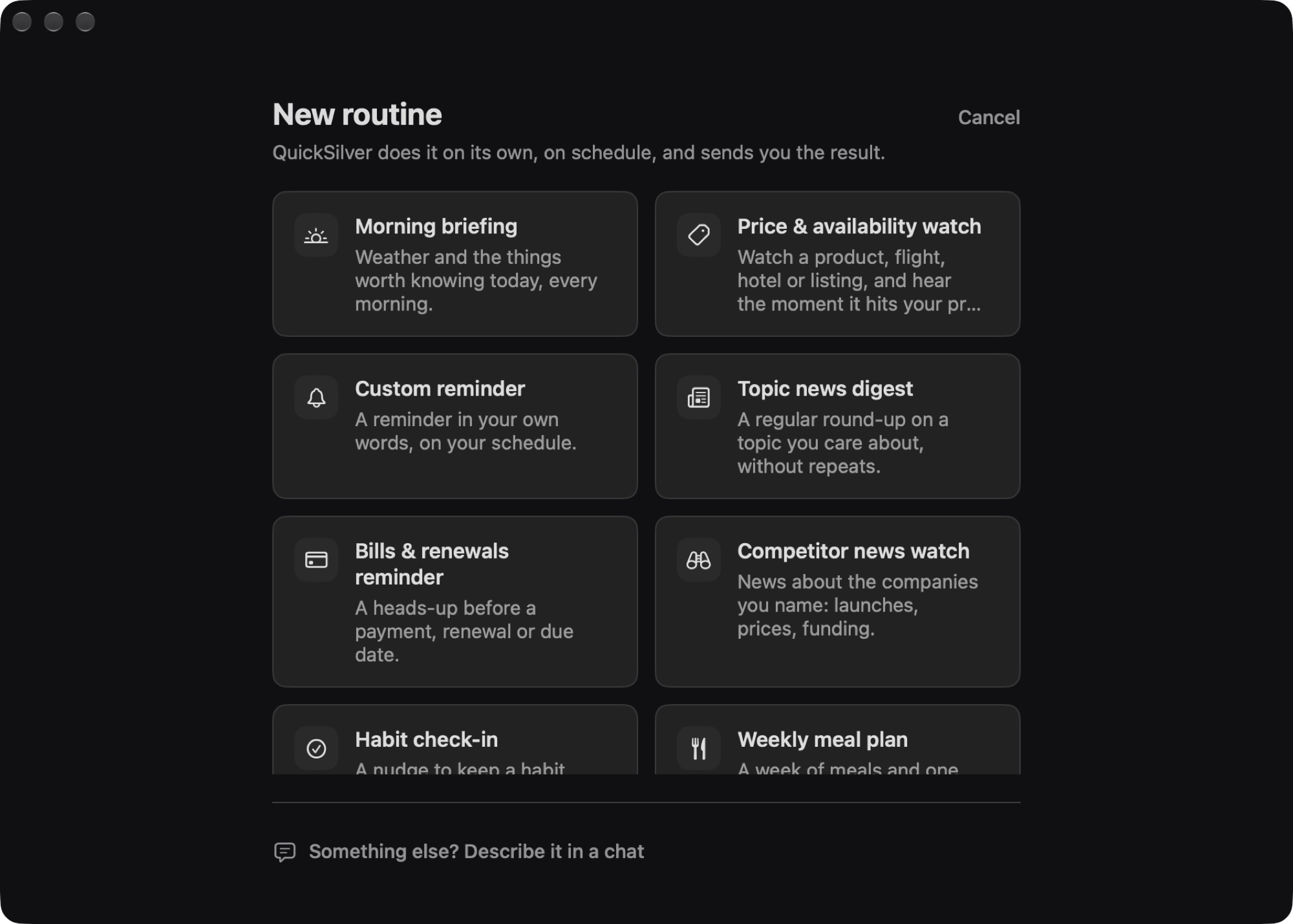
In the Work tab, choose + next to Routines (or Morning briefing if you have no routines yet). The Morning briefing tile asks two things: What time? and Send the result to (Kaairos, Telegram or WhatsApp, once linked). Then Create routine.
The gallery tile's built-in instructions come from the Hermes engine and were written for a connected calendar and inbox. Kaairos doesn't connect those yet, so on its own the tile sends a short good-morning. To get the topics on this page, open the routine's ⋯ menu, choose Change in a chat… and say what to include, or start in a chat as above.
Schedule options
| You say | What it does |
|---|---|
| “every morning at 7” | Every day at 7:00 |
| “weekdays at 6:30, weekends at 9” | Two routines, or one with two times; QuickSilver tells you which it made |
| “every Monday at 8” | Once a week |
| “at 7 for the next two weeks, then stop” | A routine that ends after a set number of runs |
| “pause the briefing until the 3rd” | Switches it off; ask again to switch it back on |
The gallery form takes one time and, for some routines, Every day, Weekdays or Weekends. In words you can describe any schedule a calendar could. Times are local time on your Mac.
Kaairos works on your Mac, so routines run while your Mac is on and awake. Turn on Keep working when closed (in the Work tab or the menu bar panel) and they carry on after you quit the window. If the Mac was asleep at the time, the routine runs once when it wakes, rather than replaying every check it missed.
Variations worth trying
The commuter
“Weekdays at 7:15: weather, and whether there are delays or strikes on the Lisbon metro and the A5 today. If there's nothing, just say ‘all clear’.”
The investor
“Weekdays at 8: overnight moves in the S&P 500, the euro and Brent crude, one line each, and any news about the 5 companies in my watchlist: [names].”
The parent
“School days at 6:45: weather for the school run, and anything new on the school's news page [link].”
The local
“Every Saturday at 9: what's on this weekend in [city], free things first, with a photo of each.”
The professional
“Every Monday at 8: the most important developments in [your field] last week, with sources. Three items at most.”
The language learner
“Every morning at 7, add one useful [Spanish] phrase with an example at the end of the briefing.” (The gallery's Daily learning drip does this on its own.)
Change any of them later in plain words: “add the markets”, “skip weekends”, “fewer sports, more local news”, “make it shorter”. QuickSilver also learns how you like things done: skills it writes for itself show in Settings › Skills › Learned from you.
Which AI writes it, and what leaves your Mac
Routines run on the private AI on your Mac whenever it has one (Macs with 32 GB of memory or more), even if you've connected Claude, ChatGPT or Gemini for conversations. On a Mac without it, they run on your account's fast, inexpensive model, such as Claude Haiku 5.5. You can move them in Settings › AI › Who does what › Routines.
| Step | Where it happens | What leaves your Mac |
|---|---|---|
| The schedule and the routine itself | Kaairos's engine, on your Mac | Nothing |
| Deciding what to look up, choosing the stories, writing the message | The private AI on your Mac (32 GB Macs); otherwise your account's fast model | Nothing with the private AI. With an account, the routine's instructions and the pages it read go to that AI company |
| Web searches and reading pages, including the forecast | Fetched by your Mac | The search words go to the search service; each site sees a visit from your internet connection |
| What it remembers about you (your city, your topics) | Kaairos's folder on your Mac (~/.kaairos) | Nothing |
| Delivery | Telegram or WhatsApp | The finished message passes through Telegram's or WhatsApp's servers |
On a Mac with a camera notch, point at QuickSilver beside the notch and open its Privacy page to see, live, what stays on the Mac and what goes online. More on the notch.
What it costs to run
On the private AI, nothing beyond your Mac's electricity: there's no per-message charge. On an online account, every run is billed by the token. A rough estimate, with the assumptions spelled out:
- Assumption: a briefing takes about 8 model calls (a few searches, reading some pages, writing). Each call re-sends the instructions, the tool descriptions and the work so far, so we assume 15,000 input tokens per call on average: about 120,000 input and 3,000 output tokens per run. Your real numbers vary with how many topics you follow.
- Claude Haiku 5.5 ($0.10 per million input tokens, $0.50 per million output, per Anthropic's price list): 120,000 × $0.10/M + 3,000 × $0.50/M ≈ $0.014 a run, about $0.41 a month.
- Claude Sonnet 5.5 ($2 / $10 per million): 120,000 × $2/M + 3,000 × $10/M ≈ $0.27 a run, about $8 a month.
- Signed in with ChatGPT: no per-token bill; runs count toward your plan's usage limits.
Prompt caching usually brings repeat costs down further. The Work tab shows what Kaairos actually spent over the last 30 days, so you don't have to rely on estimates. More about the Work tab.
What it can't do
- No calendar or email yet. It can't list today's meetings or flag urgent mail.
- No paywalled sources. It reads what's openly on the web; a story behind a paywall shows as a headline at most.
- It can be wrong. It summarises what it read. Check anything you'll act on, especially numbers and fast-moving news.
- Your Mac has to be on. A Mac that's shut or asleep at 7 sends the briefing when it wakes, not at 7.
- The private AI is slower than online models. A briefing that takes a minute online can take several on the Mac. At 7 AM, nobody's waiting.
If it doesn't arrive
| What you see | What to do |
|---|---|
| Nothing on your phone, but the briefing is in Kaairos | The routine is set to deliver to Kaairos. Say “send the briefing to Telegram from now on”, or check Telegram or WhatsApp is still linked in Settings › Phone & messages. |
| Nothing anywhere at 7 | The Mac was asleep or Kaairos wasn't running. Turn on Keep working when closed, keep the Mac plugged in and set it not to sleep (System Settings › Energy, or Battery › Options on a laptop). |
| “Last run had a problem” under the routine | Often no internet, or a site that blocked the visit. It also appears in Work › Needs you with Run again. |
| Same stories two days running | Say “don't repeat what you sent yesterday” so each run sees the last one. |
| Too long | “Keep the briefing under 100 words” works. So does “three items, not five”. |
Fair questions
Can it read my calendar or email for the briefing?
Not yet. Calendar and mail routines arrive once Kaairos can connect those accounts itself. Today the briefing uses the web, what it remembers about you and the reminders you've asked for.
What if my Mac is asleep at 7?
The routine runs once when your Mac wakes, rather than at 7. For a reliable 7 o'clock message, keep the Mac plugged in and set it not to sleep, and turn on Keep working when closed.
Does it cost anything?
On a Mac with 32 GB or more, routines run on the private AI, which is free. On a smaller Mac they run on your AI account's fast model: by our estimate around $0.40 a month on Claude Haiku 5.5 for a daily briefing.
Can I get it in Kaairos instead of on my phone?
Yes. Results always appear in Kaairos; phone delivery is optional. Choose Kaairos under “Send the result to”, or just don't link a phone.
How do I change what's in it?
Tell it in any chat: “add the markets”, “drop the sports”, “make it 6:30 on weekdays”. Or use the ⋯ menu on the routine and choose Change in a chat….
How is this different from ChatGPT's scheduled tasks?
Those run on OpenAI's servers and notify you in ChatGPT. Kaairos runs the routine on your Mac, can write the briefing with the AI on your Mac, and sends it to Telegram or WhatsApp. The trade-off: your Mac has to be on.
Can several people get the same briefing?
Not directly. A routine sends to your own linked Telegram bot or your own WhatsApp chat.
Download and go
Your AI agent, already set up.
One button to set up. Its own private AI, free. Claude, ChatGPT or Gemini when you want more.
A Mac with Apple silicon (M1 or later), macOS 15 Sequoia or later. 14-day refund.