
Features · Skills and connectors
Skills and connected apps
Skills teach QuickSilver how to do something well. Connectors let it work inside your other apps. Both are a click away in Settings, and neither needs a config file.
What they make possible
You've connected Linear. In a chat, you ask:
Read the three newest bug reports in Linear, group them by cause, and file one issue for the root cause with the others linked.
I've read them and grouped them. Before I file the new issue in Linear, here's what I'd create. OK to go ahead?
QuickSilver read the issues without asking, because reading changes nothing. Filing a new one changes your Linear, so it asked first. That's the rule for every connector Kaairos adds.
A skill works differently. It's a written procedure QuickSilver follows: how to lay out a competitor round-up, how to check a flight route for a cheaper fare. Once QuickSilver has done something with you a few times, it can write a skill for itself, so next time it does it your way.
Connectors: work inside your other apps
A connector lets QuickSilver read and act in another online service: your Notion pages, your Linear issues, your Dropbox files. Under the hood these are MCP servers (the Model Context Protocol, the open standard many AI tools use). You don't need to know that.
- Open Settings › Connectors (“Apps QuickSilver can work in for you. You sign in on each app’s own page.”) and choose Add Connector….
- Search or scroll the list and pick an app.
- Kaairos opens that app's sign-in in your browser. Sign in there and allow access.
- Back in Kaairos, the checklist ticks off “Save the connection on this Mac” and the app shows as Connected.
The list is the engine's approved connector catalog. It includes Airtable, Asana, Atlassian, Calendly, Canva, Dropbox, Linear, Notion, Stripe and Todoist, among others. Connectors that run on your Mac or need a key typed in aren't offered yet.
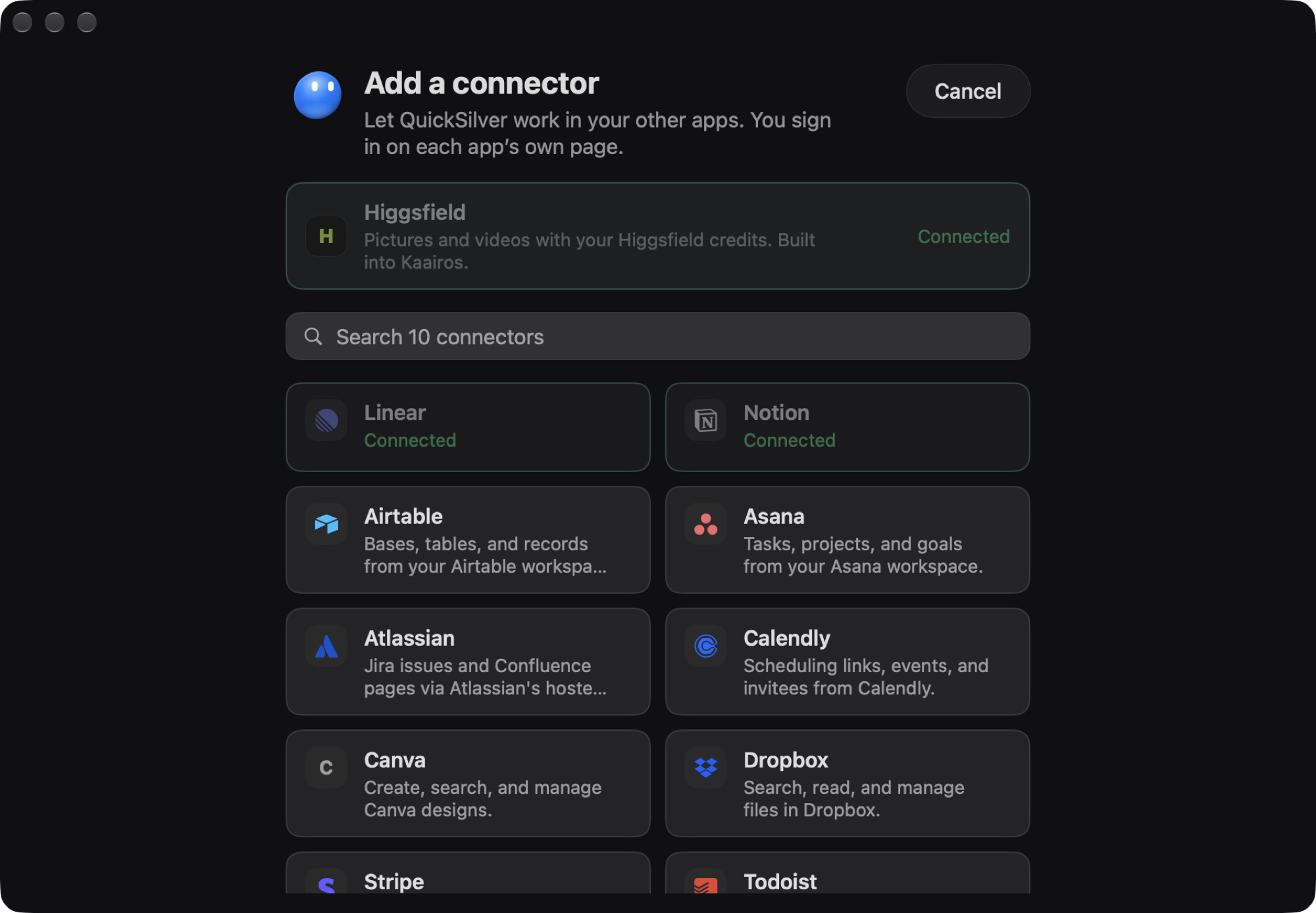
Connectors are added as untrusted: QuickSilver reads from them freely, and asks you before it adds or changes anything in them. The connect screen says so: “It reads on its own, and asks you before it adds or changes anything in …”. If you leave a sign-in before it's finished, Kaairos removes the connector again, so nothing half-connected lingers.
When you mention an app you haven't connected (“add this to my Notion”), a Connect Notion chip appears above the message box. It opens Settings on that app's sign-in. Close it with the × if you don't want it.
To remove one, choose ⋯ › Disconnect … on its row: “QuickSilver stops working in it. You can connect it again any time.”
Skills: how to do things well
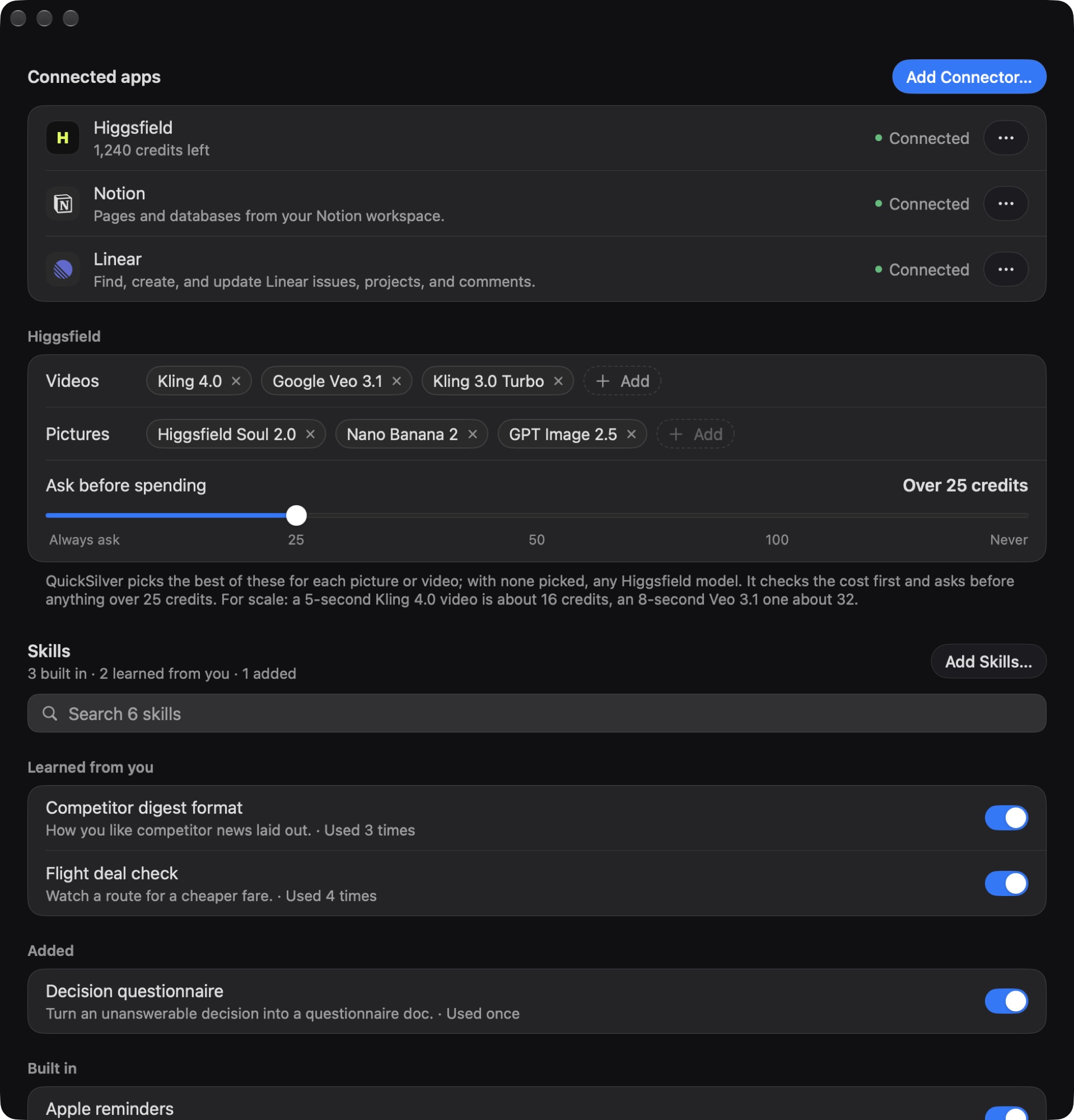
Settings › Skills (“What QuickSilver knows how to do: built in, added, or learned from you.”) lists every skill in three groups, with a search box:
- Learned from you: skills QuickSilver wrote itself while working with you.
- Added: skills you added from Nous Research's official catalog.
- Built in: the ones that come with the engine.
Each has a switch. Click a skill to read exactly what it says, with Turn Off or Turn On, and for a learned one Delete… (“QuickSilver stops using it. The engine keeps a copy in its archive.”). A skill's row also says how often it's been used.
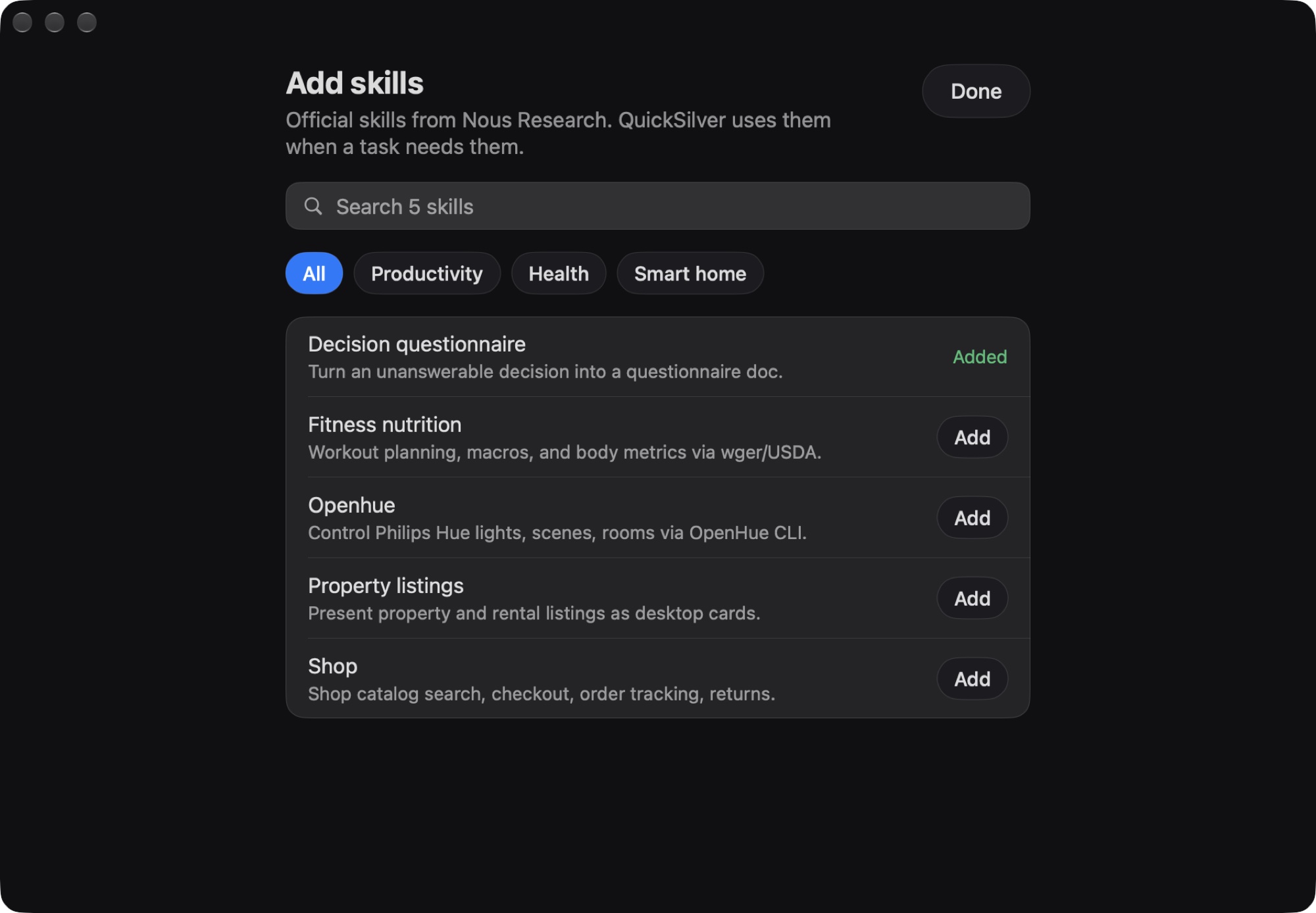
To add more, choose Add Skills…: “Official skills from Nous Research. QuickSilver uses them when a task needs them.” Search the catalog and press Add on the ones you want. You don't call a skill by name; QuickSilver picks the right one when a task needs it.
The Work tab's What it knows panel counts them: how many skills are ready, how many it learned from you, and which it used most.
Built in: Higgsfield for pictures and video
Kaairos includes Higgsfield as a built-in connector, at the top of Add Connector: “Pictures and videos with your Higgsfield credits. Built into Kaairos.” Choose Open Higgsfield, sign in there and allow access. There's nothing to install. Your sign-in stays on this Mac, and Higgsfield bills your own credits.
Once connected, Settings › Connectors shows a Higgsfield section:
| Setting | What it does | Default |
|---|---|---|
| Workspace | Which Higgsfield workspace is billed. Shown when you have more than one. | The one Higgsfield marks, or the first |
| Videos | The video models QuickSilver may use (such as Kling and Google Veo). It picks the best of these for each video. | None picked: any Higgsfield model |
| Pictures | The picture models it may use. | None picked: any Higgsfield model |
| Ask before spending | A slider: Every time, over 25, 50 or 100 credits, or Never. | Over 25 credits |
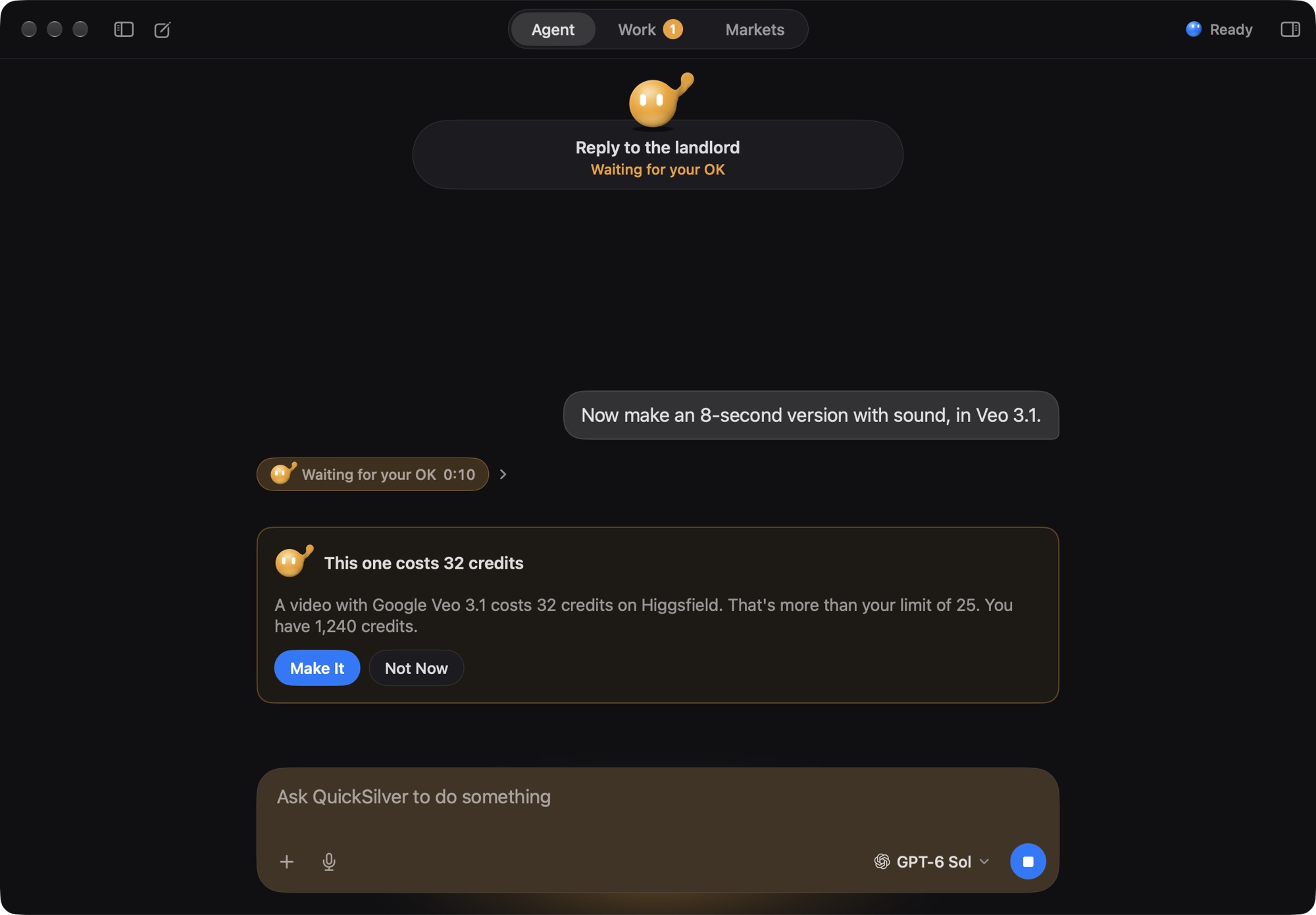
Because video costs real money, QuickSilver checks the price first. Anything above your limit shows a card, “This one costs 32 credits”, with Make It and Not Now. For scale, Settings notes that a 5-second Kling 4.0 video is about 16 credits and an 8-second Veo 3.1 one about 32.
Every picture or video it makes comes back with Approve, Reject and Changes, and it waits for your pick before a further paid step, such as turning an approved picture into a video. See visual replies.
Privacy
- Connectors are online services. What QuickSilver reads from or writes to a connected app goes between your Mac and that app's servers, under that app's terms.
- What it reads also goes to the AI doing the task. If the task runs on an online AI, the content QuickSilver reads from the app is sent there to be worked on; on the private AI, it's processed on your Mac.
- Sign-ins stay on this Mac. Kaairos keeps each connection on this Mac; disconnect any time in Settings › Connectors.
- Skills are text on your Mac. Adding one from the catalog downloads it; skills QuickSilver learns are written to your Mac.
Limits
- Only connectors from the engine's approved catalog that sign in on their own page are offered.
- Connectors can't change anything without your OK; on a busy task that means more questions.
- Higgsfield pictures and videos use your Higgsfield credits; Kaairos doesn't sell or include credits.
- Skills from outside the official catalog can't be added from Settings.
Fair questions
Do I need to know what MCP is?
No. You pick an app and sign in on its own page. Kaairos handles the connection.
Can a connector change things without asking?
No. Connectors are added as untrusted: reading is free, but adding or changing anything asks you first.
Is Higgsfield free?
The connector is included. Pictures and videos use credits from your own Higgsfield account, and Kaairos asks before any job above your limit (25 credits to start).
How do I stop QuickSilver using a skill?
Turn its switch off in Settings › Skills. You can delete skills it learned from you; built-in and added skills can be turned off.
Where did a “learned from you” skill come from?
QuickSilver wrote it while working with you, so it can repeat something the way you like it. Click it in Settings › Skills to read exactly what it says.
Can I connect an app that isn't in the list?
Not from Settings today. The list is the engine's approved catalog, limited to apps that sign in on their own page.
Download and go
Your AI agent, already set up.
One button to set up. Its own private AI, free. Claude, ChatGPT or Gemini when you want more.
A Mac with Apple silicon (M1 or later), macOS 15 Sequoia or later. 14-day refund.