
Use case · Every week
Know what your competitors did this week, without the searching
Name the companies and the kinds of news that matter to you. Every Monday QuickSilver collects what's new since last time, removes the duplicates, keeps only what's material, and sends a short digest with a link for every claim.
What you get
One message a week, only when something material happened. Each item says what changed, why it might matter to you, and where it was reported. If nothing material happened, you get nothing: the routine stays silent rather than padding the week.
Competitors, week to Monday 17 November. 3 material events: 1. Acme cut its Team plan from $20 to $15 per seat and added annual billing (pricing). Source: Acme pricing page and its changelog, 12 Nov. 2. Globex raised a Series B led by a growth fund; the announcement mentions hiring for a European sales team (funding). Source: Globex press release, 13 Nov; trade press coverage the same day. 3. Initech shipped an offline mode for its mobile app (product launch). Source: Initech blog, 14 Nov. Not included: two reposts of the Globex news, and an Acme webinar announcement (not material).
Who it's for
- Founders and product managers who want to know about competitor launches and price changes without checking five websites.
- Marketers and sales teams preparing for calls where a competitor's new pricing will come up.
- Investors and analysts following a handful of companies in one market.
- Freelancers and agencies keeping an eye on their clients' competitors.
Set it up
- In Kaairos, open the Work tab and, under Routines, choose New.
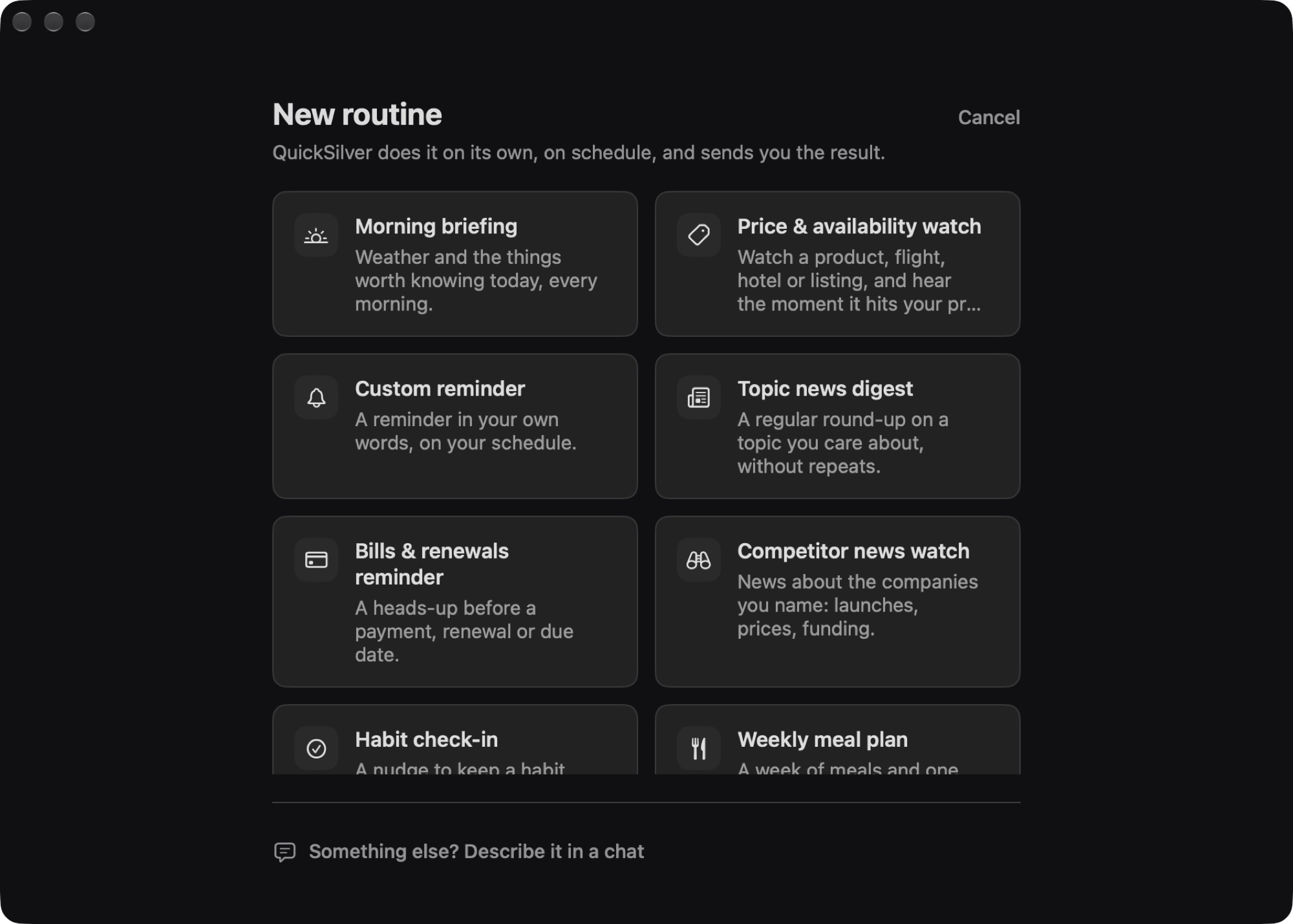
- Pick Competitor news watch.
- Which companies? Type their names, ideally with their websites: “Acme (acme.com), Globex (globex.io), Initech (initech.com)”. Websites help it tell companies with similar names apart.
- Which events matter? Keep the default (“product launches, pricing changes, funding, partnerships, executive moves, incidents”) or narrow it.
- Choose the time and the days (Monday at 9:00 by default), and where to send the result: Kaairos, Telegram or WhatsApp.
- Choose Create routine. It appears in Work › Routines, named after the companies you typed, for example “Competitors: Acme, Globex, Initech”.
- Open the ⋯ menu and choose Run now once, so the first digest arrives straight away and you can check it.
Or say it in a chat
“Every Monday at 9, tell me about product launches, pricing changes, funding and executive moves at Acme, Globex and Initech since last week. Only material news, with a source for each item. If nothing material happened, don't message me. Send it to Telegram.”
How it decides what's material
The template uses a competitor-monitoring skill that ships with the engine. On the first run it sets the watch up: it fixes the list of companies, works out which sources cover them (their sites, blogs, changelogs, press pages and the news), and saves that as the watch's state on your Mac. On every run after that it:
- Collects what's new since the previous run's cut-off, so nothing is reported twice.
- Groups reports of the same event from different sources into one item.
- Scores each event against the categories you chose and drops what isn't material.
- Writes the digest with a source for each item, or stays silent if nothing cleared the bar.
Variations
- Pricing only: “Every day at 8, tell me only if Acme, Globex or Initech changed their pricing pages.”
- Hiring signals: “Every Monday, tell me about senior hires and new office openings at these three companies.”
- Your own company in the news: “Every weekday at 6 PM, tell me if Stuvio or Kaairos was mentioned in the news or on major blogs, with links.”
- A market, not companies: use the Topic news digest template: “AI note-taking apps”, five bullets on weekdays, without repeats.
- Before a call: “I'm talking to a customer who uses Globex tomorrow. Brief me on everything Globex announced in the last 90 days.”
Getting the most from the digest
- Tune it in the first month. Reply in a chat after each of the first few digests: “the Globex item wasn't material”, “I'd have wanted their new partner announcement”. It uses your feedback for the next runs.
- Share it. Delivered to Telegram, the digest is easy to forward to a colleague or a team group.
- Ask follow-ups. “Tell me more about Acme's price cut: what changed for annual plans?” starts a fresh piece of research in a chat.
- Keep a record. Ask “save each competitor digest to a document in my Kaairos folder”, and you'll have a dated history of the market.
Where it runs and what leaves your Mac
| Step | Where it happens | What leaves your Mac |
|---|---|---|
| Searching and reading news and company sites | From your Mac, over the web | Normal web requests: search queries and page visits |
| Deciding what's material and writing the digest | The private AI on your Mac by default | Nothing; if you move routines to an online AI, the pages it read go to that company |
| The watch's state (sources, what was already reported) | On your Mac | Nothing |
| Delivering the digest | Kaairos, Telegram or WhatsApp | The digest, through the service you chose |
Routines run on the private AI by default even when you've connected Claude or ChatGPT for conversations, so your watchlist isn't shared with an AI company unless you choose to.
What it costs
On the private AI, nothing per run. If your Mac runs Kaairos with an online account instead (for example a Mac with less than 32 GB of memory), routines use an inexpensive model from that account and are billed by that company; each run reads several pages, so a weekly watch costs more than a reminder and much less than a daily one. The Work tab shows the cost of every run.
Limits
- It reads what's published on the open web. Paywalled articles, private newsletters and social posts behind a login are usually out of reach.
- Some sites block automated visits. When a source can't be read, the digest relies on the others; if a run fails, it shows in Work › Needs you.
- “Material” is a judgement. Read the first few digests and tell it what you'd have left out or wanted added.
- It reports; it doesn't predict. Treat its “why it might matter” line as a prompt for your own thinking.
Kaairos works on your Mac, so routines run while your Mac is on and awake. Turn on Keep working when closed and they carry on after you close the window.
Troubleshooting
- No message on Monday. Either nothing material happened (the routine is silent by design) or the Mac was asleep. Check Work › Routines for the last run, and Run now to see a digest immediately.
- It mixed up two companies with similar names. Change the routine (⋯ › Change in a chat…) and add each company's website.
- Too much noise. Narrow the categories: “only pricing and product launches”.
- A source keeps failing. Ask in a chat: “stop using that site for the competitor watch.”
Fair questions
How many competitors can I watch?
The template is designed for a few at a time: two or three per watch reads best. Make a second watch for another group rather than one long list.
Will it send me the same news twice?
No. Each run collects from the previous run's cut-off and groups reports of the same event, so repeats are dropped.
What if nothing happened this week?
You get no message. The routine stays silent when there's nothing material, rather than sending an empty digest.
Can it watch social media?
Only what's publicly readable on the web without signing in. Posts behind a login are usually out of reach.
Can I get it daily instead of weekly?
Yes: choose the days in the template, or say “make the competitor watch daily at 8” in a chat.
Does my watchlist go to an AI company?
Not by default: routines run on the private AI on your Mac. The web searches themselves go to the web, as any search does.
Can my team get the digest too?
Send it to Telegram and forward it, or ask QuickSilver to save each digest as a document you can share.
Can it watch companies in other languages?
Yes. Name the company and say which languages to include; the digest comes back in your language, with links to the original sources.
Download and go
Your AI agent, already set up.
One button to set up. Its own private AI, free. Claude, ChatGPT or Gemini when you want more.
A Mac with Apple silicon (M1 or later), macOS 15 Sequoia or later. 14-day refund.