
Features · Phone
Your Mac's AI, from your phone
Link Telegram or WhatsApp by scanning a code. Then message QuickSilver from anywhere, type or send a voice note, and the answer comes back in the same chat. Your Mac does the work.
What it's like
You're out, and you remember you meant to compare two hotels for next month. You open Telegram and message your Kaairos bot:
Compare Memmo Alfama and Lumiares in Lisbon for 12–15 March: price for two, distance to the tram, and what reviews say about noise.
Here they are side by side: the price for two for those three nights at each, how far each is from the nearest tram stop, and what recent reviews say about noise, with which rooms guests found quiet. Links to both are below.
QuickSilver did that research on your Mac, with the same tools and the same AI it uses when you're at the desk. The chat also shows on the Mac: in the chat list, and in Work › Now while it runs, marked with the Telegram logo.
How it works
Kaairos has no server that holds your chats. Telegram or WhatsApp is only the way in. A part of the engine called the gateway listens for your messages, hands each one to QuickSilver on your Mac, and sends the reply back to the same chat. The gateway runs while Kaairos is open; with Keep working when Kaairos is closed turned on, a background service keeps it running after you quit.
Link it
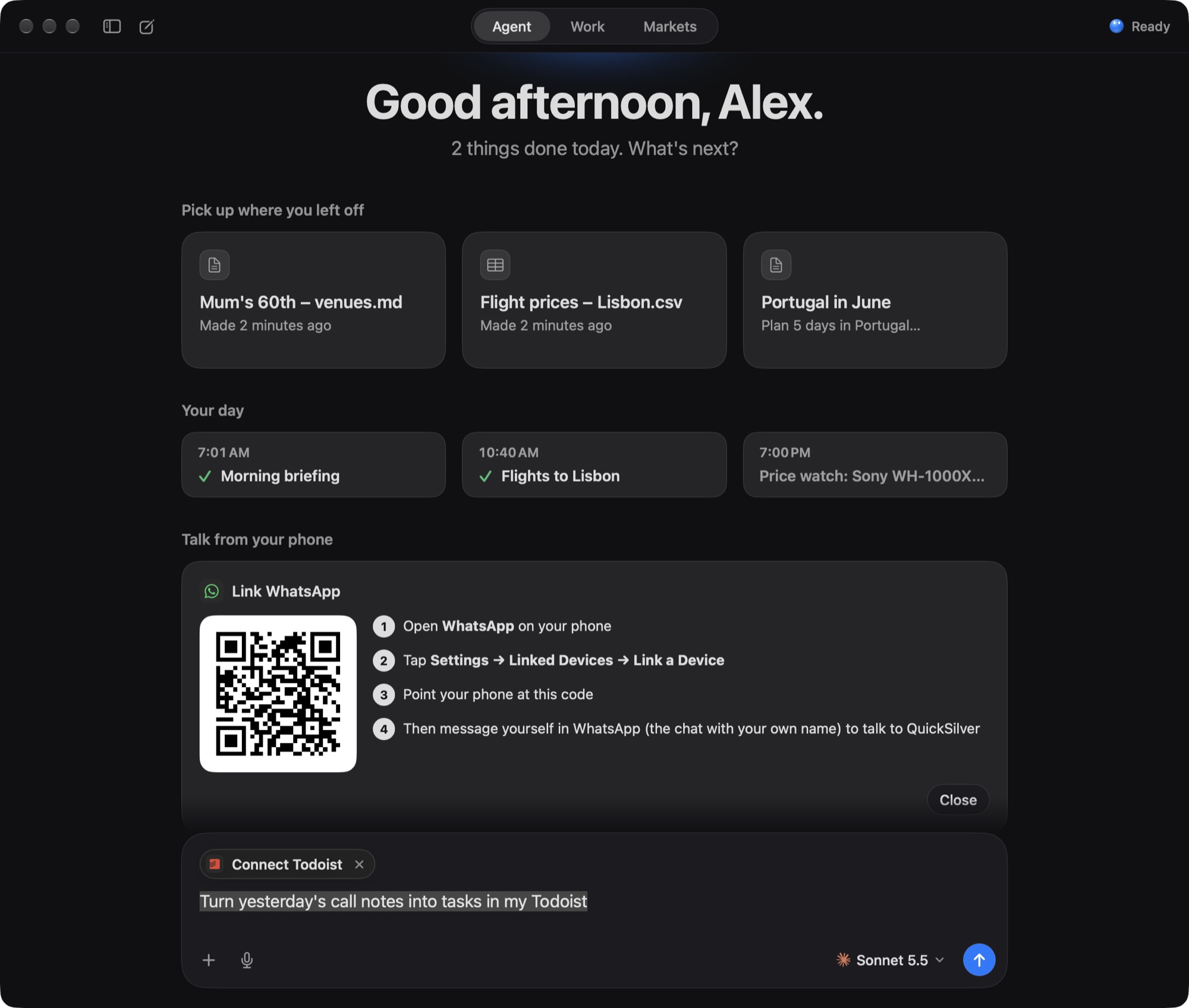
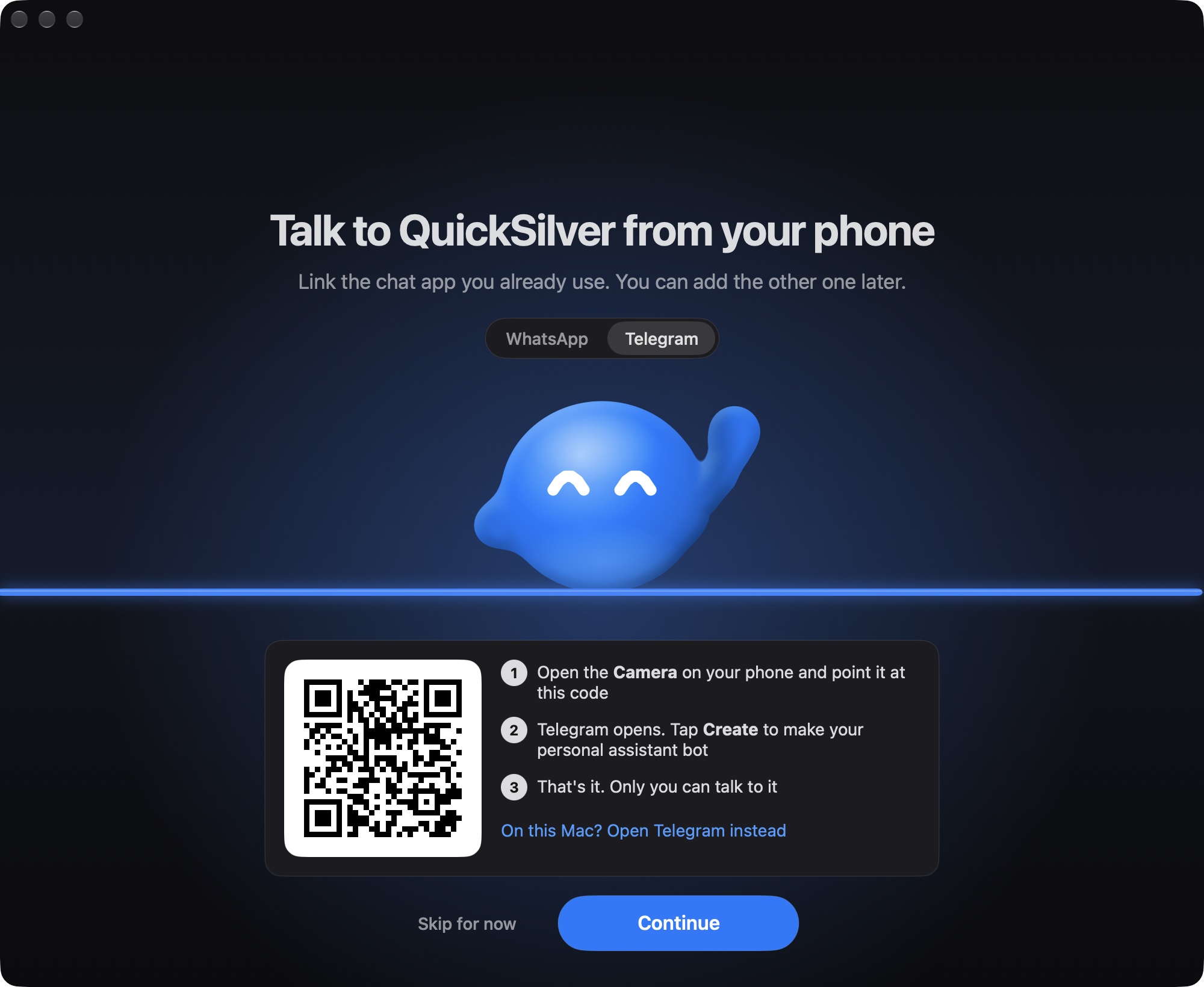
- On the home screen, under Talk from your phone, choose Show Code next to WhatsApp or Telegram. The same step appears at the end of setup (with Skip for now), and in Settings › Phone & messages, where each one has a Connect button.
- Telegram: open the Camera on your phone and point it at the code. Telegram opens; tap Create to make your personal assistant bot. On the Mac itself you can choose On this Mac? Open Telegram instead.
- WhatsApp: open WhatsApp on your phone and tap Settings → Linked Devices → Link a Device, then point your phone at the code.
- The code turns into a tick. Kaairos says “Telegram is linked. Send your new bot a message to try it.” or “WhatsApp is linked. Open the chat with yourself and say hi.”
Telegram's bot is named for you, for example “Alex's Kaairos”. If a code runs out before you scan it, Kaairos says “That code expired. Let's make a new one.” and Try Again makes a fresh one.
Voice notes, transcribed on your Mac
Send a voice note and the engine turns it into text on your Mac, with a speech model (faster-whisper, “base” size) that ships inside the app. Your voice isn't sent to a transcription service. Then QuickSilver treats it like any other message: “turn this into a proposal”, “add these to my list”.
On the Mac itself, the microphone button in the message box uses macOS's own speech recognition, which works on the Mac for languages that support it. The first time, macOS asks you to allow speech recognition.
Only you can talk to it
When you link Telegram, Kaairos saves your Telegram account as the only user allowed to talk to the bot. WhatsApp links in self-chat mode: you talk to QuickSilver in the chat with yourself, the one with your own name, so no second phone number is needed and nobody else's messages go to it. Settings › Phone & messages sums it up: “Only you can talk to QuickSilver. People you haven't approved get no reply.”
If a task needs your OK while you're on your phone (deleting files, sending something, running a risky command), the engine asks in the same chat, and you answer there: reply approve or deny (or /approve and /deny).
Telegram or WhatsApp?
| Telegram | ||
|---|---|---|
| How it links | Scan a code; Telegram creates a personal bot for you | Scan a code as a linked device, like WhatsApp on a computer |
| Where you talk to QuickSilver | In the chat with your bot | In the chat with yourself |
| Officially supported for assistants | Yes, through Telegram's bot platform | No: Kaairos uses an unofficial linked-device bridge |
| Risk | None we know of | WhatsApp could limit your number |
| Our recommendation | Use this one | Fine for light personal use; Kaairos tells you the risk before you link |
Before WhatsApp's code, Settings shows: “WhatsApp doesn't officially support assistants. Linking works like WhatsApp on a computer, but WhatsApp could limit the number. Telegram is the safer choice.”
Telegram's quick setup uses a small pairing service hosted by Nous Research, the makers of Hermes Agent, the engine inside Kaairos. It creates the bot and tells your Mac which Telegram account is yours. Your conversations then go between Telegram and your Mac.
Where results go
An answer goes back where you asked. Ask from Telegram and the reply, with any file it made, comes to Telegram; ask on your Mac and it appears on your Mac.
Routines are the exception you choose. When you create one from the gallery, Send the result to lists Kaairos plus each phone app you've linked, and starts on your phone app when you have one, because getting the result where you are is usually the point. If you haven't linked one, the sheet says “Link WhatsApp or Telegram under Talk from your phone on the home screen to get results there.”
Seeing whether it's connected
Settings › Phone & messages lists every way to reach Kaairos with its state: This Mac (Here), Telegram and WhatsApp (Connected, Connecting…, Starting up…, Off, Not set up, or the problem in words), then the Kaairos phone app and Inbox. A row that isn't connected has Connect, or Fix if something went wrong.
If a linked app drops, Work › Needs you says “Telegram isn't connected” (or WhatsApp) with the reason and a Fix button that shows a fresh code.
Privacy
- Your messages travel through Telegram or WhatsApp. They're subject to that service's own privacy terms, as any message you send there is.
- The work happens on your Mac, with whichever AI is doing that job: the private AI on the Mac, or an online AI you connected.
- Voice notes are transcribed on your Mac, not by a transcription service.
- Telegram's pairing goes through Nous Research's pairing service once, when you link.
Coming soon: the Kaairos phone app
A Kaairos app for iPhone and Android is in the works: your chats, routines and AI settings from anywhere, through a connection that's encrypted from your phone to your Mac and passes through Stuvio's relay, which can't read it. It isn't out yet, so Settings › Phone & messages shows Coming soon next to Your iPhone or Android. The same goes for Inbox (“Your mail, sorted on your phone”), which sends to that app. Until they ship, Telegram and WhatsApp are how you reach Kaairos from your phone.
Limits
- Your Mac must be on and awake, and Kaairos open or Keep working when Kaairos is closed on. If the Mac is asleep, your message waits in Telegram or WhatsApp.
- One Telegram bot and one WhatsApp link per Kaairos.
- WhatsApp's link is unofficial; WhatsApp can end linked sessions at any time.
Fair questions
Does my Mac need to be on?
Yes. Your Mac does the work. With Keep working when Kaairos is closed on, Kaairos keeps answering your phone after you quit the app, as long as the Mac is on and awake.
Can other people message my QuickSilver?
No. Telegram's bot answers only the account that linked it, and WhatsApp's link answers only the chat with yourself. People you haven't approved get no reply.
Will WhatsApp ban me?
WhatsApp doesn't officially support assistants, so there's a risk with any unofficial bridge: WhatsApp could limit your number. Kaairos says so before you link, and recommends Telegram.
Do files come back to my phone?
Yes. When QuickSilver makes a file for a task you sent from Telegram or WhatsApp, it comes back in the same chat. A copy also stays in your Kaairos folder on the Mac.
How do I unlink?
In Settings › Phone & messages, press ⋯ on the Telegram or WhatsApp row and choose Disconnect. Kaairos stops answering there and forgets the link. For WhatsApp, also remove Kaairos from Linked Devices on your phone; for Telegram, you can delete the bot with @BotFather if you like.
Is the phone app available?
Not yet. It's coming soon. Today you reach Kaairos from your phone through Telegram or WhatsApp.
Download and go
Your AI agent, already set up.
One button to set up. Its own private AI, free. Claude, ChatGPT or Gemini when you want more.
A Mac with Apple silicon (M1 or later), macOS 15 Sequoia or later. 14-day refund.