
Guide
How to automate tasks on a Mac with AI
A Mac has three layers of automation now: rules you build in Shortcuts, AI steps inside those rules, and AI agents that work out the steps themselves. Here is which to use for what, with real examples and the details that make scheduled jobs reliable.
The short answer
Use Shortcuts (or Automator and Folder Actions) when the steps are fixed and you can describe them as rules, such as “move every PDF in Downloads to Documents”. Add Apple Intelligence's Use Model action when one step needs judgement, such as summarising or classifying text. Use an AI agent when the steps aren't known in advance, need the web or several tools, or should run on a schedule and report back, such as “every Friday, tell me what my competitors shipped this week”. Many people end up using all three.
The three layers
| Shortcuts and Automator | Shortcuts with Use Model | An AI agent | |
|---|---|---|---|
| You define | Every step | Every step; one step is an AI prompt | The goal; it chooses the steps |
| Handles fuzzy input | No | In that one step | Yes |
| Uses the web | Only steps you build | Only steps you build | Searches and browses on its own |
| Runs on a schedule | Yes, with personal automations | Yes | Yes, and reports results to you |
| Predictability | Very high | High | Lower: check results, keep approvals on |
| Cost | Free | Free within Apple's usage limits | Free with a local model; per use with an online one |
| Setup | Drag and arrange actions | Same, plus a prompt | Describe it in a sentence |
Layer 1: rules with Shortcuts
Shortcuts comes with every Mac and replaces most of what Automator used to do. It's the right tool when you could write the job as a recipe: “when X, do Y to Z”. Typical examples: resize every image you drop on a shortcut, rename files with today's date, start a focus mode and open three apps at 9.
Two older tools still help. Folder Actions run a script when files are added to a folder, which suits “whenever something lands in this folder, do this”. Automator workflows still open and run, and Shortcuts can import many of them. For new automations, start in Shortcuts.
Its strength is that it does exactly the same thing every time. Its weakness is the same: it can't decide that this particular file is an invoice and that one is a contract, or notice that a web page changed its layout.
Layer 2: an AI step inside a shortcut
On Macs with Apple Intelligence, Shortcuts has a Use Model action. Apple's guide describes three choices: the on-device model for simple requests without a network connection, Apple's Private Cloud Compute for more complex ones, and an extension model that uses ChatGPT. You type a prompt, include outputs from earlier steps (text, a calendar event, a note), and pass the answer to the next step.
That makes classic automations smarter at one point: “summarise this article in three lines, then add it to my Reading note” or “is this email asking me for something? If yes, make a reminder”. The steps around the AI are still fixed. Apple notes that usage limits may apply to the cloud models and that Apple Intelligence isn't available in every language or region.
Layer 3: an AI agent
An agent takes a goal and works out the steps: search, open pages, read files, write a document, check its work, message you. On a Mac this means an app such as Kaairos, or open-source agents like Hermes Agent run from the command line. (Our guide to agents vs chatbots explains the difference in depth.)
Agents are best for jobs that would need ten branches in Shortcuts, or that depend on the web:
- “Every weekday at 7, send me the weather, the five things worth knowing about climate tech, and my reminders.”
- “Every 3 hours, check this listing and tell me if it drops below $350.”
- “Every Monday at 9, tell me what Acme, Globex and Initech announced last week, with links.”
- “Go through my Downloads folder, sort what's worth keeping into folders, and list the old installers so I can decide.”
- “Every Sunday at 5, plan four dinners for the week with one shopping list.”
Worked examples: which layer?
| Job | Best layer | Why |
|---|---|---|
| Move screenshots from the Desktop to a Screenshots folder | Shortcuts | Fixed rule; no judgement needed |
| Rename scanned receipts by shop and date | Shortcuts with Use Model | One step needs to read the receipt |
| Sort a messy Downloads folder into sensible folders | Agent | Needs judgement for each file and a plan you approve |
| Turn a meeting's notes into tasks and a follow-up email | Agent or Use Model | Agent if it also files tasks in Linear or Notion |
| Tell me when a sold-out show gets tickets back | Agent | Needs a browser, saved state and repeated checks |
| Weekly digest on a topic, without repeats | Agent | Needs search, memory of what it sent, and a schedule |
| Open my work apps at 9 on weekdays | Shortcuts | Fixed, instant, free |
How to write a scheduled AI task that works
An agent routine is only as good as its instruction. Five things make the difference:
- When: a clear schedule. “Every weekday at 8” beats “in the mornings”.
- What exactly: names, links, numbers. “The Sony WH-1000XM6 in black at Best Buy” beats “those headphones”.
- The condition: when to tell you. “Only if it's under $350 including tax.”
- The shape of the answer: “Five bullets, one line each, with links.”
- Where to send it: the app, Telegram or WhatsApp.
Also say what it shouldn't do: “Don't buy anything”, “Don't delete; list them for me”. A good agent will ask before risky steps anyway; saying it up front avoids the question.
Making scheduled jobs reliable on a Mac
- The Mac has to be awake. Every Mac automation, Shortcuts or agent, runs only while the Mac is on and awake. For a desktop Mac, set it not to sleep automatically in System Settings; for a laptop, keep it plugged in at the times your jobs run, or pick times you're usually at your desk.
- The app may need to keep running. Agent apps usually need either their window open or a background helper. In Kaairos that's Keep working when closed.
- Failures should be visible. Prefer tools that tell you when a job didn't finish and let you run it again. In Kaairos, failed routines show in Work › Needs you with what went wrong.
- Be gentle with websites. Checking a page every few hours is reasonable; every few minutes may get you blocked.
- Start supervised. Run a new routine once by hand (Kaairos has Run now) and read the result before trusting the schedule.
Doing it in Kaairos
Kaairos is a Mac app built on Hermes Agent that comes with its own private AI, so routines run on your Mac by default and cost nothing per run. To make one:
- In a chat, describe it with a time: “Every Friday at 4, tell me what my three competitors shipped this week.” Or open the Work tab and under Routines choose New.
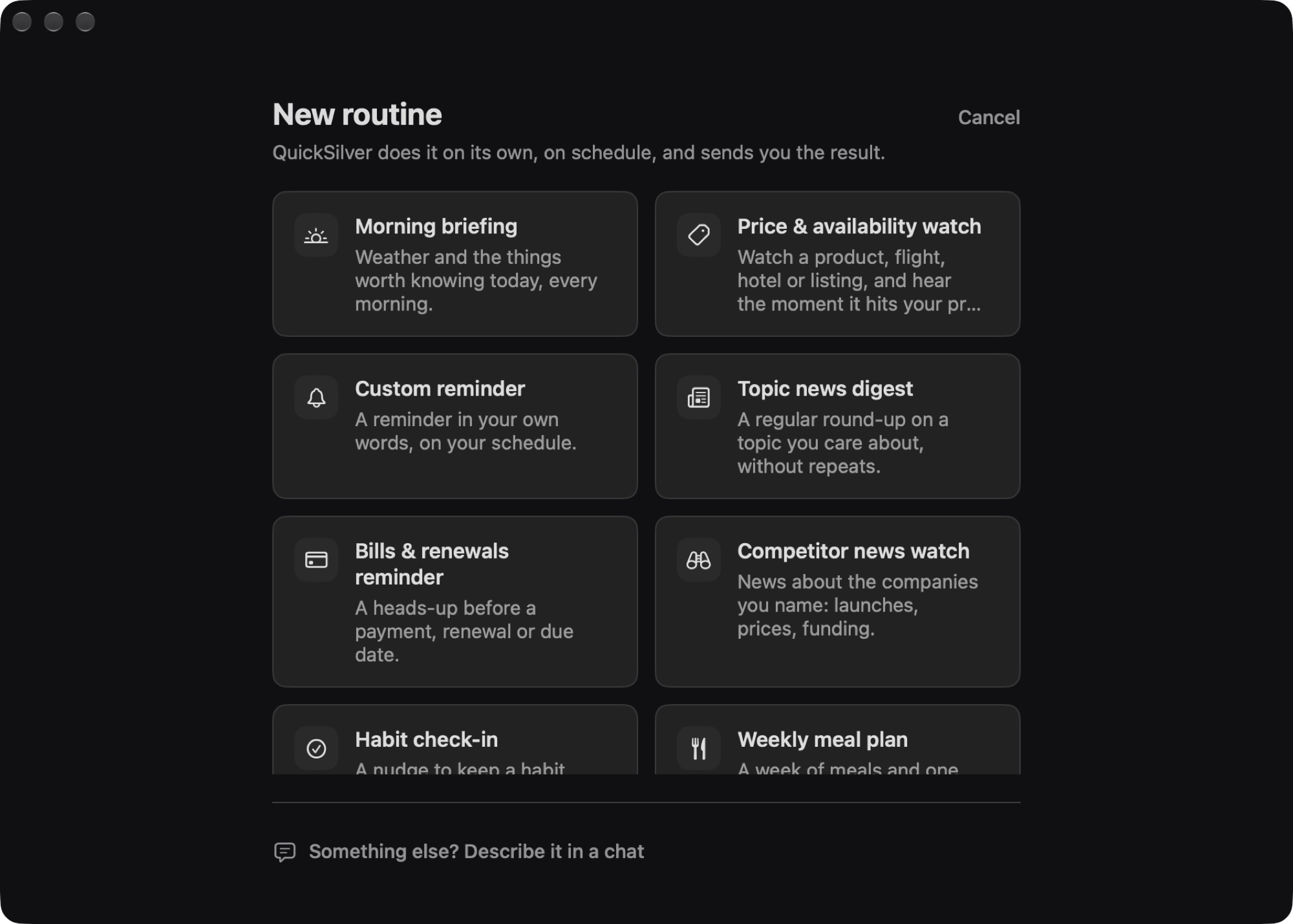
- In the gallery, pick a template (Morning briefing, Price & availability watch, Custom reminder, Topic news digest, Bills & renewals reminder, Competitor news watch, Habit check-in, Weekly meal plan, Weekly review, Daily learning drip and more), fill in the blanks and choose where results go: Kaairos, Telegram or WhatsApp.
- Choose Create routine. It appears in Work › Routines with an on/off switch; the ⋯ menu has Run now, Change in a chat… and Delete.
Where each layer runs
Automation touches your files, mail and notes, so it's worth knowing where each kind of step is processed:
| Step | Where it runs | Who sees the content |
|---|---|---|
| A Shortcuts action without AI | On your Mac | No one |
| Use Model, on-device | On your Mac | No one |
| Use Model, Private Cloud Compute | Apple's servers; Apple says requests aren't stored or made accessible to Apple | Processed by Apple |
| Use Model, ChatGPT extension | OpenAI's servers | OpenAI, under its terms |
| An agent with a local model | On your Mac | No AI company; web pages it visits see a normal visit |
| An agent with an online model | That company's servers, for the steps you give it | That AI company |
Five agent routines to copy
Each of these works as written in Kaairos, typed into any chat. Change the details to yours.
- “Every weekday at 7, send me the weather for Lisbon and the five most important things about climate tech, one line each with a link, on Telegram.”
- “Every 6 hours, check the price of the Sony WH-1000XM6 in black at Best Buy, and message me once if it drops below $350 including tax. Don't buy anything.”
- “Every Monday at 9, tell me about product launches, price changes and funding at Acme, Globex and Initech from the past week, with sources. Skip anything you told me before.”
- “Every Sunday at 5, plan four vegetarian dinners for the week, 30 minutes or less each, with one shopping list grouped by aisle.”
- “On the 25th of every month, remind me to check which subscriptions renew next month, and keep reminding me every hour until I reply done.”
Common mistakes
- Automating a job you haven't done by hand. Do it once yourself, then describe what you did. Vague jobs produce vague results.
- Giving an agent delete rights on day one. Ask it to list or move things first; delete only after you've seen a plan.
- Scheduling too often. A weekly digest you read beats a daily one you don't. Checks every few minutes waste your Mac's energy and may get you blocked by websites.
- Not saying when to stay quiet. “Only message me if something changed” turns a noisy routine into a useful one; good routine templates already do this.
- Forgetting the Mac sleeps. A routine set for 7 AM on a laptop that's closed until 8 runs late or not at all.
- Using the most expensive model for everything. Routine checks don't need the strongest online model; a local or inexpensive one is enough.
Sources
- Apple Support: Use Apple Intelligence in Shortcuts on Mac (the Use Model action, model choices, availability)
- Apple Security Research: Private Cloud Compute
- Anthropic: Building effective agents (when to use agents versus fixed workflows)
- Hermes Agent 0.23.1,
cron/blueprint_catalog.py(the routine templates Kaairos shows)
Fair questions
Can AI automate tasks on a Mac?
Yes. Shortcuts can include an AI step with Apple Intelligence's Use Model action, and AI agent apps can carry out multi-step jobs on a schedule.
Is Automator still supported?
It's still on the Mac, but Shortcuts is Apple's main automation app and where new features, including AI actions, appear.
Do scheduled automations run when my Mac is asleep?
No. Automations run while the Mac is on and awake. Keep a desktop Mac awake, or schedule jobs for times you're at your laptop.
Is it safe to let an AI change files on my Mac?
Use an agent that asks before deleting or moving important things and snapshots files before changing them, and start with jobs you can easily check.
Do I need to code to automate my Mac with AI?
No. Shortcuts is drag-and-drop, and agent apps take instructions in plain words.
What does AI automation cost?
Shortcuts is free; Apple's cloud models have usage limits. An agent costs nothing per run with a local model, or per use with an online AI account.
Can AI automation run when I'm away from my Mac?
Yes, as long as the Mac is on and awake and the app is running. With an agent connected to Telegram or WhatsApp, you can start jobs and get results on your phone.
What's the easiest thing to automate first?
A weekly digest on a topic you follow, or a price watch. Both read only, so a mistake costs nothing, and you'll see quickly whether the results are useful.
Can an AI agent use my Shortcuts?
Some agents can run commands on your Mac, and macOS includes a shortcuts command-line tool that runs a shortcut by name. Whether an agent may do that, and whether it asks first, depends on the agent's settings.
Download and go
Your AI agent, already set up.
One button to set up. Its own private AI, free. Claude, ChatGPT or Gemini when you want more.
A Mac with Apple silicon (M1 or later), macOS 15 Sequoia or later. 14-day refund.