
Features · Routines
Routines that run themselves
A routine is something QuickSilver does on its own, on a schedule, and sends you the result. Ask for one in a sentence, or pick one from the gallery and fill in a blank or two.
What a routine is
Most of the value of an agent isn't in the conversation. It's in what it keeps doing after you've stopped typing: checking a page every few hours, reading the news you follow, reminding you at the same time every day. Kaairos calls these routines. In the Work tab they're described as “Jobs QuickSilver does on its own, on a schedule, and sends to you.”
A routine has three parts:
- What to do, in your words: “check the price of the Sony WH-1000XM6 at Best Buy”, “a five-point round-up on battery technology”.
- When: every day at 7:00 AM, every 6 hours, weekdays, every Monday.
- Where the result goes: Kaairos, or Telegram or WhatsApp once you've linked them.
There's no prompt-writing, no cron syntax and no workflow builder. Under the hood each routine is a scheduled job in the engine (Hermes Agent's own scheduler), and Kaairos shows its schedule in plain words, such as “Every weekday at 9:00 AM” rather than 0 9 * * 1-5.
An example, start to finish
Say you want a pair of headphones, but not at today's price. In any chat, type:
Every 6 hours, check the Sony WH-1000XM6 at Best Buy and tell me on Telegram when it drops below $350.
Done. I'll check every 6 hours and message you on Telegram when it's under $350, with the link.
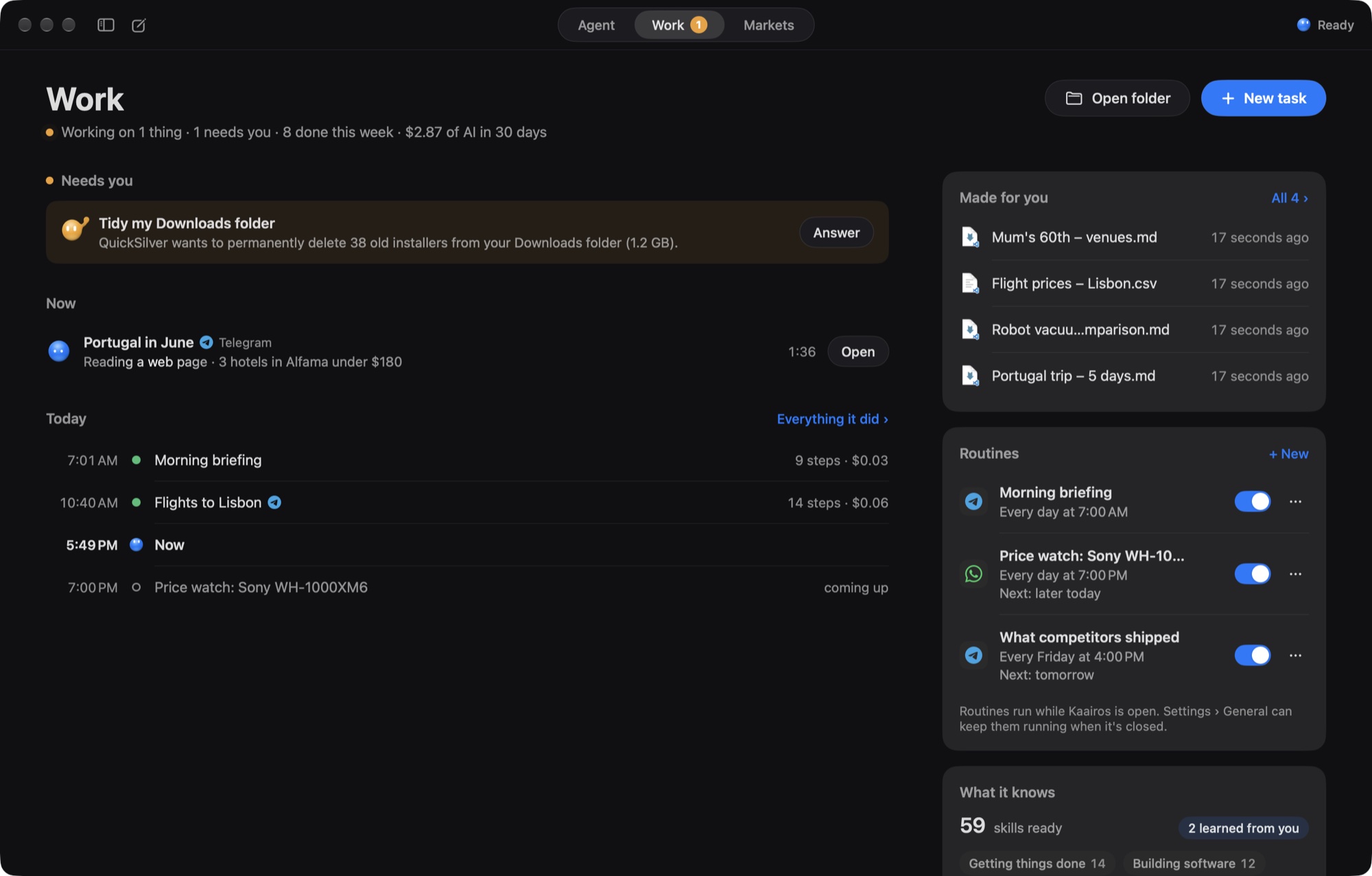
From then on the routine shows in Work › Routines with its name, its schedule and when it runs next (“Next: later today”). The badge beside it shows where results go; hover it to read “Sends results to Telegram”. Each check that finds nothing new stays quiet: the engine's price-watch blueprint only sends a message when your condition is met, and doesn't repeat an alert it already sent.
When the price drops, the message arrives in Telegram. The run also appears in the Work tab under Today, with the number of steps it took.
Two ways to make one
Say it
Type or say it in any chat, with a time: “Every weekday at 8, …”, “Every 3 hours, check …”, “On the 1st of each month, remind me …”. QuickSilver turns that into a routine. Change it the same way: “skip weekends”, “make the price watch every 12 hours”, “pause the briefing”, “delete the competitor watch”.
Pick one from the gallery
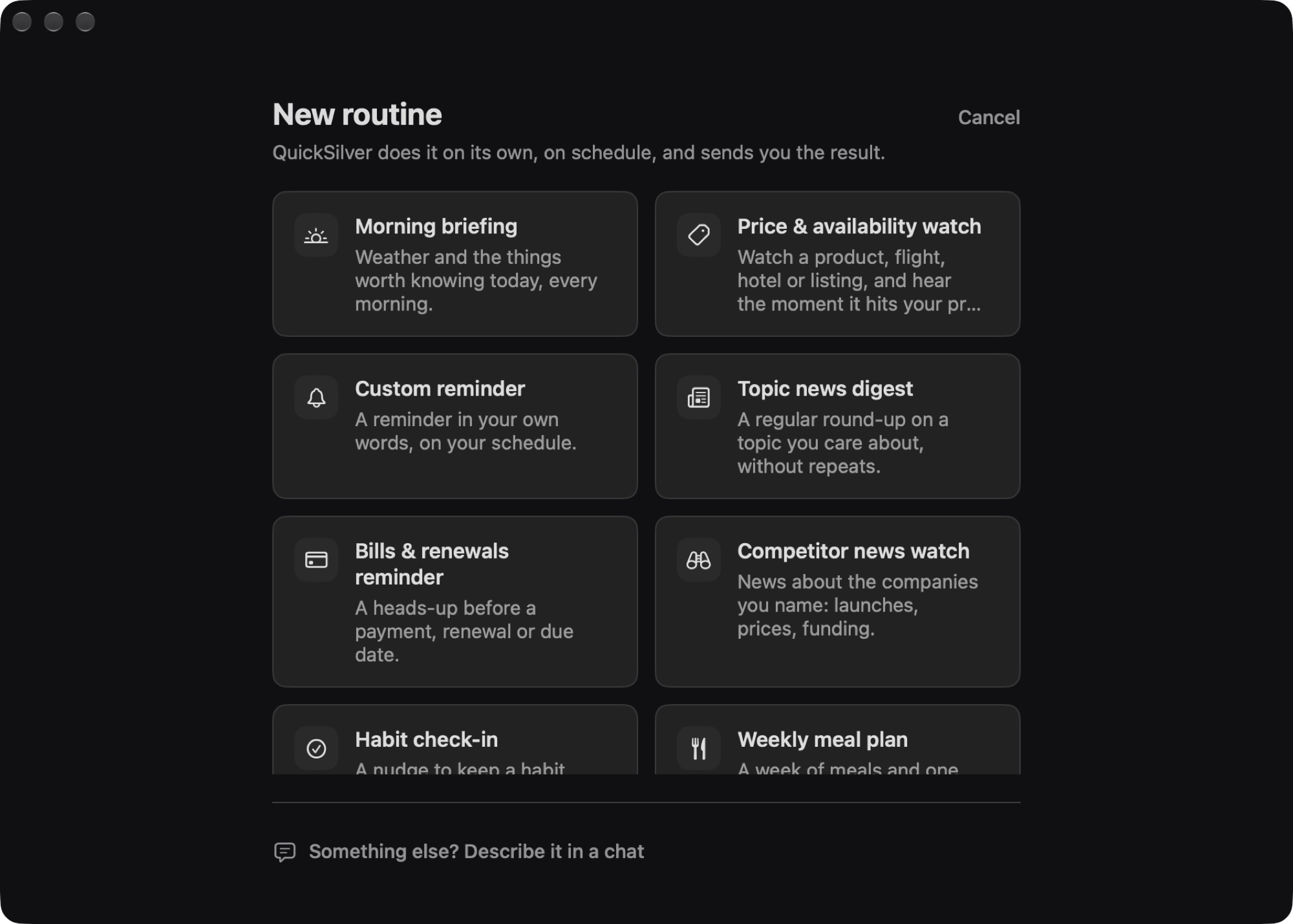
In the Work tab, choose + New beside Routines. The New routine sheet opens: “QuickSilver does it on its own, on schedule, and sends you the result.” Pick a tile, fill in its short form, choose where the result goes under Send the result to, and press Create routine. Text boxes start empty with an example as a hint; times and choices start at sensible defaults.
| Routine | What it does | What you fill in |
|---|---|---|
| Morning briefing | Weather and the things worth knowing today, every morning. | What time? (8:00 AM to start) |
| Price & availability watch | Watch a product, flight, hotel or listing, and hear the moment it hits your price or comes back. | What exactly to watch? · Alert me when… · How often? (every 1, 3, 6, 12 or 24 hours; 6 to start) |
| Custom reminder | A reminder in your own words, on your schedule. | Remind me to… · What time? · Repeat on |
| Topic news digest | A regular round-up on a topic you care about, without repeats. | What topic? · Repeat on · How many bullets? (3, 5 or 8) |
| Bills & renewals reminder | A heads-up before a payment, renewal or due date. | What's due? · What time? · Repeat on |
| Competitor news watch | News about the companies you name: launches, prices, funding. | Which companies? · Which events matter? · Repeat on |
| Habit check-in | A nudge to keep a habit going, and a quick check on how it went. | Which habit? · What time? (8:00 PM to start) · Repeat on |
| Weekly meal plan | A week of meals and one shopping list, to suit your diet. | Diet? · Meals per day? · Cooking effort? · What time? · Which day? |
| Weekly review | A weekly recap: what got done, what's still open, what's next. | What time? · Which day? (Sunday at 6:00 PM to start) |
| Daily learning drip | One short lesson a day on something you want to learn. | Learn about… · What time? · Repeat on |
| Hydration & movement nudge | Reminders to drink water, stand up and stretch through the day. | How often? (every 1, 2 or 3 hours) · Start hour · End hour |
| Gratitude & reflection prompt | An evening prompt to note what went well. | What time? · Repeat on |
| On-this-day discovery | A daily bit of history, a surprising fact or a word of the day. | What kind? · What time? |
Routines made from the gallery get a name that tells them apart, such as “Watch: Sony WH-1000XM6 at Best Buy” or “Reminder: Take my meds”. For anything the gallery doesn't cover, Something else? Describe it in a chat at the bottom of the sheet starts a chat with “Every weekday at 8 AM, ” already typed.
Pause, change, run or delete
Every routine row has an on/off switch. Off pauses it: it stays in the list and keeps its settings, and doesn't run until you switch it back on. The ⋯ menu beside it has:
- Run now: runs it straight away, without waiting for its time.
- Change in a chat…: opens a chat with “Change my routine “…”: ” typed, so you can say what to change.
- Delete: removes it.
The same switches are in the menu bar panel under Coming up, so you can pause a routine without opening the window. On a Mac with a camera notch, the notch's Activity page shows the next routine and how many more are scheduled.
Routines run on the private AI
Routines often run while you're not looking, and they often read things that are yours. So when your Mac has Kaairos's own private AI, Kaairos gives every routine to it, even if you've connected Claude or ChatGPT for your conversations. Routines then cost nothing in AI fees, and what they read is processed on your Mac.
You can change that in Settings › AI › Who does what › Routines if a routine needs a stronger model. On a Mac without the private AI (one with less than 32 GB of memory), routines use the fast, inexpensive model from the account you connected, for example Claude Haiku 5.5 or GPT-6 Luna, or your ChatGPT plan's small model if you signed in with ChatGPT.
A routine that searches the web sends its searches to the web, and one that delivers to Telegram or WhatsApp sends its result through that service. If you move routines to an online AI, what they read goes to that AI company.
When routines run
Kaairos works on your Mac, so the Mac has to be on and awake for a routine to fire. While the app is open, its engine runs routines on time. Under your routines, the Work tab reminds you: “Routines run while Kaairos is open. Settings › General can keep them running when it's closed.”
Turn on Keep working when Kaairos is closed in Settings › General (or Keep working when closed at the bottom of the menu bar panel) and a small background service keeps routines running, and keeps answering Telegram and WhatsApp, after you quit. It starts again when you log in. Your Mac still needs to be awake: for a briefing at 7 in the morning, keep it plugged in and set it not to sleep.
If a run fails, it doesn't fail silently. The routine's row says “Last run had a problem:” and the reason, and Work › Needs you shows ““…” didn't finish” with a Run again button.
Settings that affect routines
| Setting | What it does | Default |
|---|---|---|
| Settings › AI › Who does what › Routines | Which AI runs your routines. | The private AI on this Mac when it's set up; otherwise the fast model of the account you connected |
| Settings › General › Keep working when Kaairos is closed | Keeps routines and phone chats running after you quit. | Off |
| Send the result to (per routine) | Where a gallery routine delivers: Kaairos, Telegram or WhatsApp. | Your linked phone app if you have one; otherwise Kaairos |
| The routine's switch | Pauses or resumes one routine. | On |
Routines people set up first
Morning briefing
Your day on your phone at 7: weather and the five things worth knowing.
Price watch
Tell me when these headphones drop below $350, with the link.
Reminders
Every weekday at 2 PM, remind me to take a break and stretch.
Research brief
Every Monday, what my three competitors launched or changed.
Limits
- Your Mac must be on and awake. A routine can't run at its time while the Mac is asleep or off; its row shows when it runs next.
- Routines can't read your mail or calendar today; the blueprints that need a Google connection aren't offered.
- The private AI is slower than the best online models. A long research routine takes longer on it; move routines to an online AI if speed matters more than cost.
- Results go to Kaairos, Telegram or WhatsApp. There's no email delivery.
Fair questions
Do routines cost money to run?
Not when they run on the private AI, which is the default on a Mac that has it. If you move routines to an online AI in Settings › AI, or your Mac uses an AI account instead of the private AI, that company bills you for what they use.
Does my Mac have to be on?
Yes. Kaairos runs on your Mac, so it needs to be on and awake. With Keep working when Kaairos is closed on, routines keep running after you quit the app.
How many routines can I have?
Kaairos sets no limit. Each one is a job in the engine's schedule; what limits you is how much work you ask your Mac to do at the same moment.
Can a routine message me on my phone?
Yes, once you've linked Telegram or WhatsApp. Choose it under Send the result to when you create a routine from the gallery, or say “send it to Telegram” when you ask for one in a chat.
How do I change the time of a routine?
Choose ⋯ › Change in a chat… on its row and say the new time, or just ask in any chat: “make my morning briefing 6:30”.
What happens when a routine fails?
Its row shows “Last run had a problem” with the reason, and Work › Needs you lists it with a Run again button.
Can I run a routine right now to test it?
Yes. Choose ⋯ › Run now on its row.
Download and go
Your AI agent, already set up.
One button to set up. Its own private AI, free. Claude, ChatGPT or Gemini when you want more.
A Mac with Apple silicon (M1 or later), macOS 15 Sequoia or later. 14-day refund.