
Compare
Kaairos vs LM Studio
LM Studio is the best-known desktop app for finding, running and serving local models, and it now has an agent app, Bionic. Kaairos is a Mac agent that arrives with its own private AI already chosen and works on a schedule. Here is how they differ, where LM Studio is better, and how to use both.
The short answer
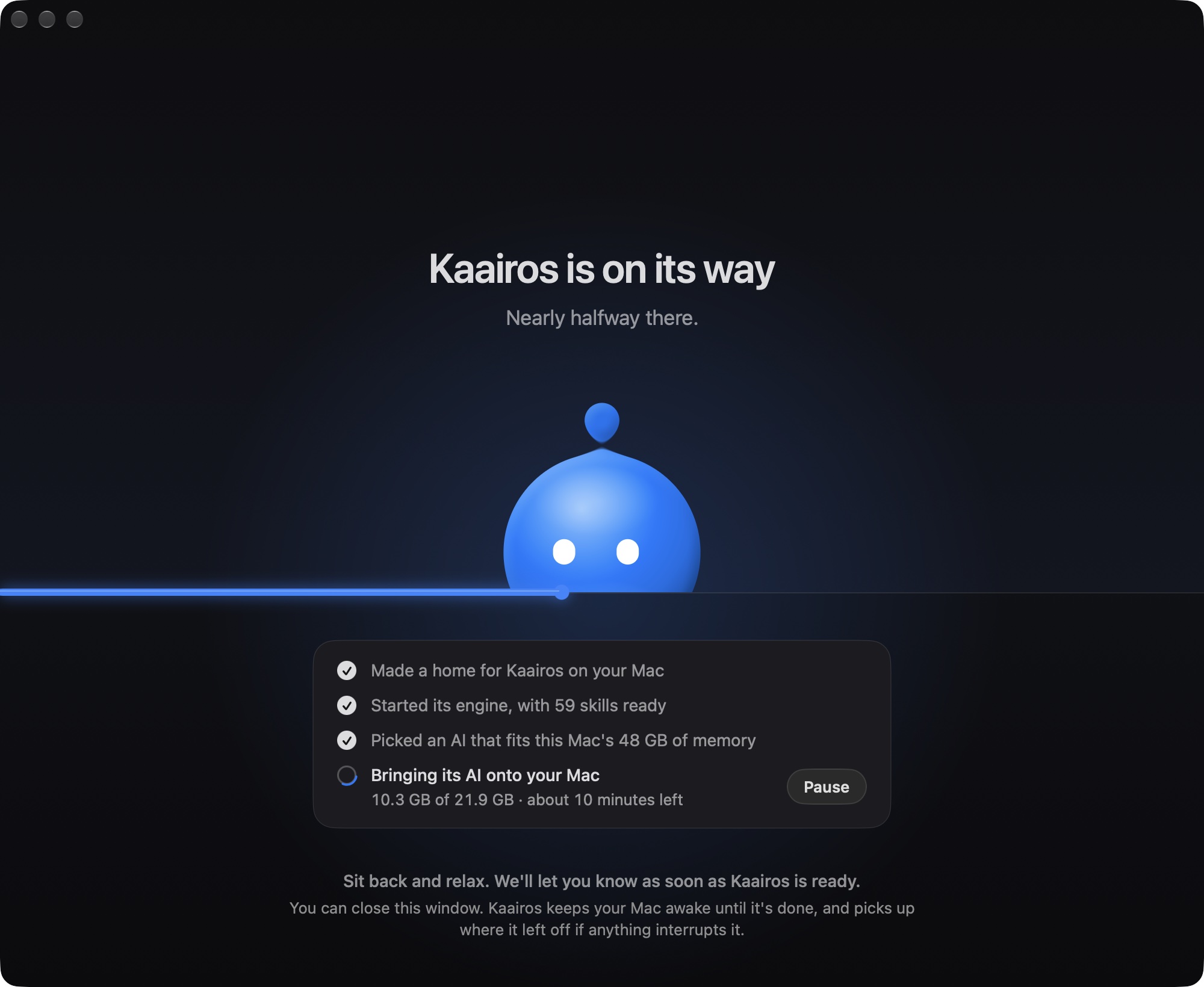
Choose LM Studio if you want to try many local models, compare them, chat with documents offline, or serve a model to your own code, on Mac, Windows or Linux, for free. Choose Kaairos if you want an agent on your Mac that does tasks for you, runs routines on a schedule and answers on Telegram or WhatsApp, with the model picked and set up for you.
They aren't either-or. Kaairos can use a model you serve from LM Studio as one of its AIs, as shown under Using them together below.
At a glance
What it is and who it's for
| Kaairos | LM Studio | |
|---|---|---|
| What it is | An AI agent app for the Mac that's already set up: it researches, watches things, runs routines and reaches you on your phone | A desktop app to discover, download, run and serve local models, with chat, document chat, MCP and an OpenAI-compatible server |
| Made for | People who want results and never want to pick a model or open a terminal | People who want to explore and run models themselves, and developers who want a local model server |
| Agent | The whole app is the agent (QuickSilver), built on Hermes Agent by Nous Research | A separate app, Bionic (launched July 2026), for coding, research and document work with local or cloud open models |
Setup
| Kaairos | LM Studio | |
|---|---|---|
| Getting started | Install, enter the licence key, press Set it up. It picks and downloads its own AI and tells you when it's ready | Install, open Discover, search for a model, pick a size (quantization), download it, load it, chat |
| Terminal needed | No | No for the app. The lms command line is optional |
| Account or API key needed | No. AI accounts are optional extras | No for local models. Cloud models in Bionic need an LM Studio account with credits |
| Decisions you make on day one | None. Settings can change later | Which model, which size, context length and other load settings |
Models
| Kaairos | LM Studio | |
|---|---|---|
| Local runtime | llama.cpp, through the Hermes engine built into the app | llama.cpp (GGUF) on every platform, plus Apple's MLX on Apple silicon |
| Which local models | One open-weight model from a curated catalog, chosen to fit your Mac, run with at least 64K of context | Almost any model on Hugging Face in a supported format; search by name or paste a Hugging Face link |
| Picking a model | Done for you. There is no model browser | You choose. Its docs suggest a 4-bit quantization or higher if your machine can run it |
| Memory for local AI | 32 GB or more (no model in its catalog fits 8, 16 or 24 GB) | 16 GB or more recommended; 8 GB Macs may work with smaller models |
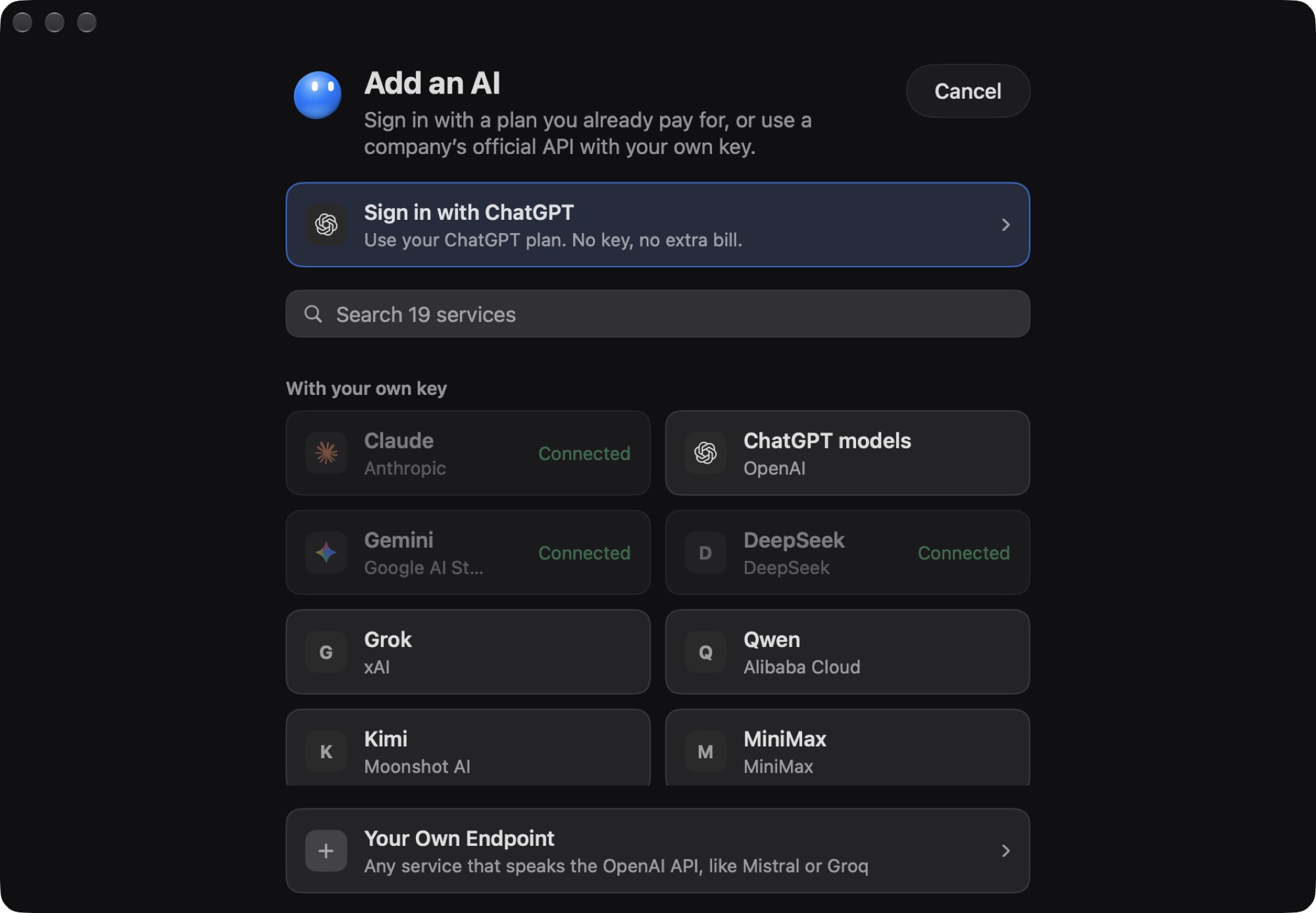
| Online models | Optional: Sign in with ChatGPT, 19 services with your own key (Claude, OpenAI, Gemini, OpenRouter and others), or Your Own Endpoint | In Bionic: open models on LM Studio Secure Cloud, paid with credits. No Claude or GPT models listed |
| Mixing local and online | Yes, automatically: conversations on the online AI, routines on the private AI, private AI as backup | In Bionic you pick cloud, local or remote (LM Link) per session |
What it can do
| Kaairos | LM Studio | |
|---|---|---|
| Chat | Yes | Yes |
| Chat with your documents | Yes: share files and it reads them | Yes, fully offline, with attached documents (a strength) |
| Search the web | Yes, plus its own browser for sites that need one | In Bionic (limited on the free plan; page extraction on paid plans). In LM Studio, through MCP servers you add |
| Work with files and run commands | Yes, in its Kaairos folder, with approvals | Bionic edits project and external files; with Allow coding on it runs shell commands in the folder you pick |
| Routines on a schedule | Yes: plain words or a gallery of 13 templates | Not described in its docs |
| Reach it from your phone | Telegram and WhatsApp, linked by scanning a code | Locally, its iPhone and iPad app, can use your desktop's models over LM Link |
| Voice | Dictation, and voice notes transcribed on the Mac | Offline voice transcription (listed in its free plan); voice input in Bionic |
| Photos, video, charts | Finds photos and videos without a key, draws charts; generates with an image service or Higgsfield you connect | Not a focus |
| Connected apps (MCP) | An approved catalog: Notion, Linear, Asana, Dropbox, Stripe and others | Any MCP server you add in mcp.json, local or remote |
| Skills | Learned from you, from Nous Research's catalog, and built in | Bionic: Agent Skills (SKILL.md) you install, create, or reuse from Claude Code and Codex |
| Local API for other apps | No | Yes: OpenAI-compatible, at http://localhost:1234/v1 by default |
Safety and privacy
| Kaairos | LM Studio | |
|---|---|---|
| Approvals | Three levels; the default asks before deleting, buying or sending | Bionic's docs describe reviewing diffs and command output; no approval levels are documented |
| Undo | Checkpoints snapshot files it changes | Bionic has automatic checkpoints to review or roll back changes |
| Local chats leave the computer | No | No (its privacy policy) |
| Telemetry | None in the app; the engine's metrics are off | Its policy says no telemetry or user-specific tracking; update checks send app version, build and OS |
Platforms, licence and price
| Kaairos | LM Studio | |
|---|---|---|
| Mac requirements | Apple silicon, macOS 15 or later, about 30 GB free | Apple silicon, macOS 14 or later |
| Other platforms | None | Windows (x64 and Arm) and Linux (x64 and Arm64) |
| Price | $29 at launch, then $80, once, for 3 Macs | Free for home and work. Bionic+ $20 a month, Pro $100 a month for cloud models and more |
| Licence | Proprietary app; the Hermes engine inside is MIT | Proprietary (free licence for personal and internal business use) |
| Updates | Every 1.x update included | Free in-app updates |
| Support | Email, support@stuvio.co; 14-day refund | Documentation; enterprise contact for organisations |
What each is really for
LM Studio: a workbench for local models
LM Studio's job is to make local models easy to get and easy to use. You search Hugging Face from inside the app, choose a size, download it, and chat. It runs GGUF models with llama.cpp everywhere and MLX models on Apple silicon, which is often the faster route on a Mac. Once a model works, you can attach documents and ask about them offline, add MCP servers to give it tools, or switch on the server and point your own scripts at http://localhost:1234/v1. The lms command line and the headless llmster daemon cover servers and automation.
It fits people who enjoy choosing models: comparing a 4-bit and an 8-bit build, trying the newest open release on launch day, or tuning context length. It is free for home and work, runs on three operating systems, and its privacy policy says chats with local models never leave your computer. In July 2026 the same team released Bionic, a separate agent app for coding, research and document work with local models or open models in its own cloud.
Kaairos: an agent that's already set up
Kaairos starts from the job, not the model. You press Set it up once; it picks the open-weight model that fits your Mac, downloads it, and from then on you ask for outcomes: a morning briefing on your phone, a price watched until it drops, a trip planned, a folder tidied. It searches the web, uses its own browser, works with files, and runs routines on a schedule, asking first before anything risky.
It fits people who would never open a model browser. The trade-off is deliberate: you get one well-sized private model, not a catalog to explore, and when you want more power you connect Claude, Gemini or your ChatGPT plan, and Kaairos decides which AI does which job. It is Mac only and needs 32 GB of memory to run its own AI; with an AI account it works on any Apple silicon Mac.
The same job in both
Job 1: “Every weekday at 8, send a briefing to my phone”
The briefing should cover the weather and the top three stories on a topic you follow, and arrive on your phone before you get up.
In LM Studio. Neither LM Studio's nor Bionic's documentation describes scheduled tasks or sending messages to a phone, so this becomes a small project you build around its server:
- Download a model that handles tool use well, load it, and start the server in the Developer tab (or run
lms server start). - Give the model a way to read the news: add a web search MCP server, or have your script fetch the pages itself.
- Write a script that calls
http://localhost:1234/v1/chat/completionswith your prompt and the fetched text. - Create a Telegram bot with BotFather and add its token to the script so it can send the result to you.
- Schedule the script with
launchdorcron, and keep the Mac awake at 8:00.
That is a good evening's work for a developer and a wall for everyone else. Locally, LM Studio's iPhone app, lets you chat with your desktop's models from your phone, but it doesn't push you a scheduled briefing.
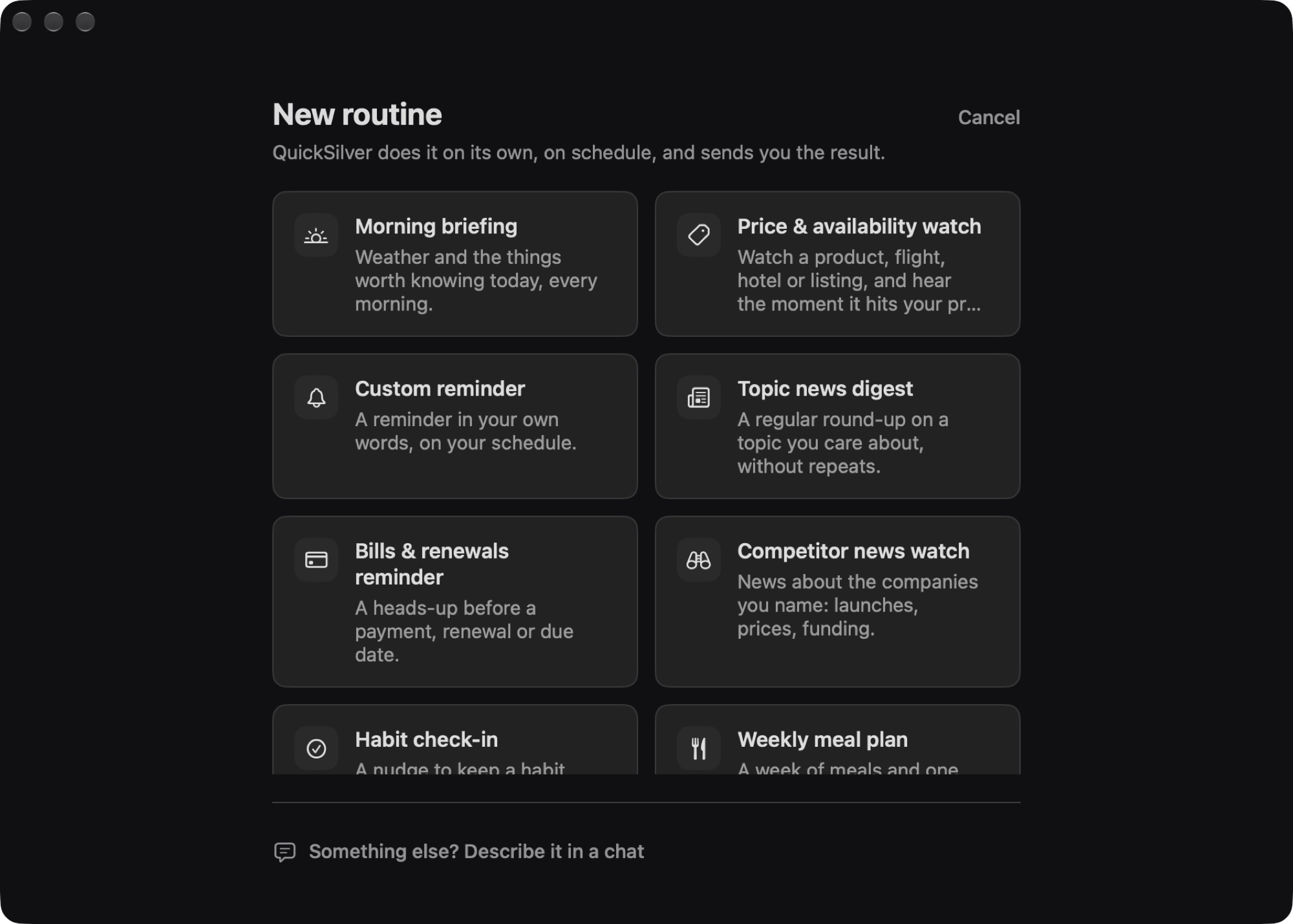
In Kaairos. Link Telegram once by scanning a code (Work tab or setup), then ask in plain words, or pick Morning briefing from the routines gallery:
- Type or say the request in a new chat.
- Kaairos creates the routine and shows it in the Work tab with an on/off switch.
- At 8:00 on weekdays it runs on the private AI on your Mac and sends the result to your Telegram chat. With Keep working when closed on, it runs even with the app closed, as long as the Mac is on and awake.
Every weekday at 8, send me a briefing on Telegram: the weather in Lisbon and the top three stories about electric cars.
Done. I made a routine, Weekday briefing, for 8:00 AM Monday to Friday, delivered to your Telegram chat. It runs on the private AI on this Mac. You can pause it any time in Work › Routines.
Good morning. Lisbon: sunny, 19° high. Electric cars: three stories with links, each in two lines.
Job 2: “Summarise these 40 pages of contracts, offline”
This is where LM Studio is excellent. Load a model, attach the documents to a chat, and ask. Its docs say document processing happens locally and nothing you upload leaves the app, so it works on a plane.
In Kaairos you share the files with QuickSilver and ask the same question; with no online AI connected, the private AI does the reading on your Mac. The difference is what happens next: Kaairos can save the summary as a document in its folder, set a reminder for the renewal date it found, or message the summary to your phone. If all you need is the answer, LM Studio is the simpler tool.
Privacy, side by side
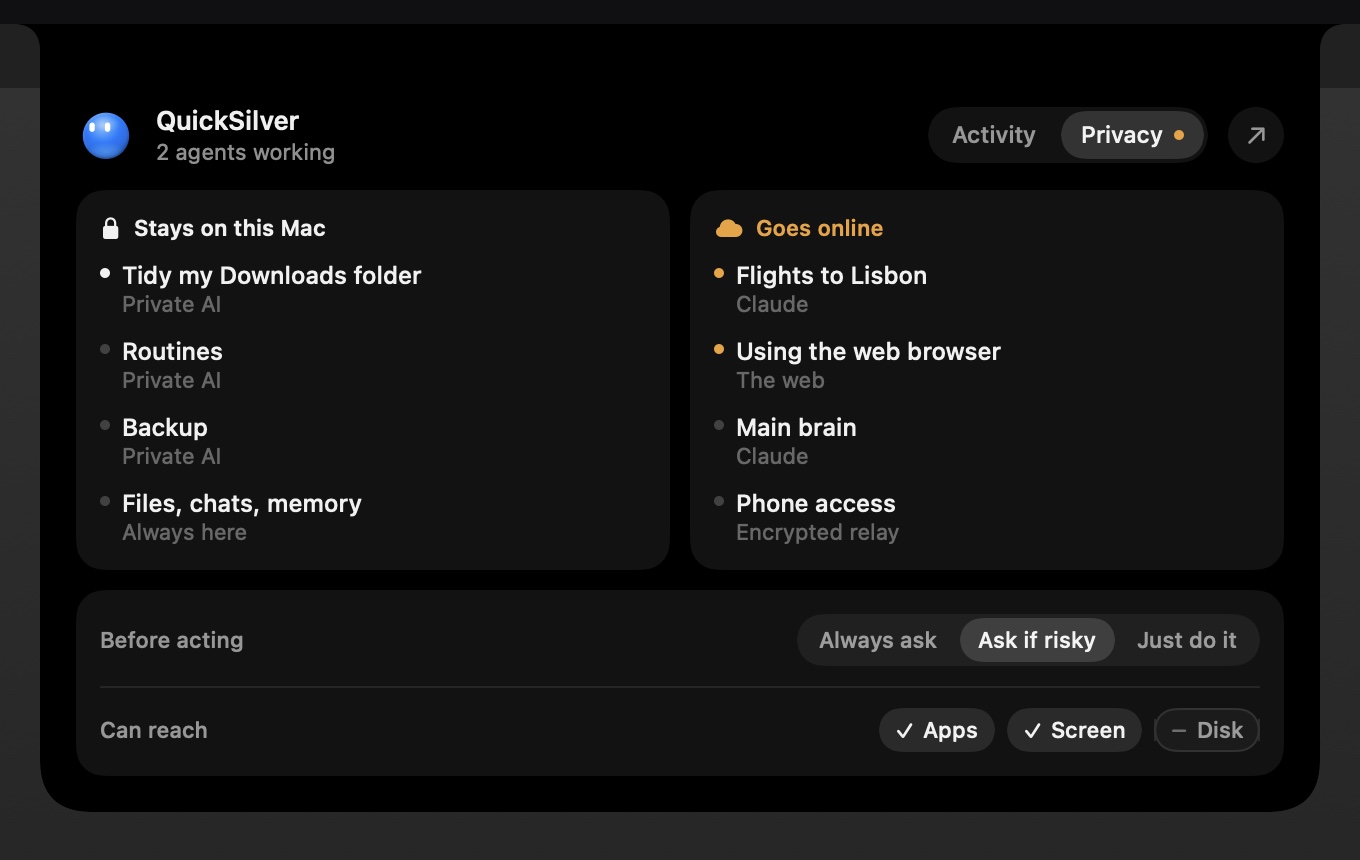
Both keep chats with local models on your computer. What differs is what else each app talks to. This is what leaves the Mac, and who receives it.
| Kaairos | LM Studio | |
|---|---|---|
| Chats with the local model | Stay on the Mac | Stay on the computer (privacy policy) |
| Chats with an online model | Go to the AI company you connected, only for jobs you route there | Bionic cloud models: prompts and files go to LM Studio Secure Cloud, processed transiently under Zero Data Retention |
| Web searches | Go out to the web when a task needs them | Bionic web search is a cloud service; LM Studio itself only if you add a search MCP server |
| Finding and downloading models | The one model download during setup | Search queries (anonymised) and downloads from Hugging Face |
| Phone access | Messages travel through Telegram or WhatsApp | LM Link uses an end-to-end encrypted network built with Tailscale |
| Updates and licence | Update checks; licence activation and re-checks with Polar | Update checks send app version, build and operating system; the CDN sees your IP address |
| Analytics | None | No telemetry or user tracking per its policy; aggregate search and download popularity is measured |
| Can you read the code | The engine (Hermes) is open source; Kaairos's own code isn't | No: the desktop app is proprietary |
Kaairos's notch panel and menu bar show live which jobs stay on the Mac and which go online. Its full list of recipients is on the privacy page.
Hardware and cost
Memory
LM Studio recommends 16 GB or more on a Mac and says 8 GB Macs may work with smaller models and modest context. Because you choose the model, you can always pick one that fits. Kaairos is stricter: its private AI needs 32 GB or more, because the smallest model in its catalog is about 16.5 GB and agent work needs long context. On a Mac with less memory, Kaairos works once you connect an AI account. See how much memory local AI needs.
Year one, with the arithmetic
- LM Studio, local models only: $0.
- LM Studio with Bionic+ for cloud models: 12 × $20 = $240. With Pro: 12 × $100 = $1,200.
- Kaairos, private AI only (32 GB Mac): $29 + $0 = $29, for up to 3 Macs (US price).
- Kaairos with your ChatGPT plan: $29 plus the plan you already pay for; routines stay on the free private AI.
- Kaairos with an API key (for example Claude): $29 plus what you use, billed by that company. The Work tab shows the AI cost over the last 30 days.
LM Studio is the cheaper way to run local models, full stop. Kaairos's $29 buys the agent: routines, the phone link, approvals and the setup work.
Using them together
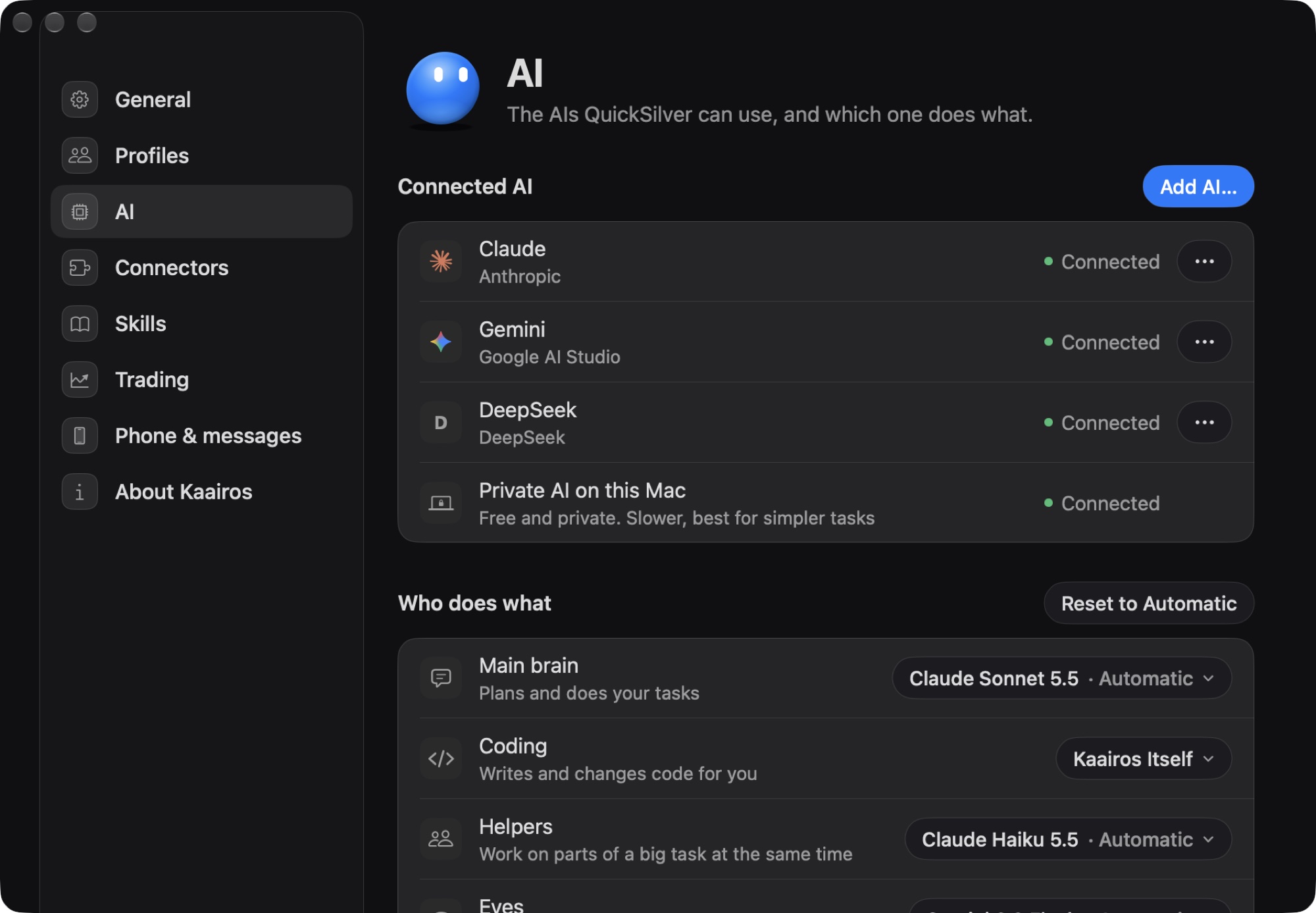
Kaairos can use any server that speaks the OpenAI API, and LM Studio's server does. This is useful if you already have a favourite model in LM Studio, or if your Mac has less than 32 GB and you want Kaairos to use a smaller local model rather than an online one.
- In LM Studio, load the model and start the server (Developer tab, or
lms server start). By default it listens athttp://localhost:1234/v1. - In Kaairos, open Settings › AI › Add AI… and choose Your Own Endpoint.
- Name:
LM Studio. Address:http://localhost:1234/v1. API key: leave empty unless you turned on authentication in LM Studio. Model: the model's identifier as LM Studio lists it. - Press Test Connection, then Add. The model then appears alongside your other AIs.
Two caveats. Agent work is harder than chat: the model has to call tools reliably and needs a long context window, so set a generous context length in LM Studio and expect smaller models to stumble on multi-step tasks. And LM Studio must be running with the server on whenever Kaairos needs that AI; on a shared or always-on Mac, the headless llmster daemon helps.
When to choose LM Studio instead
- You want to try many models, compare quantizations and keep up with new open releases as they land.
- You want MLX models on Apple silicon, or fine control over context length, GPU offload and other load settings.
- You need an OpenAI-compatible local server, SDKs or a CLI for your own code.
- Your Mac has 8 or 16 GB and you want a local model anyway: LM Studio lets you pick one that fits.
- You use Windows or Linux, or want the same tool on every computer.
- You mostly chat with documents offline and don't need anything to run on a schedule.
- You want a free tool, including at work, or you want an agent for coding (Bionic) with your own open models.
Switching between them
- Models don't carry over. Kaairos downloads its own private AI and doesn't read LM Studio's model folder. If disk space matters, delete models you no longer use from LM Studio.
- Or keep both. Connect LM Studio as Your Own Endpoint and keep using your favourite model inside Kaairos.
- Chats don't import. Neither app imports the other's history.
- MCP servers: LM Studio uses any server in
mcp.json. Kaairos offers connectors from its approved catalog, each signing in on its own page, so a custom server may not have an equivalent. - Scripts that call LM Studio's server keep working. Kaairos doesn't replace a local API.
- Going the other way: your Kaairos data stays in
~/.kaairosand the Kaairos folder; files it made are ordinary files you can open anywhere.
Sources
LM Studio facts were checked on 16 November 2026 on these pages. Kaairos facts come from the app itself.
- LM Studio docs: overview: engines (llama.cpp, MLX), document chat, MCP, server,
lms,llmster - LM Studio: system requirements: Apple silicon, macOS 14+, 16 GB recommended, Windows and Linux
- LM Studio: offline operation: what works without internet
- LM Studio: download a model: search, Hugging Face, quantization advice
- LM Studio: OpenAI compatibility API:
http://localhost:1234/v1and endpoints - LM Studio: local server: starting the server,
lms server start - LM Studio: MCP:
mcp.jsonand its security warning - LM Studio pricing: Free, Bionic+ $20/month, Pro $100/month
- LM Studio is free for use at work (July 2025)
- LM Studio app terms (version of 23 August 2026): licence for personal and internal business use
- LM Studio desktop app privacy policy (updated 19 October 2026)
- Introducing LM Studio Bionic (July 2026) and Bionic docs: projects, local and cloud models, skills, billing
- LM Link docs and LM Studio's iPhone app (June 2026)
Fair questions
Is Kaairos an LM Studio alternative?
For people who want things done rather than models to run, yes: Kaairos picks and runs a private model for you, then does tasks, runs routines and answers on your phone. For exploring, comparing and serving local models, LM Studio is the better tool, and Kaairos can use a model you serve from it.
LM Studio or Ollama: which should I use on a Mac?
LM Studio is a full desktop app with a model browser, document chat and MLX support, and it suits people who prefer a window to a terminal. Ollama is an open-source runtime built around a command line and an API, and it suits developers. Many people run both. Neither is an agent that works on a schedule; see Kaairos vs Ollama.
Is LM Studio safe and private?
Its privacy policy says chats, histories and documents used with local models never leave your computer, and that the app has no telemetry or user-specific tracking. Update checks and model searches do go online, and cloud features in Bionic send prompts to LM Studio's cloud under Zero Data Retention. The desktop app is closed source, so these are the company's statements rather than something you can audit.
Does LM Studio work offline?
Yes, once a model is downloaded: chatting, document chat and the local server all work without internet. Searching for and downloading models, downloading runtimes and in-app updates need a connection. Kaairos is similar: its private AI works offline, but anything that uses the web, such as a news briefing, needs internet.
How much RAM do I need for LM Studio, and for Kaairos?
LM Studio recommends 16 GB or more on a Mac, and 8 GB Macs can run small models. Kaairos needs 32 GB or more to run its own private AI, because agent work needs a larger model and long context. With an AI account connected, Kaairos runs on any Apple silicon Mac.
Is LM Studio free for commercial use?
Yes. Since July 2025 LM Studio has been free at home and at work, with no separate commercial licence form. Its terms licence it for personal and internal business use. Paid plans (Bionic+ and Pro) add cloud models and higher usage, and organisations can contact the company for enterprise features.
Can LM Studio do tasks for me like an agent?
LM Studio itself is mainly for chat and serving models, with tools through MCP. Its separate app, Bionic, is an agent for coding, research and documents, using local or cloud open models. Its docs don't describe scheduled routines or phone messaging, which are the core of Kaairos.
Can Kaairos use the models I already run in LM Studio?
Yes. Start LM Studio's server, then add it in Kaairos under Settings › AI › Add AI… › Your Own Endpoint, with the address http://localhost:1234/v1 and the model's identifier. Choose a model that handles tool calls and long context, because agent tasks ask more of a model than chat.
Can I use LM Studio from my iPhone?
Yes, through Locally, LM Studio's iPhone and iPad app, which can use the models on your computer over LM Link. Kaairos takes a different route today: you message it on Telegram or WhatsApp, and routines can send results there. A Kaairos phone app is coming soon.
Download and go
Your AI agent, already set up.
One button to set up. Its own private AI, free. Claude, ChatGPT or Gemini when you want more.
A Mac with Apple silicon (M1 or later), macOS 15 Sequoia or later. 14-day refund.