
Features · Notch
Your agents, at a glance
On a Mac with a camera notch, QuickSilver lives beside it. A glance says what it's doing. Point at it to see every agent at work, how hard your Mac is working, and what's staying on your Mac versus going online.
At rest: a few words beside the notch

The notch grows a little to each side, at menu-bar height. QuickSilver sits on the left and shows its mood: resting, thinking while it works, its hand raised when it needs you. On the right, a few words say what's going on:
- “Working · Flights to Lisbon +1”: the first task it's working on, and how many more.
- “Tidy my Downloads folder · needs your OK”, “has a question” or “needs a key”, in amber, when something waits for you.
- A small cloud icon whenever that work is with an online AI, so you can always see when something is leaving your Mac.
A soft light under the notch breathes while QuickSilver works and pulses amber when it needs you. With Reduce Motion on, it holds still. While you're using the Kaairos window, the notch shows only that light, because the window already shows everything.
Reading QuickSilver's mood
QuickSilver's shape tells you the state before you read a word. It rests when nothing is going on, thinks while it works, searches when the engine has a problem, and raises its hand when it needs you. The same character, with the same moods, appears in the app window and in Settings.
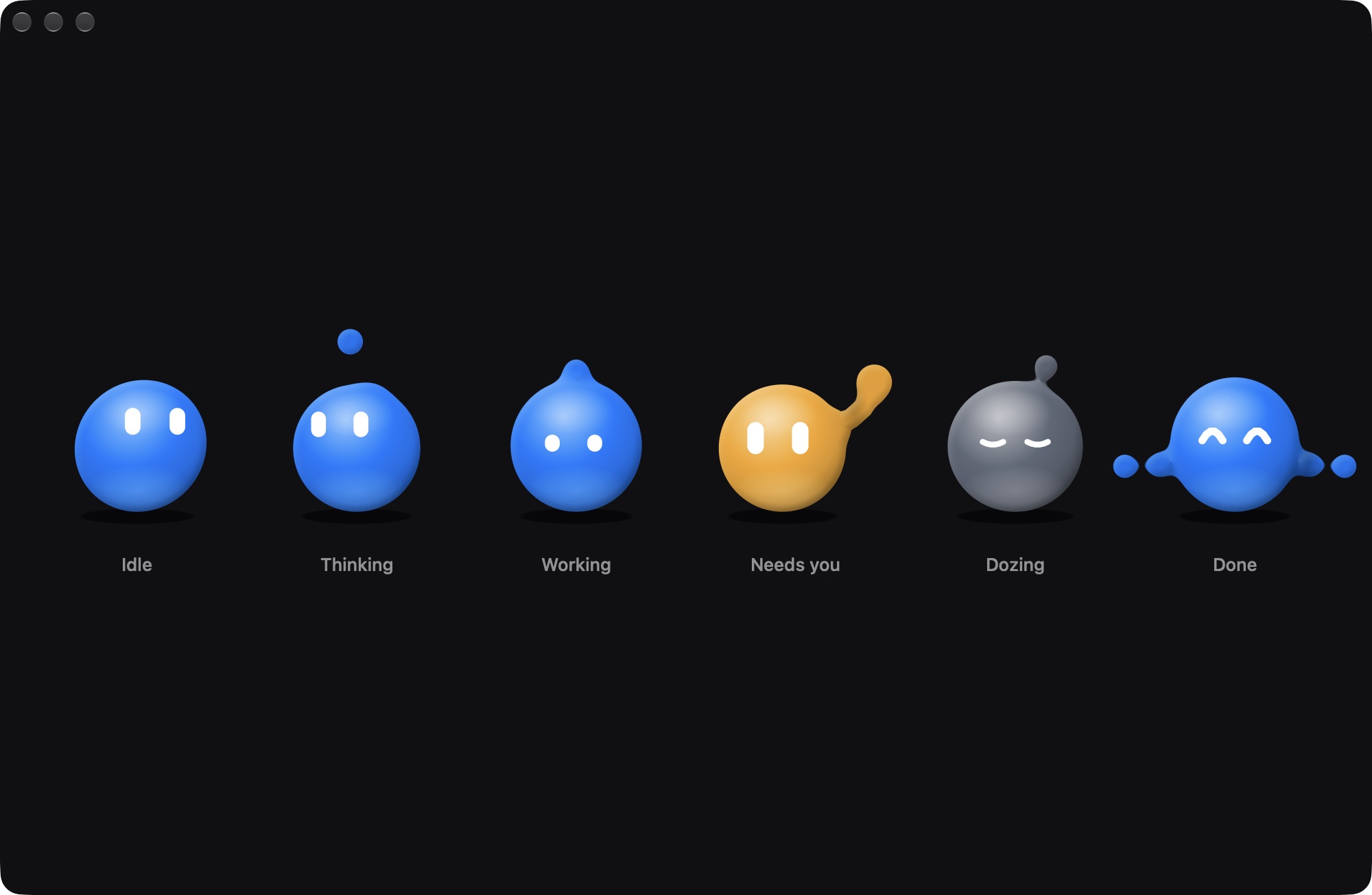
Its raised hand is the one to watch for. It means a task has stopped to wait for you: an approval, a question, or a key it needs. Point at the notch to answer, or open the chat.
Activity: every agent at work
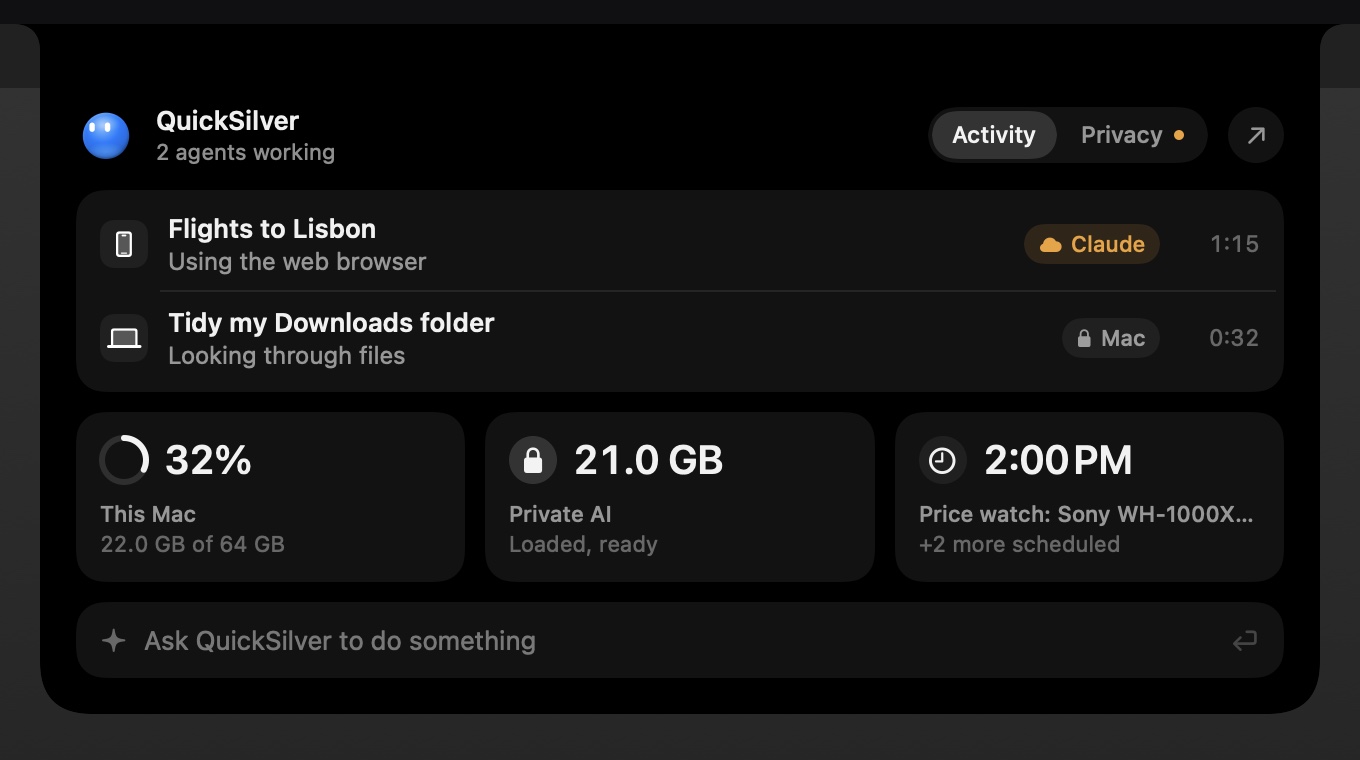
Point at QuickSilver and the same black shape grows into a panel with two pages, Activity and Privacy. Its headline says “Needs you”, “2 agents working”, or the engine's status. Activity shows up to four agents at work, one line each:
- Where it was asked from: a laptop for your Mac, a phone for Telegram or WhatsApp, a clock for a routine.
- What it is and what it's doing now, in plain words (“Using the web browser”, “Looking through files”).
- Where it runs: a lock and Mac for the private AI, or a cloud and the online AI's name, such as Claude.
- How long it has been going. Point at the line and the time turns into Stop. Click the line to open that chat.
More than four? A “2 more” link opens the Work tab. With nothing going on: “No agents running”.
If QuickSilver is waiting for you, the request shows at the top: an approval with Allow and Don't allow right there, or Answer to open the chat for a question.
Underneath, three tiles:
| Tile | What it shows |
|---|---|
| This Mac | A processor ring with a percentage, and memory as “22.0 GB of 64 GB”, for everything that is Kaairos: the app, its engine and the private AI. Read from the kernel the way Activity Monitor reads it, so the numbers match. “Running hot” appears if the Mac is getting warm. |
| Private AI | How much memory it's using and “Loaded, ready”, or “Asleep” and “Wakes when needed”. |
| Next routine | When the next routine runs (a time today, Tomorrow, a weekday or a date), its name, and “+2 more scheduled”. |
At the bottom, an Ask QuickSilver to do something field. Press Return and it starts working in the background: “On it. It's in the list above.”
Privacy: what stays, and what goes online
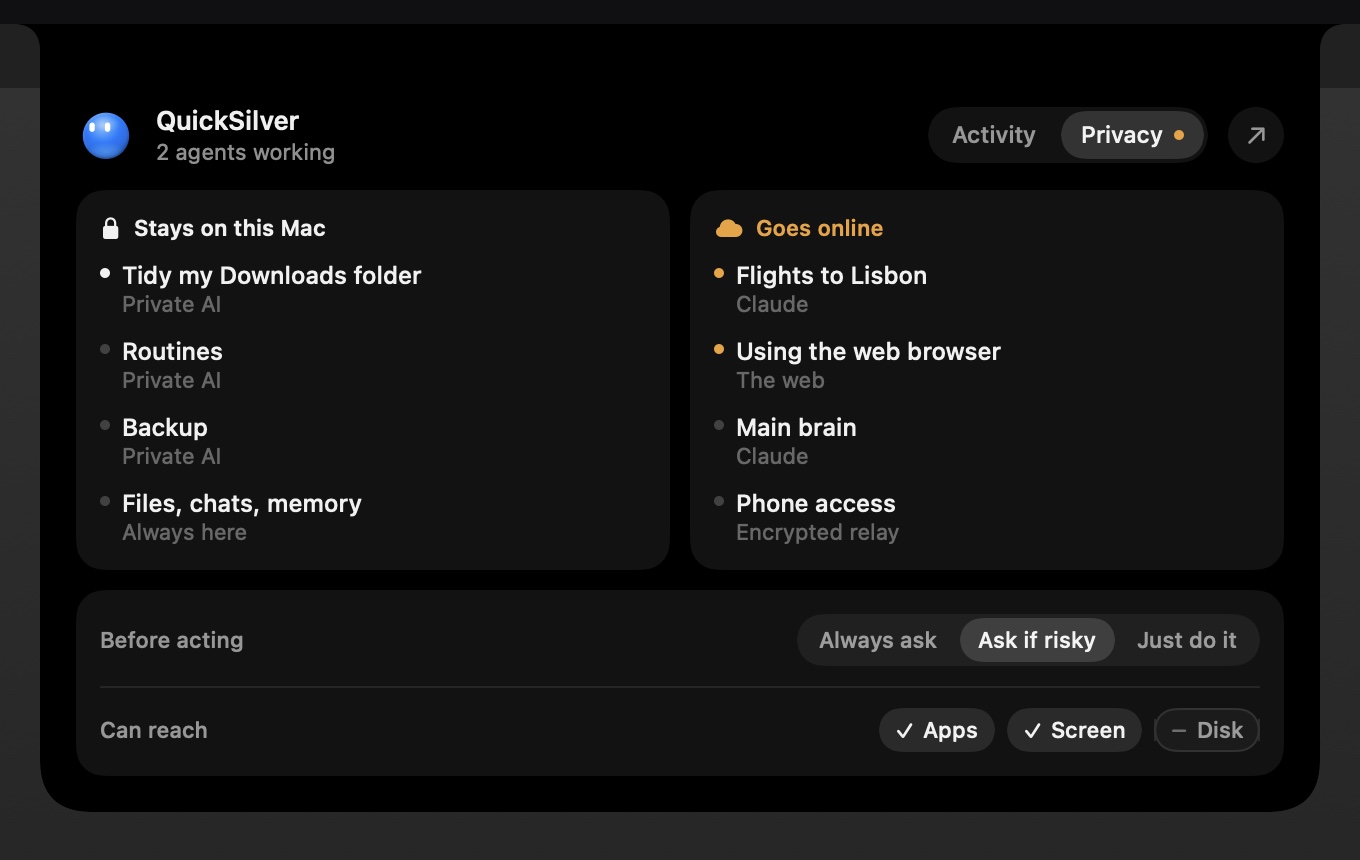
The Privacy page has two boards side by side, worked out from what Kaairos is doing right now and how it's set:
| Stays on this Mac | Goes online |
|---|---|
| Each task running on the private AI | Each task running on an online AI, with its name (for example “Claude”) |
| Jobs set to the private AI: main brain, routines or backup | Jobs set to an online AI, with its name |
| Files, chats, memory: “Always here” | A step that goes online right now: searching the web, opening pages, a connected app, Higgsfield |
| Phone access through the encrypted relay, and Inbox, when they're on |
Items happening this moment are marked live. Whenever something is going online, an orange dot appears on the Privacy tab itself, so you can tell from the Activity page.
Below the boards:
- Before acting: switch between Always ask, Ask if risky and Just do it. It's the same setting as Settings › General › How careful should QuickSilver be?
- Can reach: three chips for the macOS permissions that matter to an agent: Control apps (Accessibility), See the screen (Screen Recording) and Full Disk Access. Each is read live from macOS and says what it means, such as “Keeps out of Mail, Messages and other protected folders”. Click one to open that pane of System Settings. Kaairos never grants them itself.
Settings
| Setting | What it does | Default |
|---|---|---|
| Settings › General › Show QuickSilver at the notch | “On Macs with a camera notch it sits beside it and shows what it’s doing. Point at it to see more.” | On |
| Before acting (on the Privacy page) | How careful QuickSilver is: Always ask, Ask if risky or Just do it. | Ask if risky |
| Can reach (on the Privacy page) | Opens System Settings for each permission. | Whatever macOS has granted |
No notch? The menu bar
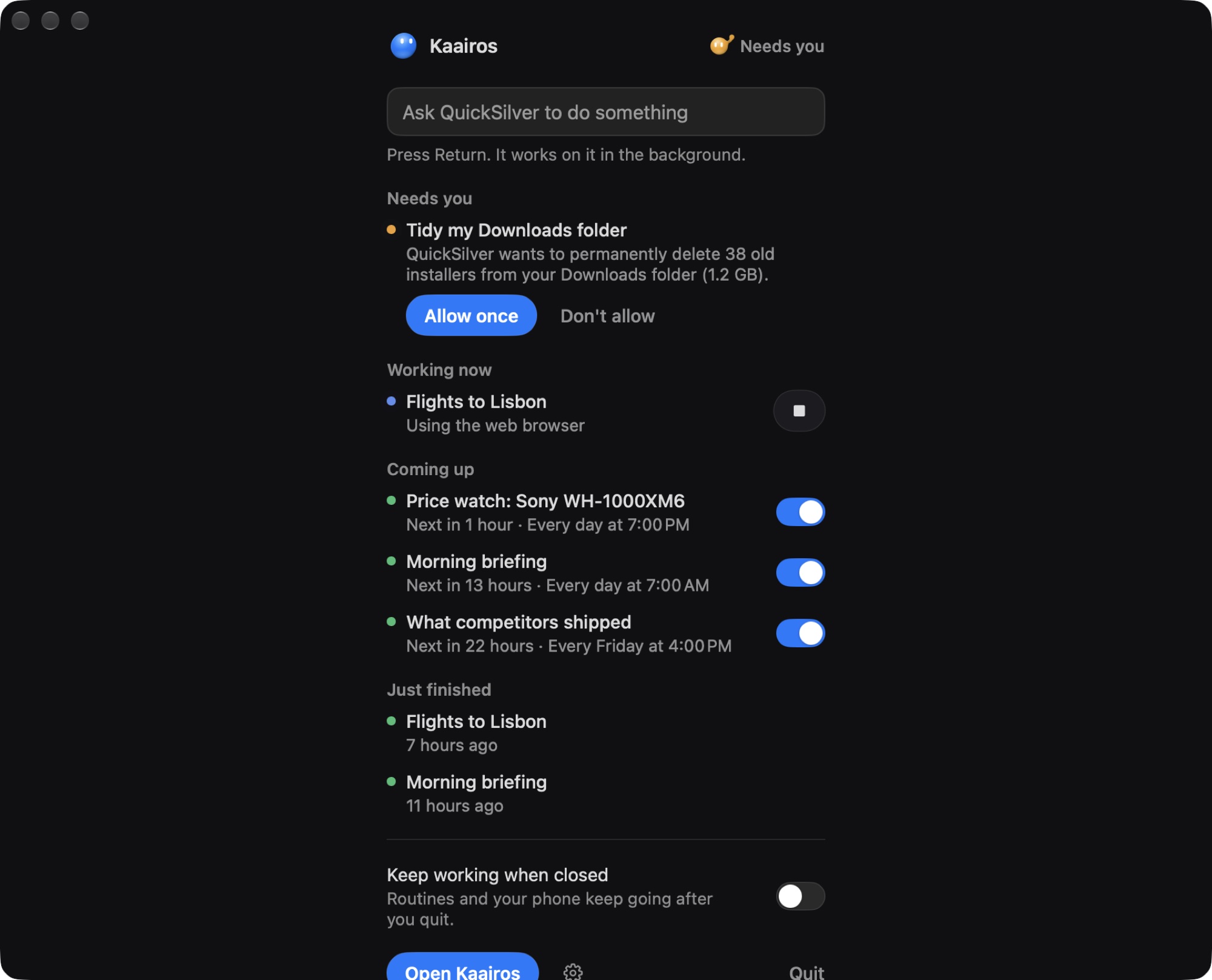
On a Mac without a camera notch, or with the notch setting off, Kaairos lives in the menu bar panel: an Ask field, Needs you, Working now (with Stop), Coming up, Just finished, the Keep working when closed switch, Open Kaairos and Quit.
Limits
- The notch appears only on screens with a camera notch; on other screens the menu bar icon stays.
- The Activity page lists four agents at a time; the Work tab has the rest.
- The load figures cover Kaairos's own processes, not the whole Mac.
- The Privacy page shows what Kaairos is doing. It isn't a network monitor for other apps.
Fair questions
Can I turn it off?
Yes, in Settings › General › Show QuickSilver at the notch. The menu bar icon takes over.
Does Kaairos give itself permissions?
No. The notch shows which permissions Kaairos has, read live from macOS, and a click opens System Settings so you can decide. Kaairos never grants them itself.
Why does the notch go quiet when I'm in Kaairos?
The window already shows everything, so the notch shows only its light while you're using it.
What does the cloud icon mean?
The work it's describing is with an online AI, so what you asked and what it finds go to that AI company to be answered.
Can I answer an approval from the notch?
Yes. An approval waiting for you shows on the Activity page with Allow and Don't allow.
Does it work on an external display?
It appears on screens that have a camera notch. On a display without one, use the menu bar panel.
Download and go
Your AI agent, already set up.
One button to set up. Its own private AI, free. Claude, ChatGPT or Gemini when you want more.
A Mac with Apple silicon (M1 or later), macOS 15 Sequoia or later. 14-day refund.