
Help
Get started
From the download to your first finished task: install the app, press one button, and wait while it brings its own AI onto your Mac.
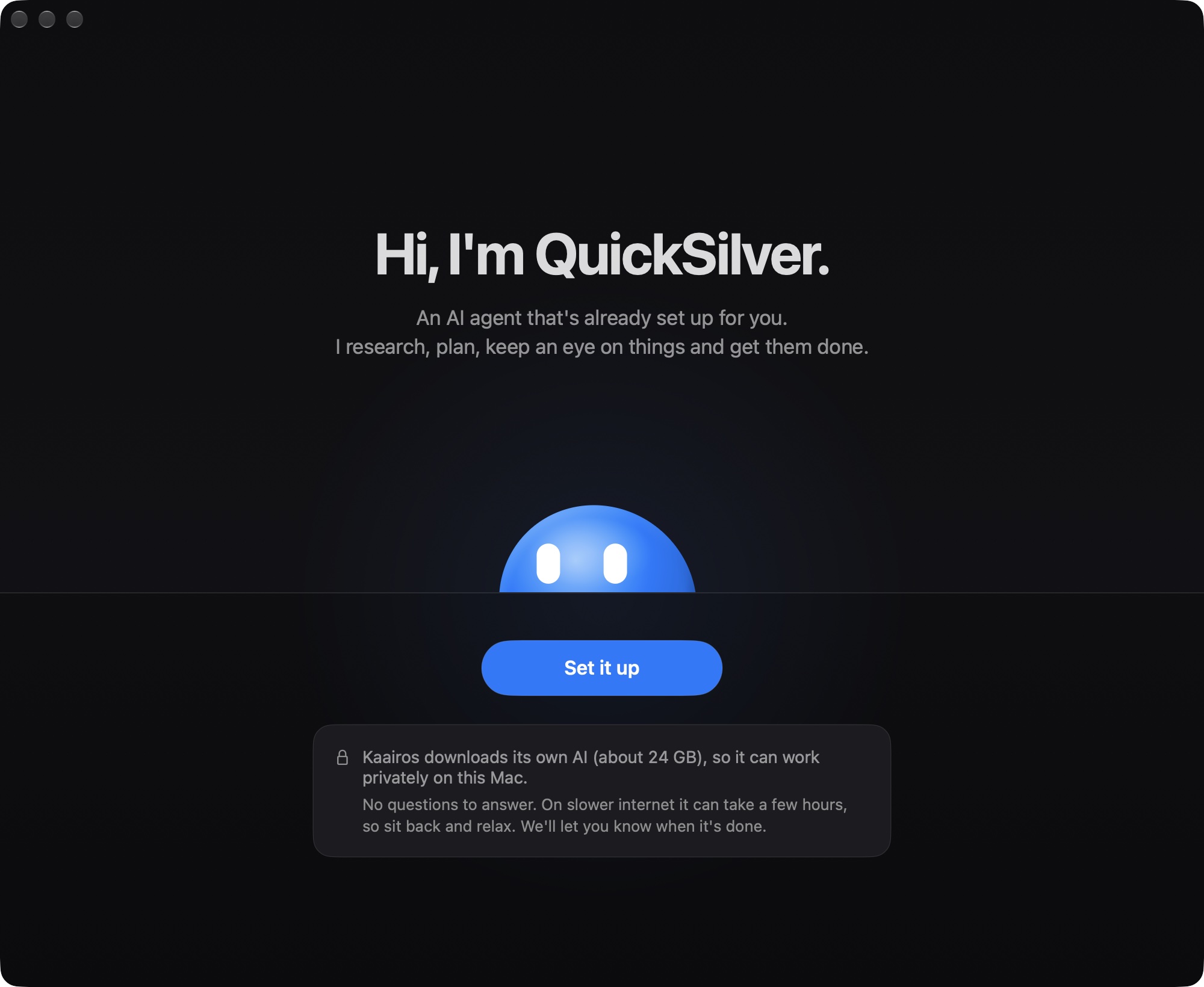
In short
Drag Kaairos to Applications and open it. On the first screen, paste the licence key from your purchase email and press Set it up. Kaairos starts its built-in engine, picks a private AI that fits your Mac's memory, downloads it, and tells you when it's ready. Then it offers to link WhatsApp or Telegram (you can skip that), and you land on All set with two example tasks. There are no other questions to answer.
Before you start
- A Mac with Apple silicon (M1 or later) on macOS 15 Sequoia or later. Intel Macs aren't supported.
- 32 GB of memory or more to run Kaairos's own private AI. On a Mac with less, setup still finishes, and you then add an AI account (see Connect an AI account).
- Free disk space. The app is about 2.7 GB installed. The private AI is about 24 GB (about 99 GB on Macs with 96 GB of memory or more, which get a larger model), and setup won't start the download unless the disk has room for it plus 5 GB to spare.
- Your licence key, from the receipt email for your purchase. It's also in Polar's customer portal.
- Time. The AI download is the long part. Setup's own words: “On slower internet it can take a few hours.”
Details are on System requirements.
Install and set up
- Open the download link in your receipt email. Open the downloaded disk image and drag Kaairos to Applications.
- Open Kaairos from Applications. The first screen says Hi, I'm QuickSilver.
- Paste your key into License key from your purchase email, then press Set it up. The button reads Checking… while Kaairos activates the key with Polar.
- Watch setup work through its steps: making a home for Kaairos on your Mac, starting its engine, picking an AI that fits this Mac's memory, then bringing that AI onto your Mac. A progress line shows how much has arrived and roughly how long is left, for example “10.3 GB of 21.9 GB · about 10 minutes left”.
- When the download finishes, Kaairos wakes its AI up, runs a last check, and moves on to Talk to QuickSilver from your phone. Scan the code for WhatsApp or Telegram, or press Skip for now.
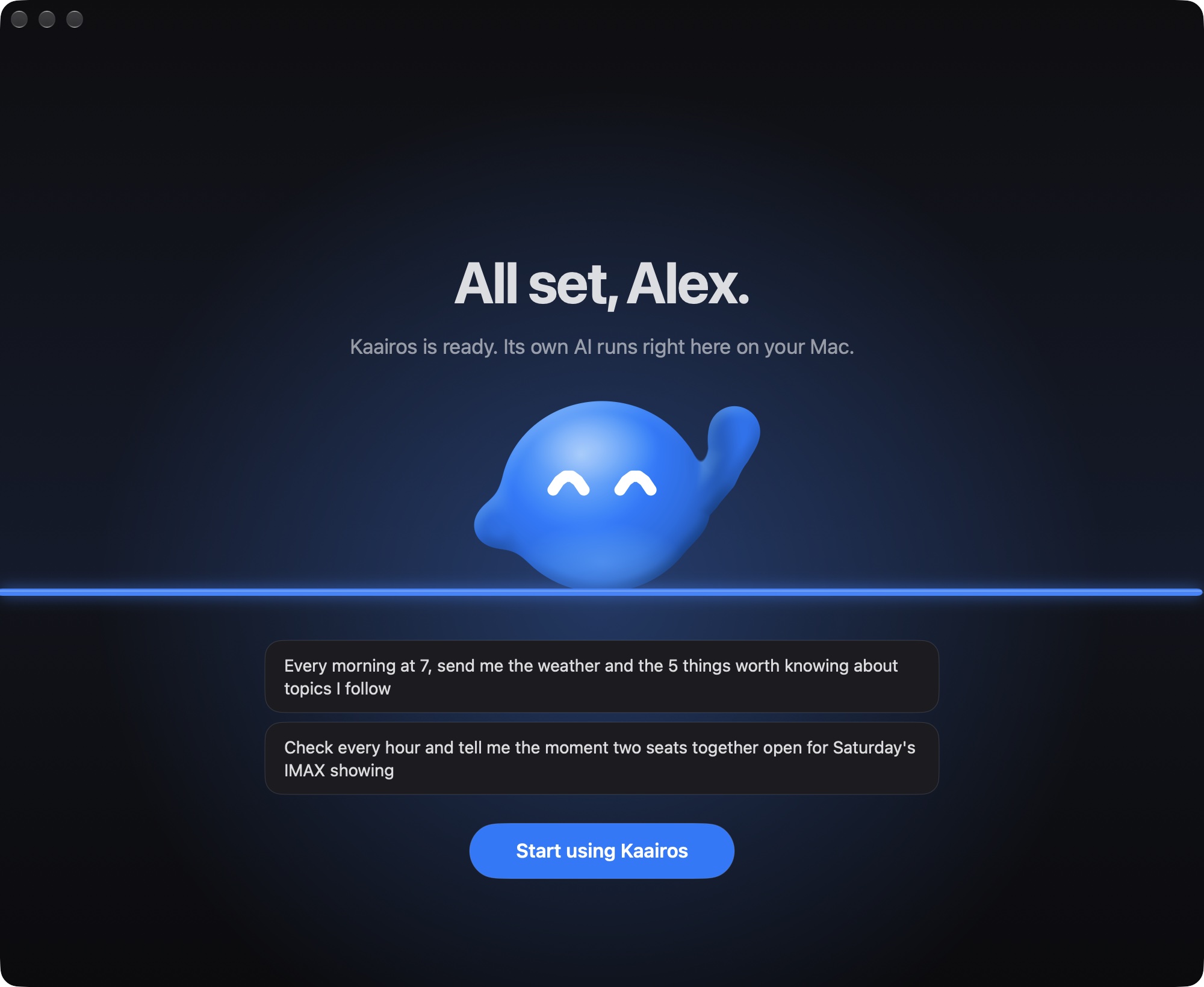
- On All set, press Start using Kaairos.
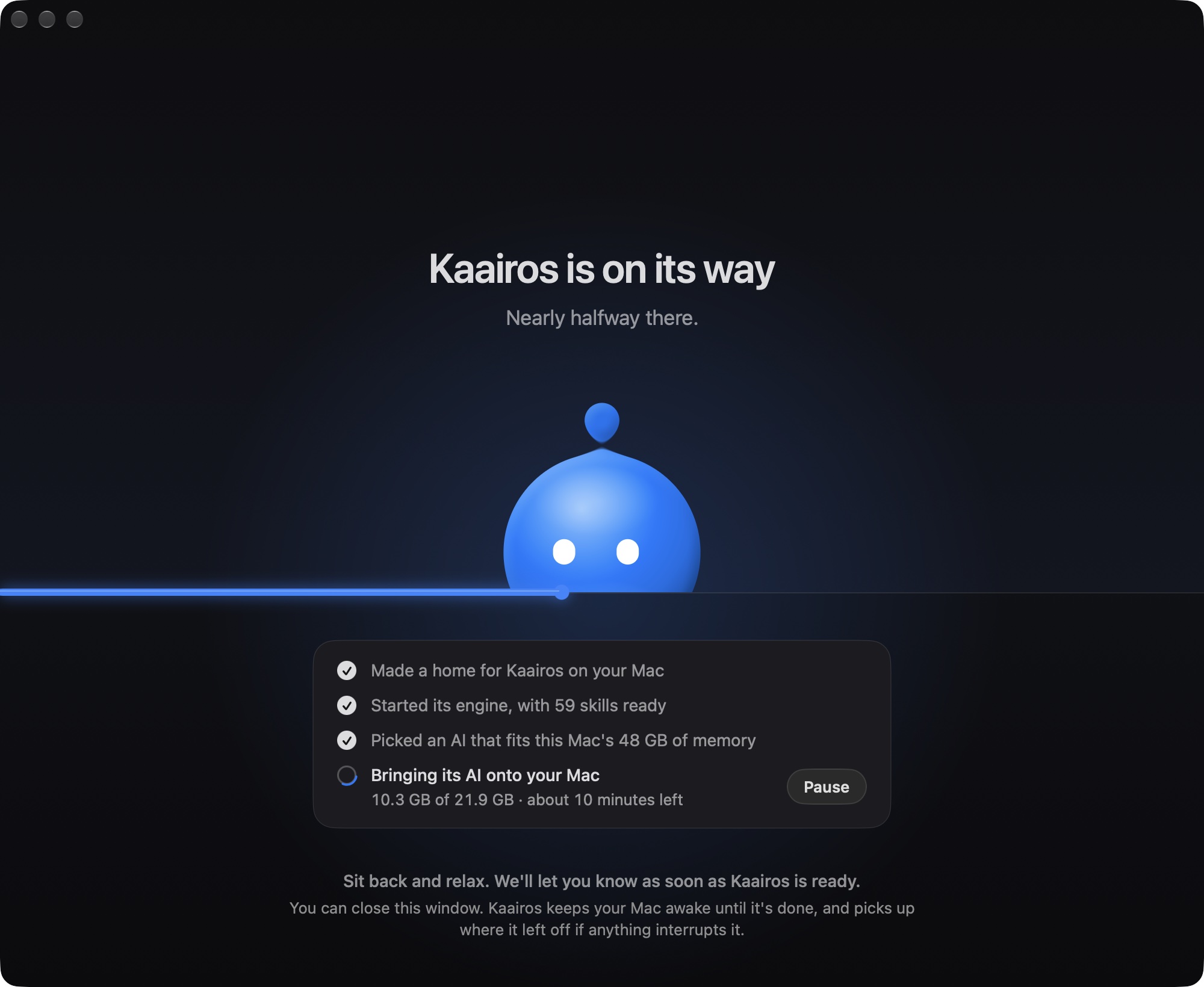
Your Mac also gets a notification when setup is done, so you don't need to watch it.
While it downloads
- Pause sits on the download's row. Paused, the screen says “Paused. Kaairos won't keep your Mac awake until you resume.” Press Resume to carry on; nothing downloaded is lost.
- You can close the window. While the download runs, Kaairos keeps your Mac from going to sleep (the screen can still turn off).
- You can quit. Kaairos records what has arrived before it quits, and next time setup picks up where it stopped.
- If the connection drops, setup says “The connection dropped. Picking up where it left off…” and keeps going on its own. It only gives up after several attempts in a row make no progress.
What you'll see when it works
All set, [your name]. with the line “Kaairos is ready. Its own AI runs right here on your Mac.” Under it are two starter tasks. After Start using Kaairos you're on the home screen, where you can type or talk.
On a Mac where no private AI fits, the same screen says “One more step: this Mac doesn't have room for Kaairos's own AI. Add an AI account in Settings to start.” and shows an Open Settings button.
Your first tasks
Type in the box, or use the microphone to talk (dictation uses macOS's own speech recognition). Plain sentences work best. Some good first tasks:
- “Every morning at 7, send me the weather and the 5 things worth knowing about topics I follow.” This becomes a routine; see Routines.
- “Check every hour and tell me the moment two seats together open for Saturday's IMAX showing.”
- “Plan a long weekend in Lisbon for two, under $1,000.”
- “My Downloads folder is a mess. Sort it into folders.” It will ask before deleting anything; see Approvals and undo.
What QuickSilver makes for you is saved in the Kaairos folder in your home folder. You can change that folder in Settings › General › Kaairos saves your work in.
Good next steps
| To | Go to | Default |
|---|---|---|
| Reach it from your phone | Home screen › Talk from your phone › Show Code | Not linked |
| Add Claude, ChatGPT or Gemini | Settings › AI › Add AI… | Private AI only |
| Change how careful it is | Settings › General › How careful should QuickSilver be? | Ask before anything risky |
| Run routines after you quit | Settings › General › Keep working when Kaairos is closed | Off |
| Show QuickSilver at the notch | Settings › General › Show QuickSilver at the notch | On |
| Light or dark | Settings › General › Appearance | Follows your Mac |
Common problems
- “That license key wasn't recognised. Check you copied all of it from your purchase email.” Copy the whole key again from the email or from Polar's portal.
- “This license is already in use on 3 Macs.” Free a seat on another Mac first; see Licence and refunds.
- “Kaairos couldn't reach the internet to check your license.” Setup needs the internet for activation and the download. Connect and press Set it up again.
- “Kaairos needs about N GB free to bring its AI onto this Mac…” Free that much space, then press Try again. Anything already downloaded is kept.
- Setup paused with “The download couldn't continue.” Check the Mac is online and press Try again.
More in Troubleshooting.
What leaves your Mac during setup
Your licence key goes to Polar to activate this Mac, with your Mac's name as the label you'll see in Polar's portal. The private AI's files are downloaded to your Mac. Nothing you type is involved, because you haven't typed anything yet. Once the private AI is set up, chats it answers are processed on your Mac; anything that searches the web or uses an online AI you connect goes online for that part.
Fair questions
Do I have to answer any questions during setup?
No. The only input is your licence key. Kaairos uses your Mac account's first name to greet you; change it in Settings › General › Your name.
Can I use my Mac while it downloads?
Yes. The download runs in the background. You can close the window or even quit, and setup resumes next time you open Kaairos.
How big is the download?
The app is about 1.3 GB. During setup Kaairos downloads its own AI, about 24 GB (about 99 GB on Macs with 96 GB of memory or more, which get a larger model); the welcome screen shows the exact size for your Mac before you start.
Do I need an account with an AI company?
Not on a Mac with 32 GB of memory or more: the private AI on your Mac does everything. On a smaller Mac you'll need one, or you can sign in with ChatGPT.
Where do the files it makes go?
Into the Kaairos folder in your home folder, unless you choose another one in Settings › General.
Download and go
Your AI agent, already set up.
One button to set up. Its own private AI, free. Claude, ChatGPT or Gemini when you want more.
A Mac with Apple silicon (M1 or later), macOS 15 Sequoia or later. 14-day refund.