
Download
Download Kaairos
For Macs with Apple silicon on macOS 15 or later. about 1.3 GB, signed and notarized by Apple.
Your licence key
Kaairos is a paid app: $29 at launch, then $80, once, for up to 3 Macs, with a 14-day refund. Anyone can download it; your licence key unlocks it. Lost it? It's in Polar's customer portal. After activation, Kaairos re-checks the key quietly and keeps working for 30 days without internet.
1. Check your Mac
| Needed | |
|---|---|
| Mac | A Mac with Apple silicon (M1 or later). Intel Macs aren't supported |
| macOS | macOS 15 Sequoia or later |
| Memory | 32 GB or more to run its own private AI. With less, Kaairos works once you connect an AI account (Sign in with ChatGPT, or a Claude, Gemini or other key) |
| Free disk space | About 30 GB of free space (the app plus its own AI); about 105 GB on Macs with 96 GB of memory or more |
| Internet | Needed for setup, licence activation and anything that uses the web |
To check: Apple menu › About This Mac shows the chip (it should say Apple M1 or later), the memory and the macOS version. Free space is in System Settings › General › Storage.
2. What gets downloaded, and how big
| Size | When | |
|---|---|---|
| Kaairos.dmg | about 1.3 GB | Now, from this page or your receipt email |
| The app, installed | about 2.7 GB | When you drag it to Applications |
| Its own private AI | about 24 GB (about 99 GB on Macs with 96 GB of memory or more, which get a larger model) | During setup, once, on Macs with 32 GB of memory or more |
The app is large because the engine inside it, Hermes Agent 0.23.1 by Nous Research, carries its own Python, Node, a browser for web tasks and media tools, so nothing else needs installing. The private AI is an open-weight model chosen to fit your Mac's memory and run by llama.cpp. Setup checks the free space before it starts and wants about 5 GB to spare beyond the download, so it never fills your disk to the last byte.
3. Install
- Open Kaairos.dmg from your Downloads folder.
- Drag Kaairos into Applications.
- Eject the disk image (the eject button next to it in Finder's sidebar). You can delete the .dmg afterwards.
- Open Kaairos from Applications, or press ⌘ Space and type Kaairos.
- The first time, macOS asks whether you're sure you want to open an app downloaded from the internet. Click Open.
Kaairos is signed with an Apple Developer ID and notarized by Apple, which means Apple checked it for malicious software and found none. That first-launch question is normal for any app from outside the App Store (Apple: Safely open apps on your Mac). Kaairos isn't on the Mac App Store because it runs tools on your Mac that App Store apps aren't allowed to run.
4. First launch: one button
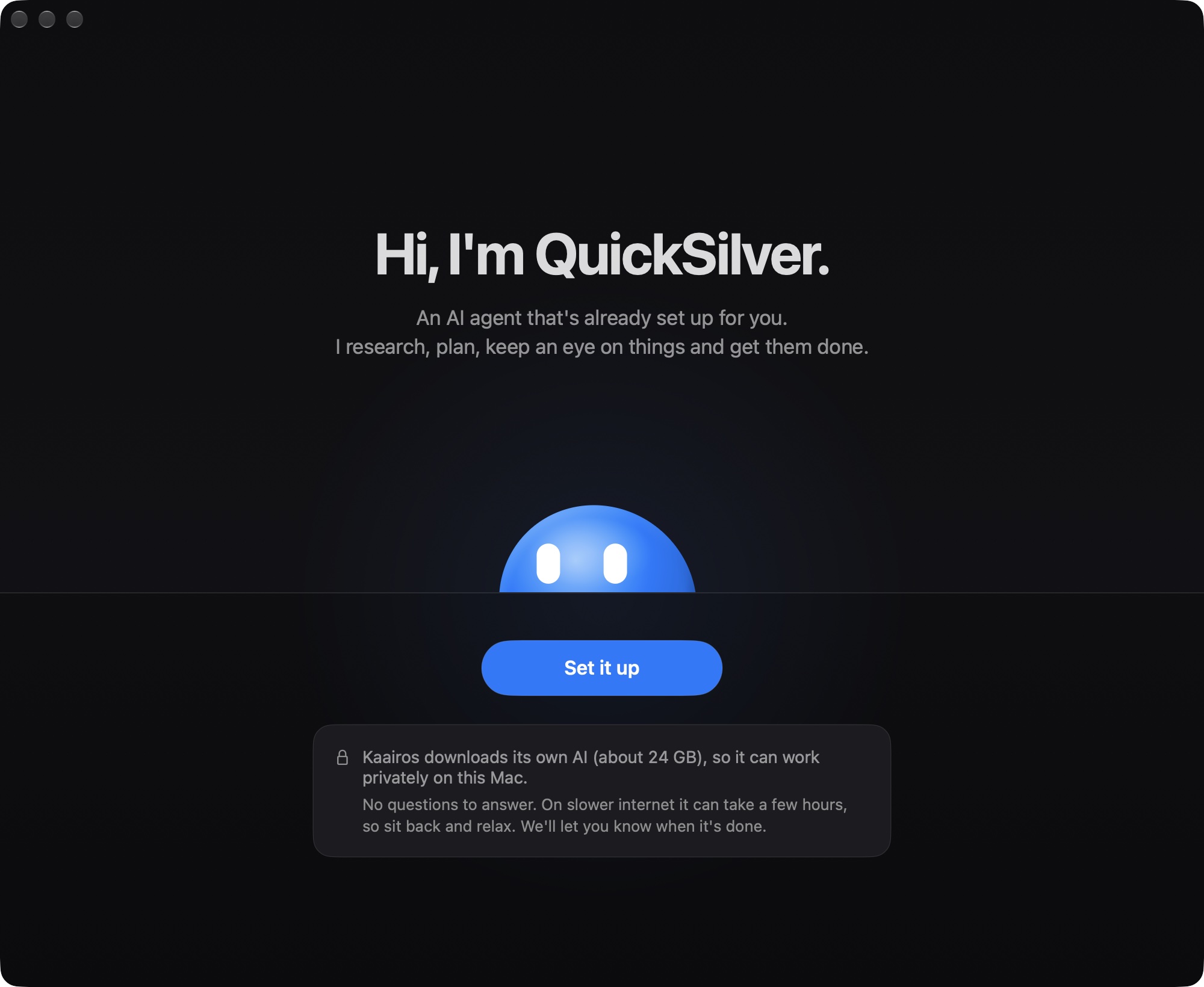
QuickSilver says hello and offers one button. Paste the licence key from your purchase email into the field above it and press Set it up. Kaairos may ask to send notifications, so it can tell you when it's ready.
5. While it sets itself up
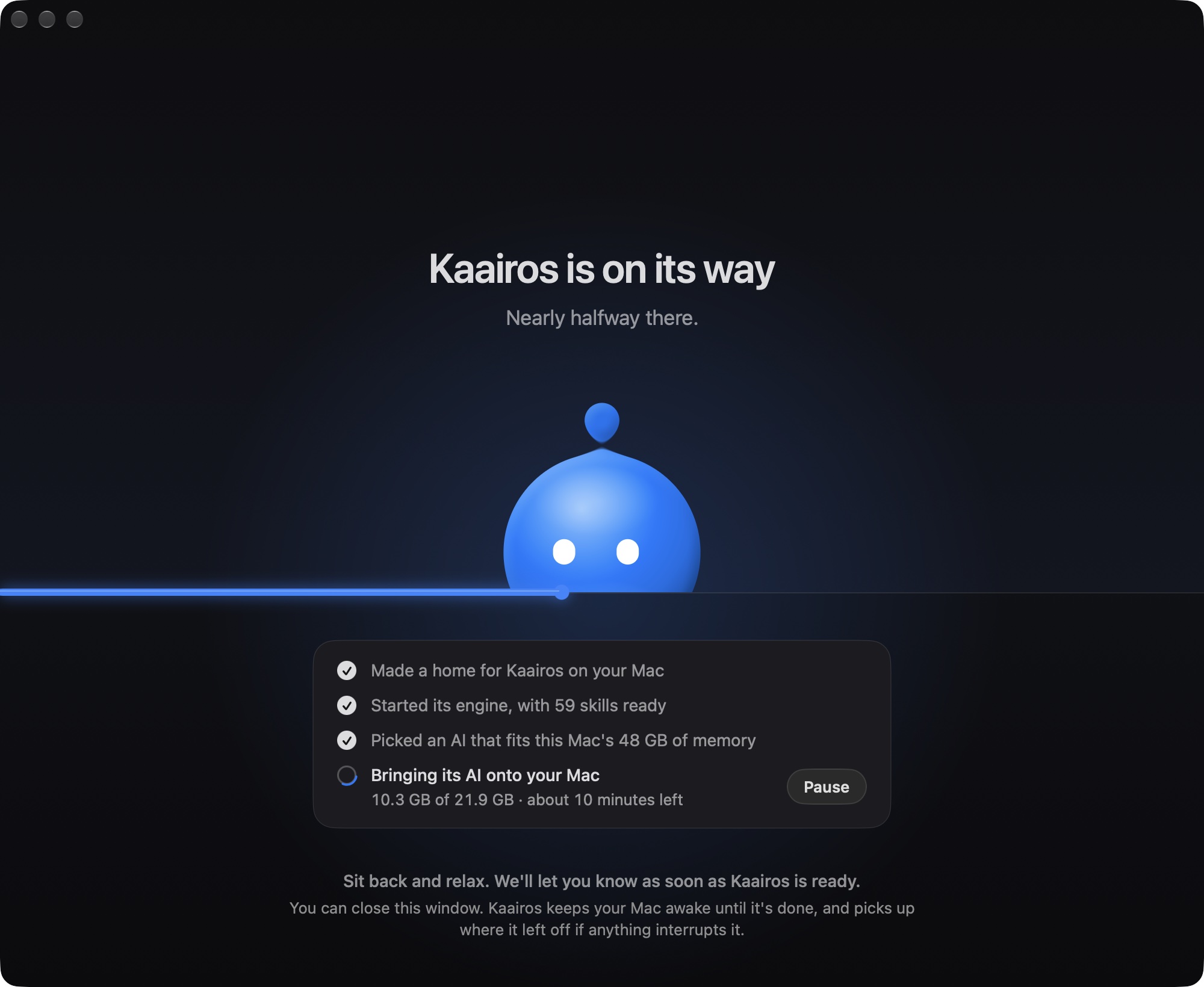
Setup shows each real step as it happens:
- Making a home for Kaairos on your Mac (the ~/.kaairos folder, and a Kaairos folder for files it makes).
- Starting its engine, with its built-in skills ready.
- Picking an AI that fits this Mac's memory.
- Bringing its AI onto your Mac: the big part, about 24 GB (about 99 GB on Macs with 96 GB of memory or more, which get a larger model), with the size done and the time left.
- Waking its AI up, and a last check.
How long this takes depends on your connection. You can press Pause and resume later, close the window or quit: next time, it picks up where it stopped and keeps what has already arrived. It keeps your Mac awake while downloading (the screen can still sleep), retries on its own after a dropped connection, and your Mac notifies you when it's ready.
On a Mac with less than 32 GB of memory, there's no big download: setup finishes in moments and asks you to connect an AI account.
6. Link your phone, or skip
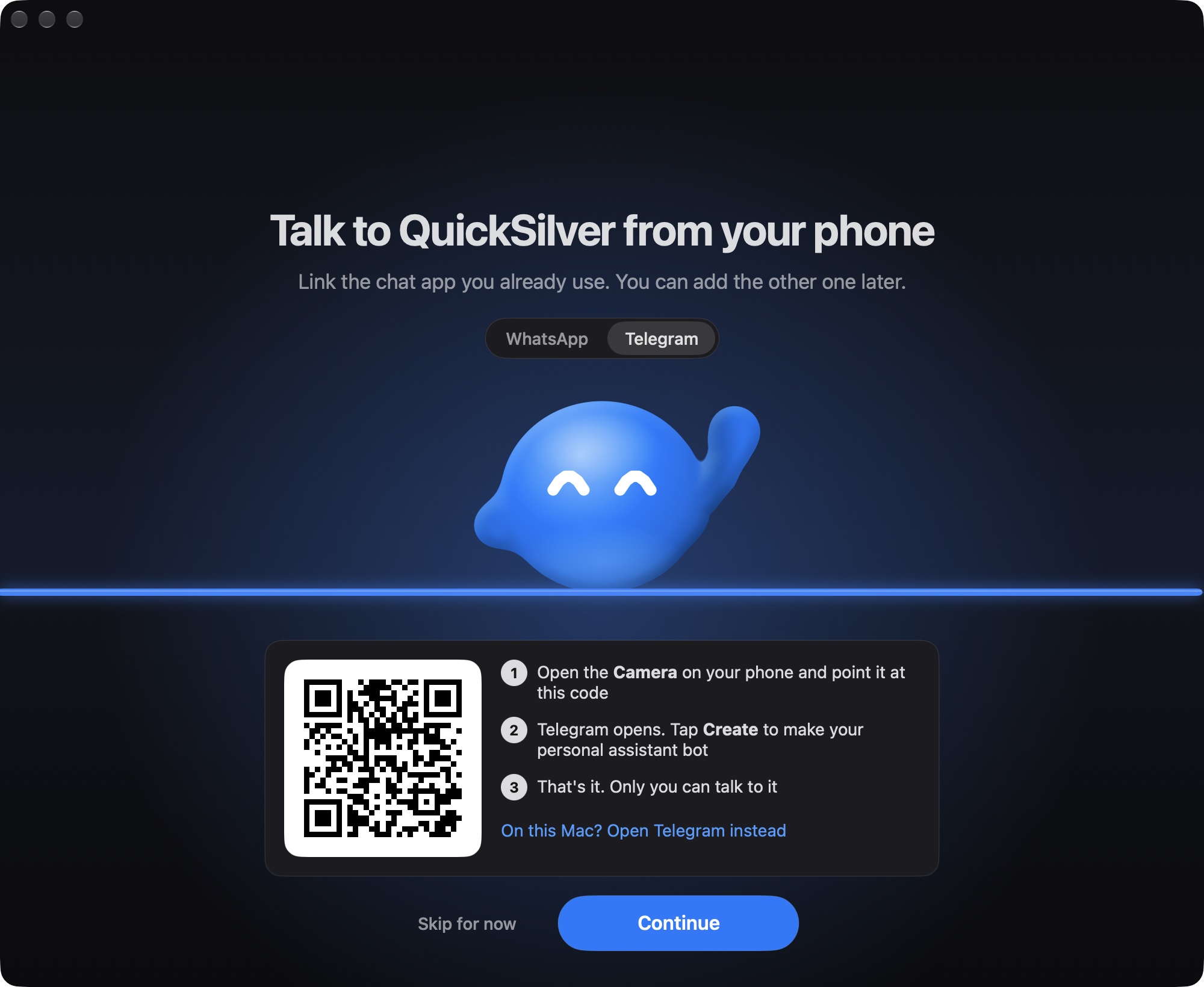
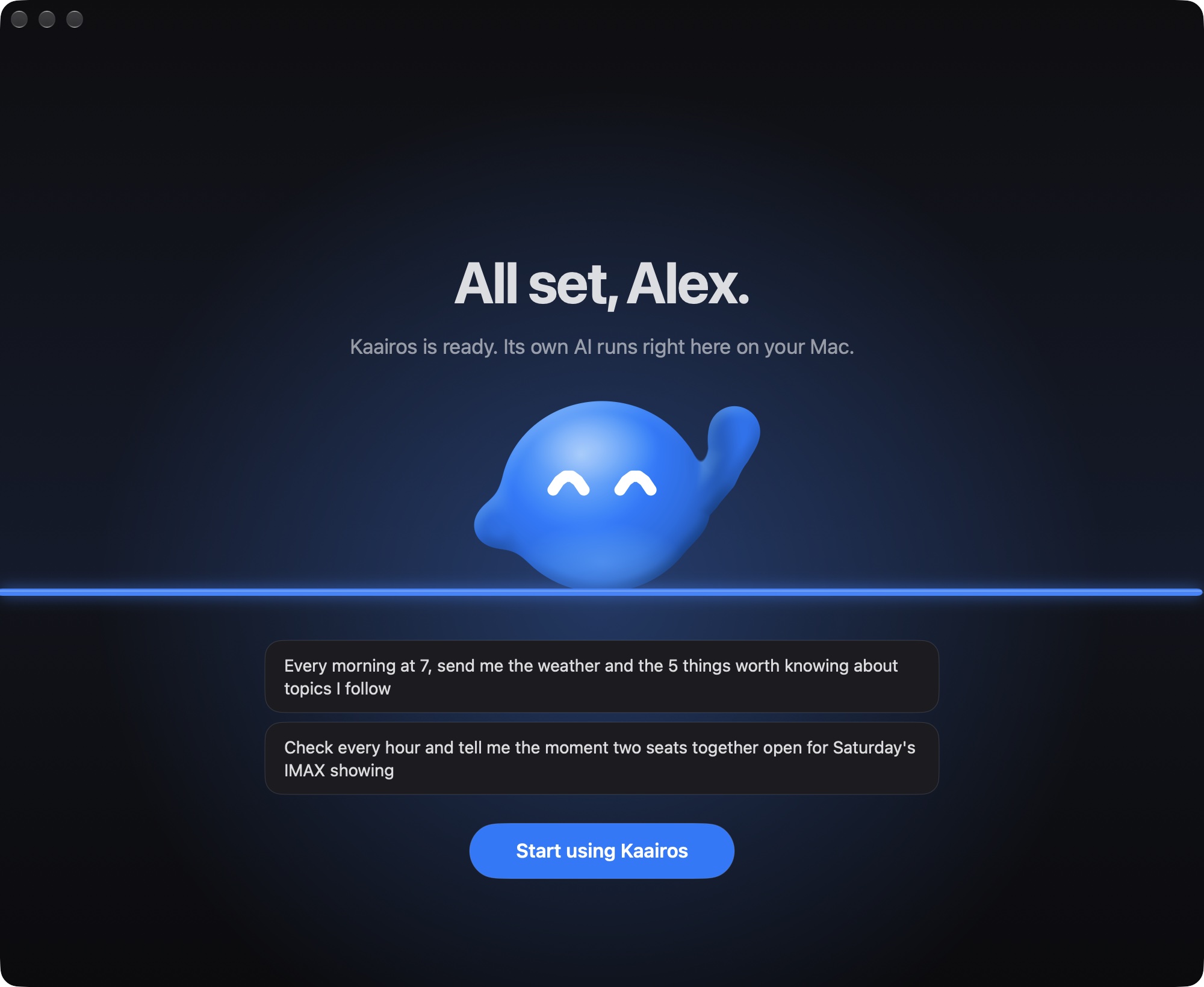
The last step offers a code to scan with WhatsApp or Telegram, so you can message QuickSilver from your phone. It's optional: Skip for now, and link it later from the home screen. Then you're all set, with two example tasks to try.
Updating
Kaairos updates itself. It checks once a day, downloads an update in the background and installs it when you quit; to update now, choose Check for Updates… in Settings › About Kaairos or the menu bar panel. Each update must carry Kaairos's own signature and the same Developer ID as the app, or it isn't installed. Every 1.x update is included in the price.
Uninstalling
Turn off Keep working when closed, free your licence seat in Settings › About Kaairos, quit, and drag Kaairos to the Trash. To remove its data and the private AI too, delete the ~/.kaairos folder. Full steps: Uninstall Kaairos.
If something goes wrong
The download is slow or stopped
Leave Kaairos open, or reopen it: it resumes from where it stopped and keeps what has arrived. After several attempts that make no progress, it says to check that the Mac is online and try again; nothing downloaded is lost.
“Kaairos needs about … GB free”
Setup checks space before downloading and says how much it needs and how much is free. Free up space (System Settings › General › Storage), then try again from the setup screen. What's already downloaded is kept.
“This Mac doesn't have room for its own AI”
Your Mac has less memory than the private AI needs (32 GB). Add an AI account or Sign in with ChatGPT in Settings › AI; everything else works the same.
Kaairos won't open on my Mac
Check that it's a Mac with Apple silicon on macOS 15 Sequoia or later: Kaairos doesn't run on Intel Macs or older macOS. If macOS says the app is damaged, delete it and download the .dmg again.
The licence key isn't accepted
Copy it again from your receipt email or Polar's customer portal. If it's already used on 3 Macs, free one in Settings › About Kaairos on a Mac you no longer use, or email support@stuvio.co.
More fixes in Troubleshooting, or email support@stuvio.co with your logs from Settings › About Kaairos › Show Logs.