
Features · Hybrid intelligence
Hybrid intelligence
Private by default, smart when you want it. Kaairos runs its own AI on your Mac, lets you add Claude, ChatGPT or Gemini, and gives every job to the AI that fits it.
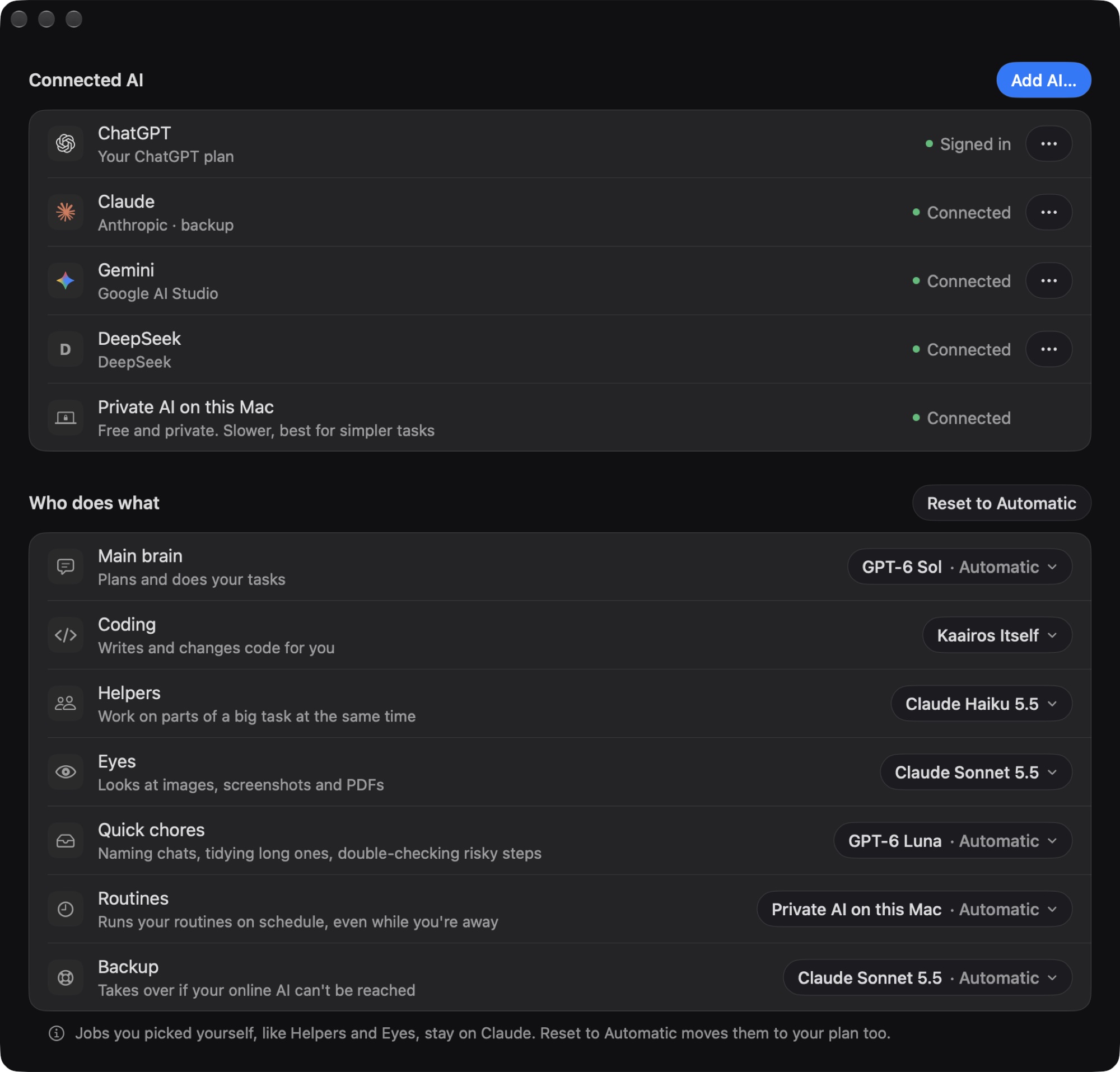
Why one AI isn't enough
An AI that runs on your Mac is private and free to use, but on long, hard tasks it's slower and less capable than the best online models. Kaairos's own description of it in Settings is plain: “Free and private. Slower, best for simpler tasks.” An online model is sharper, but what you send goes to that company, and every token costs money.
Kaairos doesn't make you pick one. It treats the private AI on your Mac as one member of a team, alongside any online AI you connect, and gives each kind of job to the member that suits it.
An example day
Your Mac has 64 GB of memory, so setup downloaded Kaairos's private AI. You've also connected Claude with your own key. Here's who does what:
- 7:00 Your morning briefing runs on the private AI. It searches the web for news, writes the summary on your Mac and sends it to Telegram. AI cost: nothing.
- 10:30 You ask for a trip plan. The main brain, Claude Sonnet 5.5, plans it. While it works, helpers on Claude Haiku 5.5 check hotels in parallel, and a quick chore on Haiku names the chat.
- 10:34 You drop a screenshot of a booking page into the chat. The eyes read it.
- 14:00 Your Wi-Fi drops mid-task. Claude can't be reached, so the backup, the private AI, carries on, and the reply says “Claude wasn't available, so the private AI on your Mac answered.”
You didn't set any of that up. Kaairos assigned it when you connected Claude.
Who does what
With no account connected, the private AI does everything. Connect one and Kaairos fills in Settings › AI › Who does what automatically:
| Job | What the app says it does | Automatic pick |
|---|---|---|
| Main brain | Plans and does your tasks | The strongest model you've connected, in this order: Claude Sonnet 5.5, GPT-6.1 Sol (OpenAI), Claude Sonnet 5.5 through OpenRouter, Gemini 4 Argon; the private AI if none |
| Coding | Writes and changes code for you | Kaairos Itself (the main brain); or OpenCode, Claude Code or Codex if they're installed and you pick them |
| Helpers | Work on parts of a big task at the same time | A fast, inexpensive model: Claude Haiku 5.5, GPT-6 Luna, Claude Haiku 5.5 through OpenRouter, or Gemini 3.8 Flash |
| Eyes | Looks at images, screenshots and PDFs | Gemini 3.8 Flash if Gemini is connected, else the fast model of Claude, OpenAI or OpenRouter |
| Quick chores | Naming chats, tidying long ones, double-checking risky steps | The same fast, inexpensive model as helpers |
| Routines | Runs your routines on schedule, even while you're away | The private AI on this Mac; without it, the quick-chores model |
| Backup | Takes over if your online AI can't be reached | The private AI on this Mac, when it's set up |
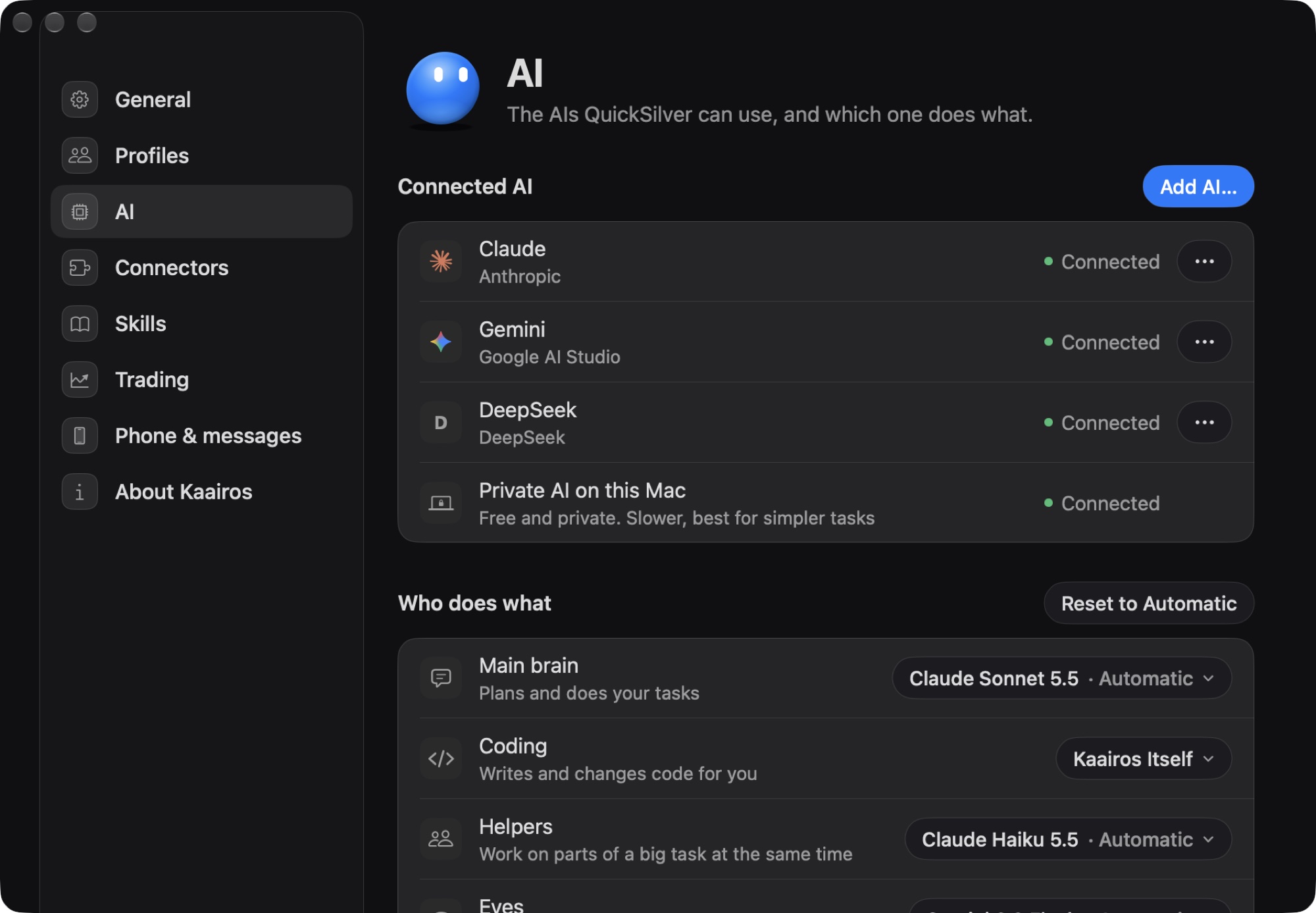
Why these picks: the small models cost a fraction of the main ones per token, and chores and helpers make up much of an agent's calls, so putting them on a small model is the biggest lever on cost. The main brain still checks their work. Routines go to the private AI because they often run while nobody's watching, and on the Mac they cost nothing and what they read stays there.
With your ChatGPT plan
Choose Settings › AI › Add AI… › Sign in with ChatGPT (“Use your ChatGPT plan. No key, no extra bill.”). Kaairos shows a short code; Open Sign-in Page opens OpenAI's own page, where you sign in, type the code and approve Kaairos. Kaairos never sees your password.
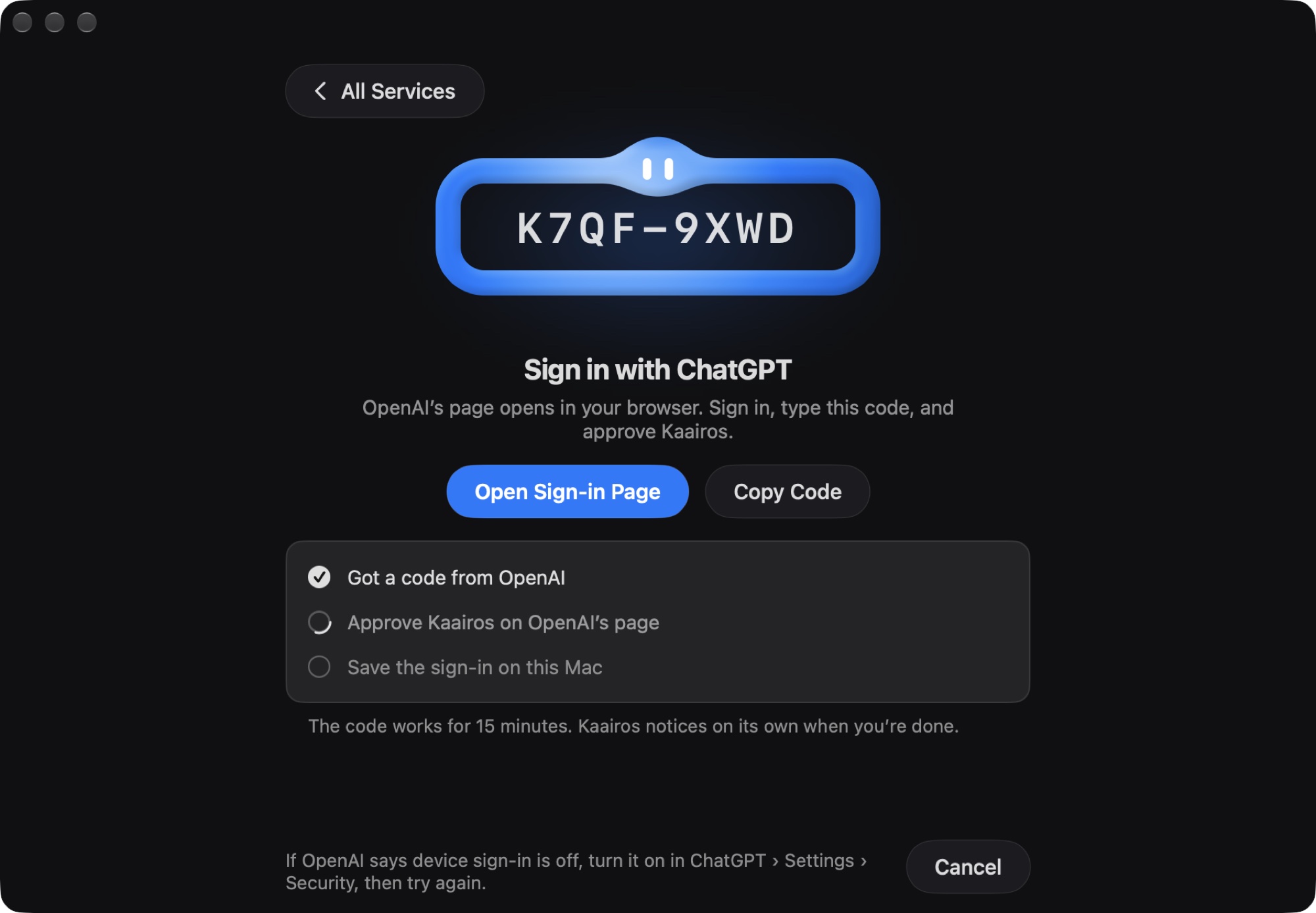
Once signed in, your plan does the everyday work, because you already pay for it: the main brain uses its strongest model (GPT-6 Sol), and helpers, eyes and quick chores its small one (GPT-6 Luna). Routines stay on the private AI if your Mac has it. The backup is whatever would have done the work without the plan: a key you added, or the private AI.
If your plan hits its limit mid-task, the turn moves to the backup and the reply says so: “Your ChatGPT plan hit its limit, so Claude answered. ChatGPT takes over again when the limit resets.” Jobs you picked a model for yourself stay where you put them; Settings tells you which, and Reset to Automatic moves them to the plan too.
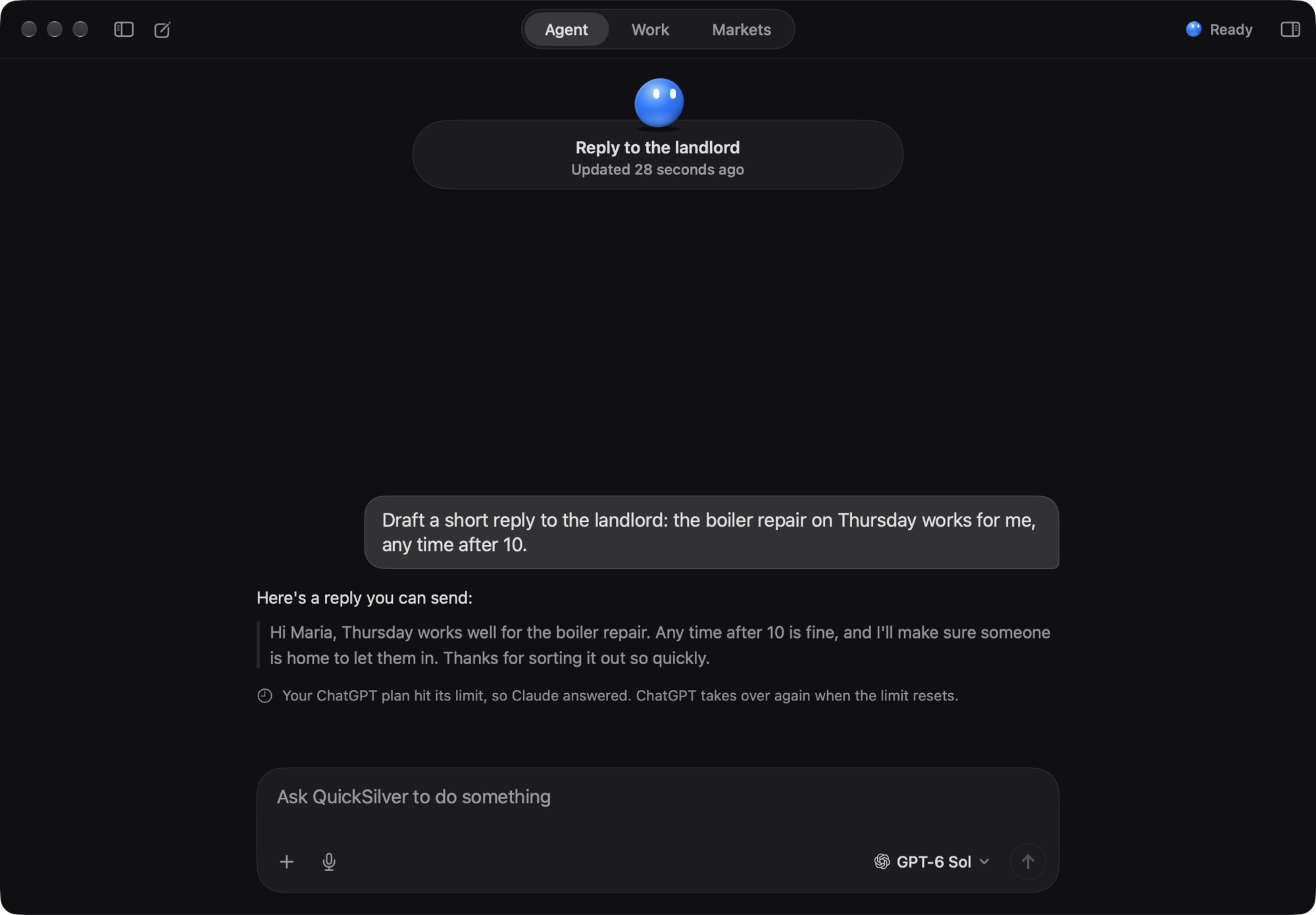
The private AI is your backup
When your online AI fails for good (no internet, no credit left, a revoked key, an outage), the engine moves the turn to the backup and the reply says what happened. You don't lose the task.
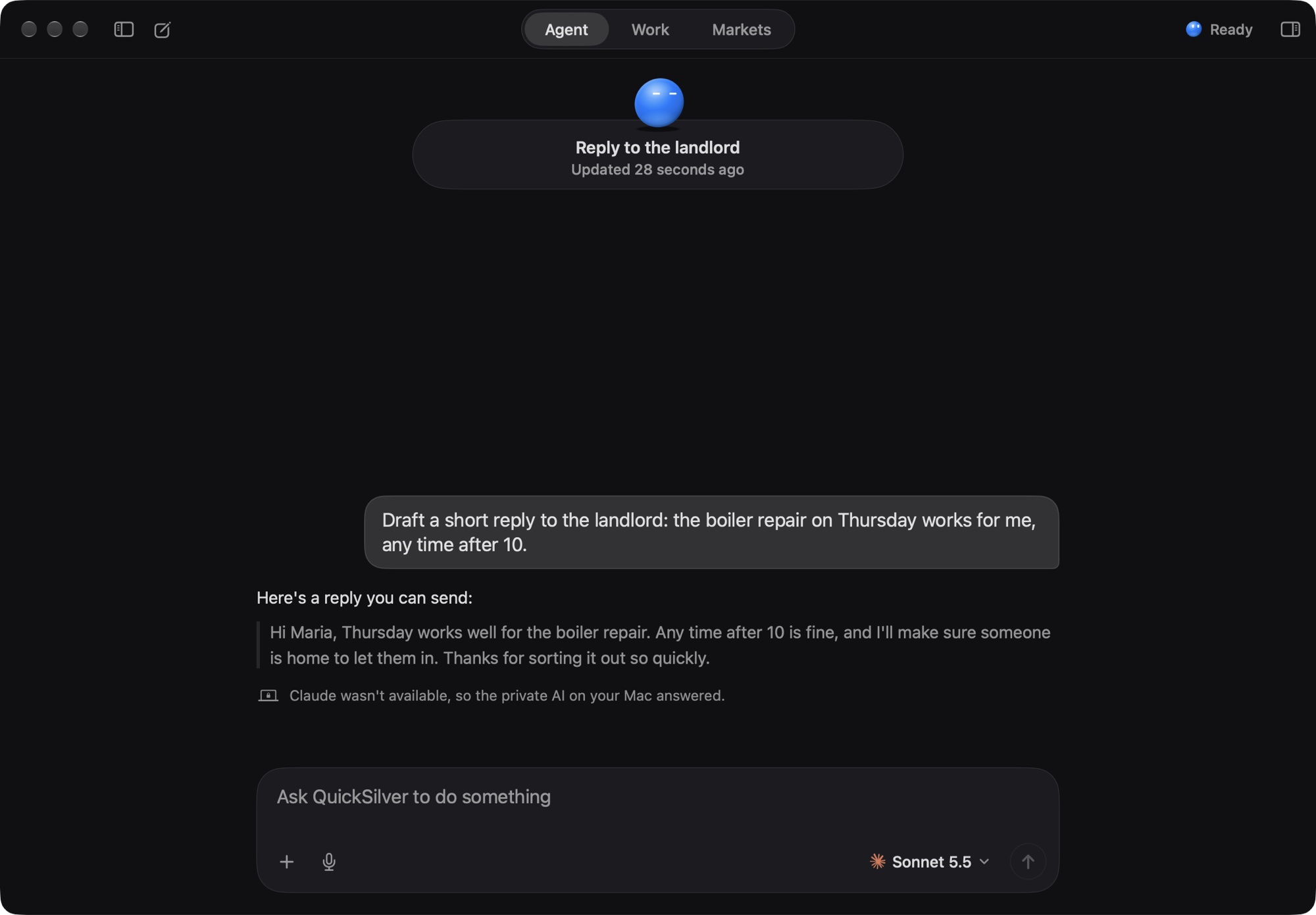
The private AI doesn't sit in memory all day. It loads when it's needed (the notch's Private AI tile says “Wakes when needed” or “Loaded, ready”), so the first answer after a quiet spell takes a little longer.
Which AI you can add
Add an AI from Settings › AI › Add AI…:
- Sign in with ChatGPT: use the ChatGPT plan you already pay for.
- With your own key: Claude (Anthropic), ChatGPT models (OpenAI), Gemini (Google AI Studio), DeepSeek, Grok (xAI), Qwen (Alibaba Cloud), Kimi (Moonshot AI), MiniMax, GLM (Z.AI) and OpenRouter come first; the rest of the services the engine supports are under More. Paste a key from that company's developer site; Kaairos checks it with the company, then keeps it only on this Mac.
- Your Own Endpoint: “Any service that speaks the OpenAI API, like Mistral or Groq”, or a model server on your own network. Enter a name, address, key and model, and Test Connection first.
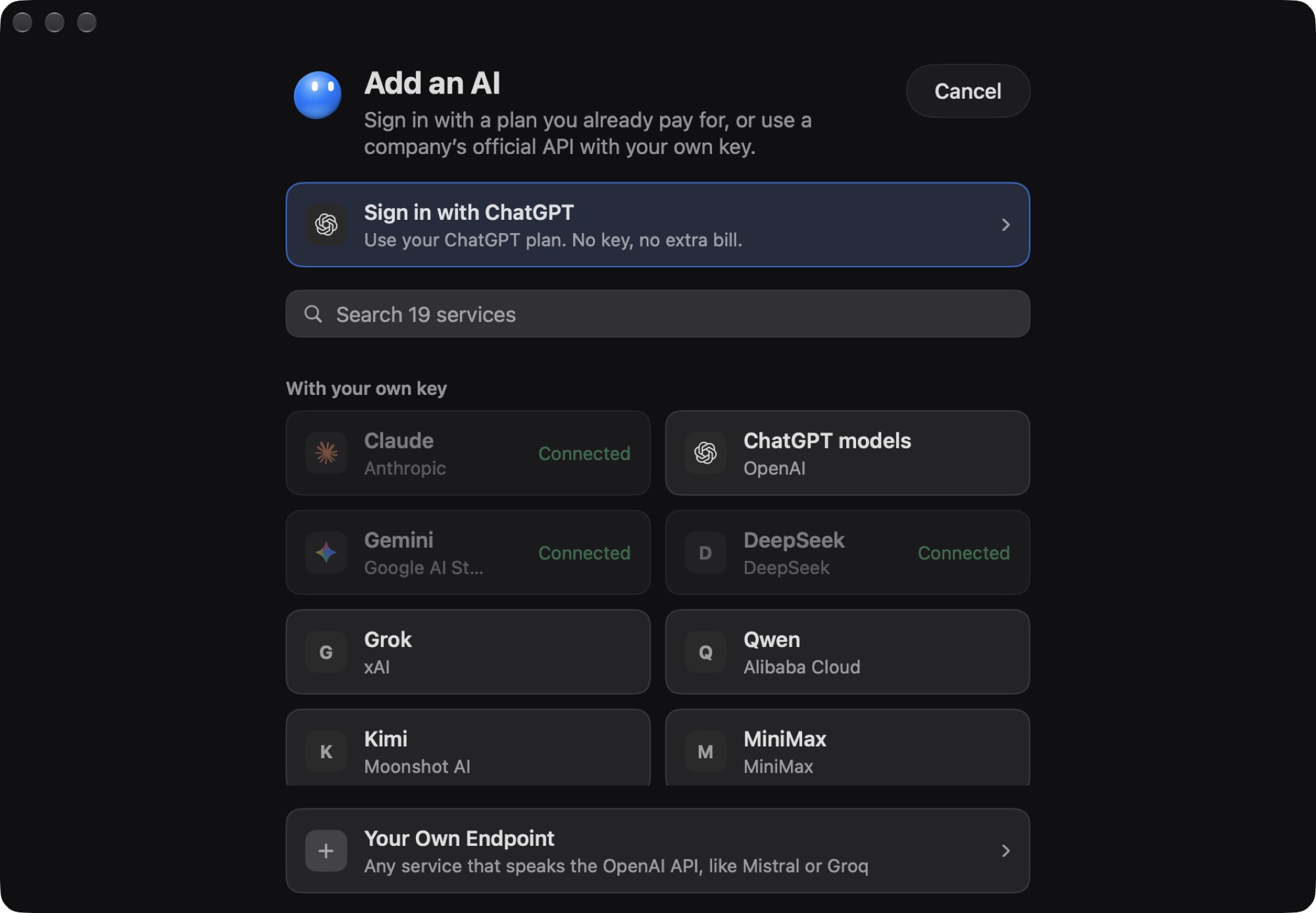
You pay those companies directly for what you use. Kaairos isn't part of the bill. It reads the engine's own count of tokens to show you what your online AI has cost: the Work tab's summary line reads, for example, “$3.42 of AI in 30 days”, and each finished task lists its cost.
Pick a model for one chat
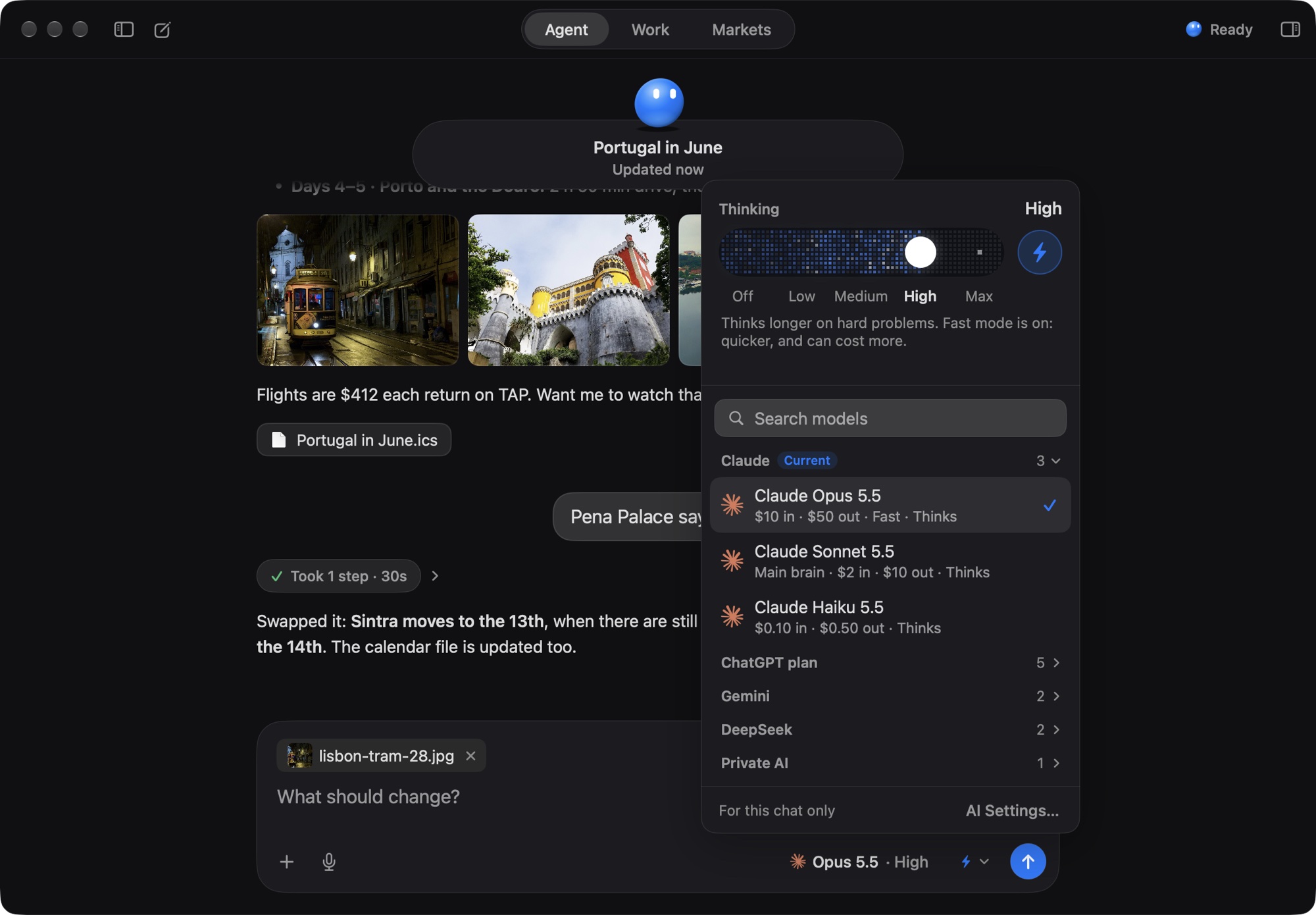
The model picker in the message box changes the AI for one chat without touching your defaults (“For this chat only”). Each model shows its price per million tokens in and out, or “Free, stays on this Mac” for the private AI. A thinking slider runs from Off through Low, Medium and High to Max, and some models offer Fast mode (“quicker replies, can cost more”). If a model costs more than the one you're on, the engine asks first: “Use …?” with Use It and Cancel. While a chat is working, the picker waits: “You can switch the AI when this chat finishes.”
What leaves your Mac
- Jobs on the private AI are processed on your Mac. Nothing goes to an AI company.
- Jobs on an online AI send what that job needs (your message, the conversation so far, what the tools found) to that company, under its terms.
- Your keys are kept on this Mac, in the engine's settings in
~/.kaairos. They're only sent to the company they belong to. - Kaairos never borrows other apps' logins. If Claude Code or Codex is signed in on your Mac, the engine could otherwise use that login; Kaairos turns that off, because those companies' terms don't allow it for apps like this.
The notch's Privacy page shows this live: which chats are on which online AI right now, and whether the main brain, routines and backup run on the private AI or online.
Limits
- The private AI needs a Mac with 32 GB of memory or more. By the engine's own fit rules, nothing in its model catalog fits 8, 16 or 24 GB well enough for an agent; on those Macs, connect an AI account or sign in with ChatGPT.
- Without the private AI there's no on-Mac backup: if your only online AI can't be reached, the task stops and tells you.
- Some services sign in other ways than a key; Kaairos lists only those it can connect.
Fair questions
Does hybrid mean my chats go to the cloud?
Only the jobs you give an online AI. With no account connected, nothing goes to an AI company. With one connected, your conversations go to it by default, routines stay on your Mac, and you can move any job back to the private AI in Settings › AI.
Do I need an AI account at all?
No, if your Mac has 32 GB of memory or more: the private AI does everything. On Macs with less, setup ends by asking you to add an AI account, or sign in with ChatGPT.
What does an online AI cost?
You pay the AI company directly, at its prices. The Work tab shows your AI cost over the last 30 days, and each task's cost.
Can I use only Claude, or only the private AI?
Yes. Pick a model for each job in Settings › AI › Who does what. Reset to Automatic undoes your picks.
What happens when I remove an account?
Kaairos forgets its key on this Mac, and every job it was doing moves to the other AIs you've connected, or back to the private AI.
Does Sign in with ChatGPT cost extra?
No. It uses the ChatGPT plan you already have, within that plan's limits. When the plan hits its limit, your backup answers until it resets.
Download and go
Your AI agent, already set up.
One button to set up. Its own private AI, free. Claude, ChatGPT or Gemini when you want more.
A Mac with Apple silicon (M1 or later), macOS 15 Sequoia or later. 14-day refund.