
Help
Profiles
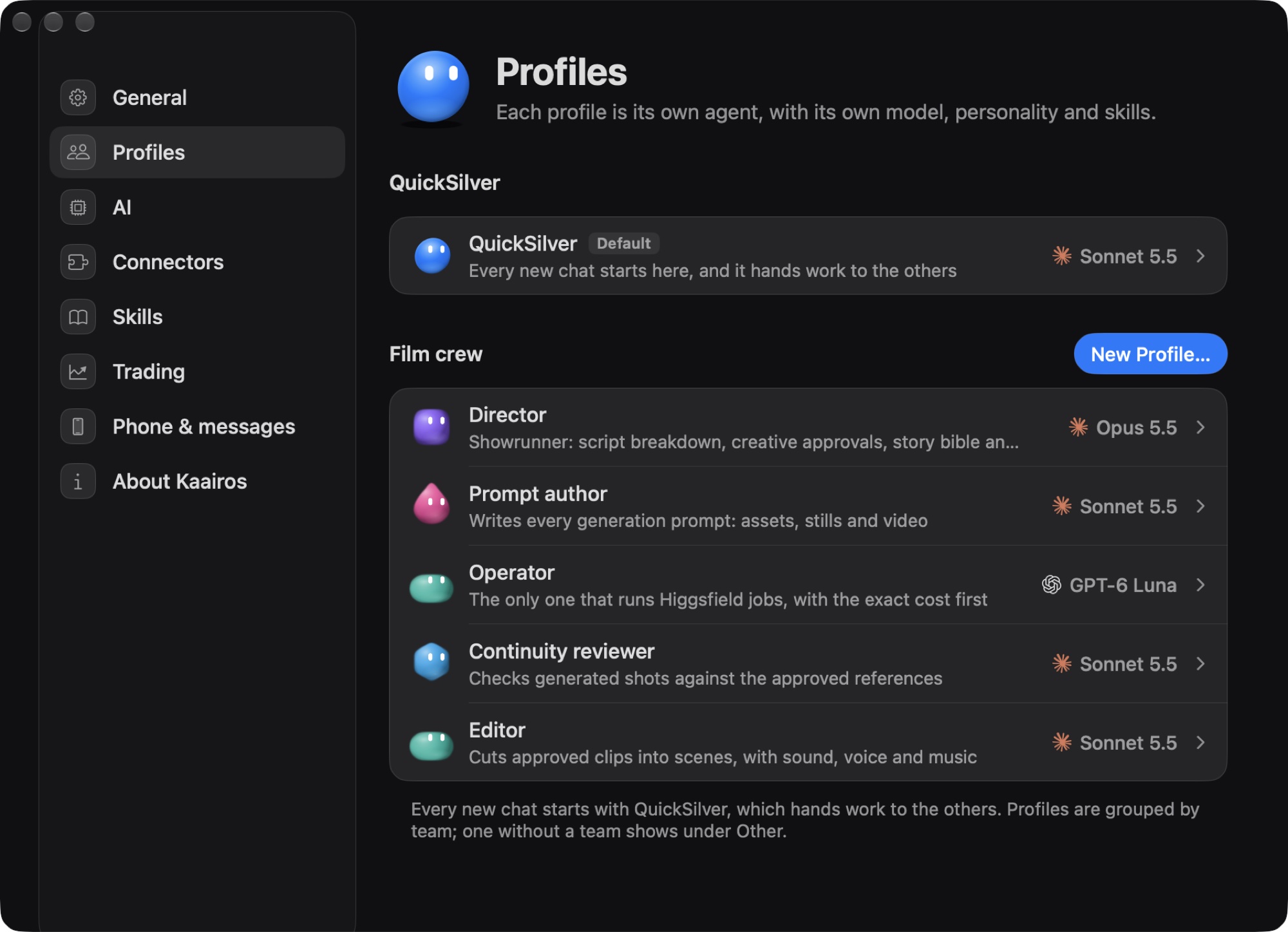
A profile is an agent of its own, with its own model, personality, memory and skills, that QuickSilver can hand work to.
In short
Click your name at the foot of the sidebar and choose New Profile… (or open Settings › Profiles and press New Profile…). Give it a name and, optionally, what it's for and a team, then press Create. On its page you choose its model and thinking, edit its personality, and pick its skills. Every new chat still starts with QuickSilver, which hands work to your other profiles.
Before you start
- Kaairos set up and running.
- An idea of a job that deserves its own agent: a researcher that only reads papers, an editor with strict rules, a profile on a cheaper model for bulk work.
- For a profile on an online model: that AI connected in Settings › AI.
Make a profile
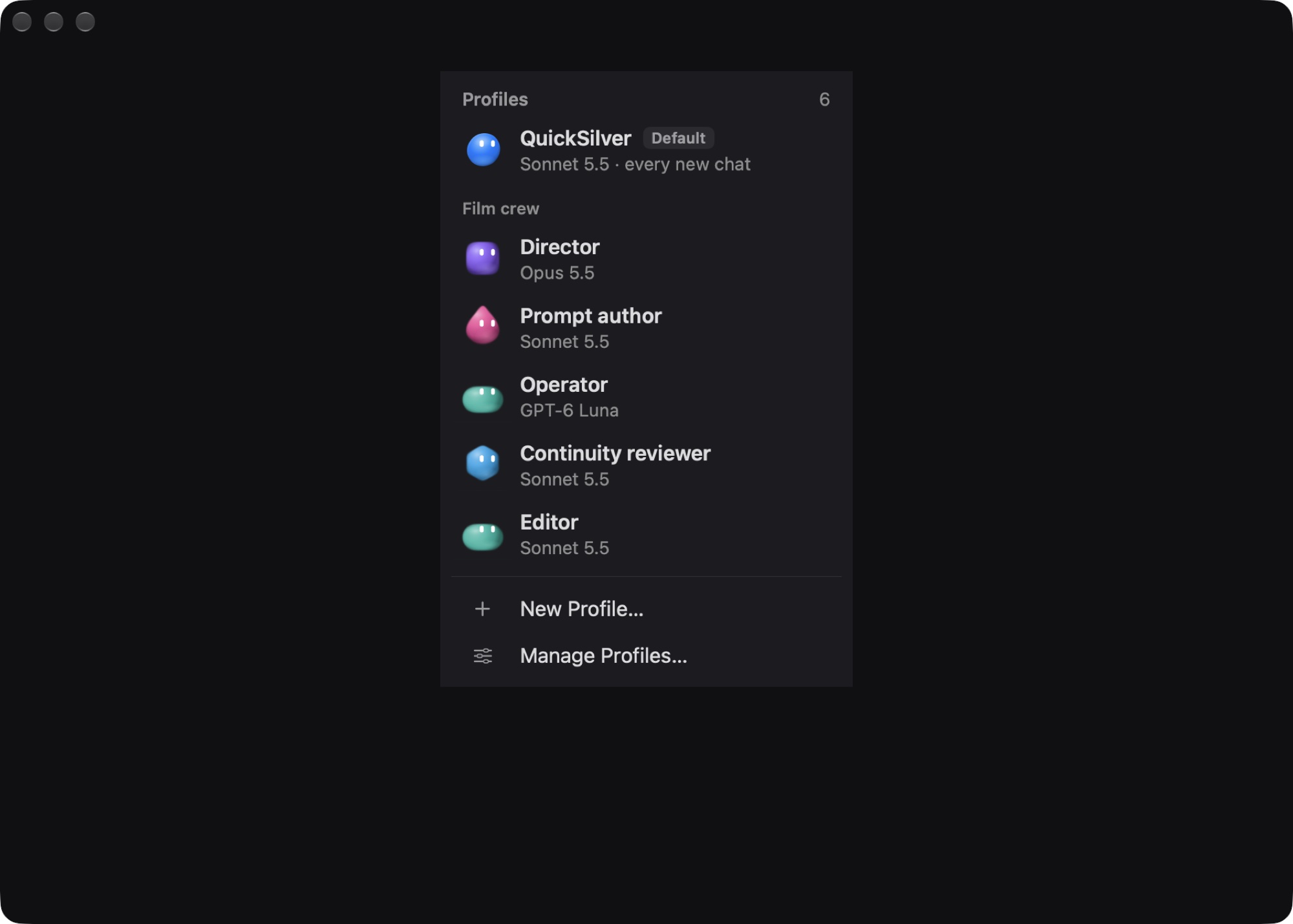
- Click your name at the foot of the sidebar. The menu lists Profiles: QuickSilver first, then the others by team, each with its model. Choose New Profile….
- Under Name, type a short name, such as
researcher. Names use lowercase letters, numbers, - and _; anything else is removed as you type. If the name is taken you'll see “There's already a profile called [name].” - Optionally, fill in What it's for (optional), for example “Finds and summarises papers”.
- Under Team, choose No team, an existing team, or New Team and type its name.
- Leave Start from QuickSilver's settings on to copy QuickSilver's model, keys, skills and personality (not its chats or bots), or turn it off to start blank.
- Press Create. The profile's page opens.
Set it up
A profile's page (Settings › Profiles › the profile) has these parts:
| Part | What it does | Default |
|---|---|---|
| What it's for | One line on what it does. Write It for Me has QuickSilver write one from its personality and skills; Save keeps yours. | What you typed, or empty |
| Model and thinking | The model it uses for its new chats and tasks, and how hard it thinks. | QuickSilver's, if you started from its settings |
| Personality (SOUL.md) | How it talks, what it cares about, and the rules it works by. Save Personality asks first, because it rewrites the profile's SOUL.md; Undo Changes discards your edits. | QuickSilver's, or the engine's default |
| Skills | Which skills it can use, with “N of M on”. Show All N Skills lists them all. | Copied from QuickSilver, or none |
| Team | Groups it with others here and in the sidebar's list. No Team or New Team…. | As chosen when created |
| Name | Rename it (same naming rules). | As created |
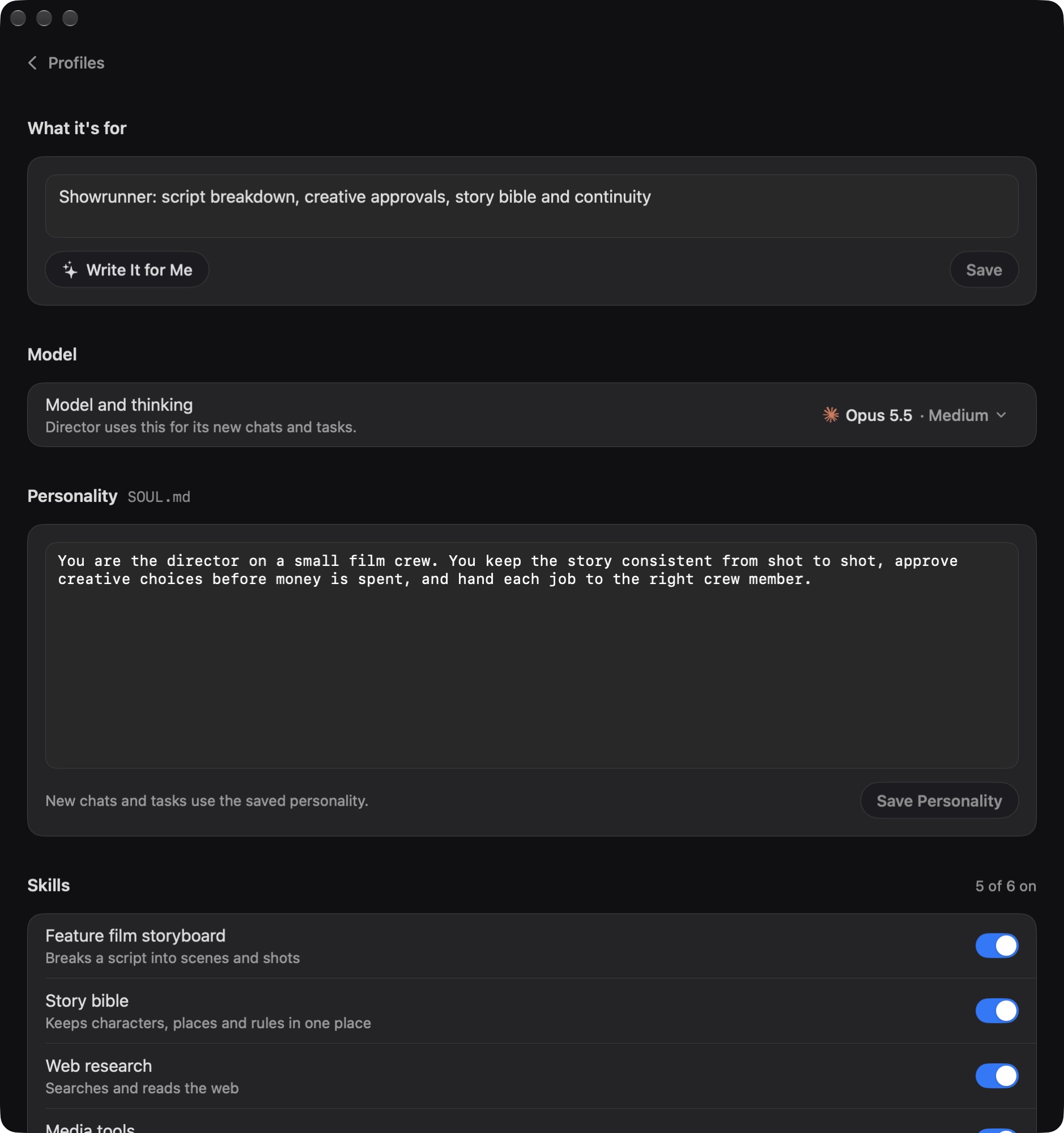
QuickSilver's own page is slightly different: it uses the main brain from Settings › AI (“Each chat can switch its own”), with Change in AI… to go there.
Use it
Every new chat starts with QuickSilver. Ask for the work and name the profile, or let QuickSilver decide: “Have the researcher find three recent papers on sleep and summarise them.” QuickSilver hands the part to that profile and brings back the result. Clicking a profile in the sidebar's menu opens its page in Settings; it doesn't start a chat with it.
Rename or delete
At the bottom of a profile's page, change Name and press Rename, or press Delete…. Deleting asks first: “Its personality, memory, skills, keys and chats are deleted from this Mac. This can't be undone.” QuickSilver itself can't be deleted; it's the Default.
Common problems
- “There's already a profile called [name].” Pick another name.
- “Couldn't read [name]'s personality.” Restart the engine from Settings › About Kaairos › Restart Engine and open the page again.
- The profile uses an AI you removed. Pick another model under Model and thinking.
- “Finding your profiles…” stays up. Kaairos is still starting; wait a moment.
What leaves your Mac
Each profile's personality, memory, skills and chats are kept on your Mac. A profile set to an online model sends its work to that AI company, the same as QuickSilver does; a profile on the private AI keeps its work on your Mac.
Fair questions
Can I chat with a profile directly?
Not from the window: new chats start with QuickSilver, which hands work to profiles. Ask QuickSilver to use one by name.
Do profiles share memory?
No. Each has its own memory. Starting from QuickSilver's settings copies its model, keys, skills and personality, not its chats.
Does a profile cost extra?
Only what its model costs. A profile on the private AI is free.
How many profiles can I have?
Kaairos sets no limit. Each one keeps its own files in Kaairos's data folder.
Download and go
Your AI agent, already set up.
One button to set up. Its own private AI, free. Claude, ChatGPT or Gemini when you want more.
A Mac with Apple silicon (M1 or later), macOS 15 Sequoia or later. 14-day refund.